
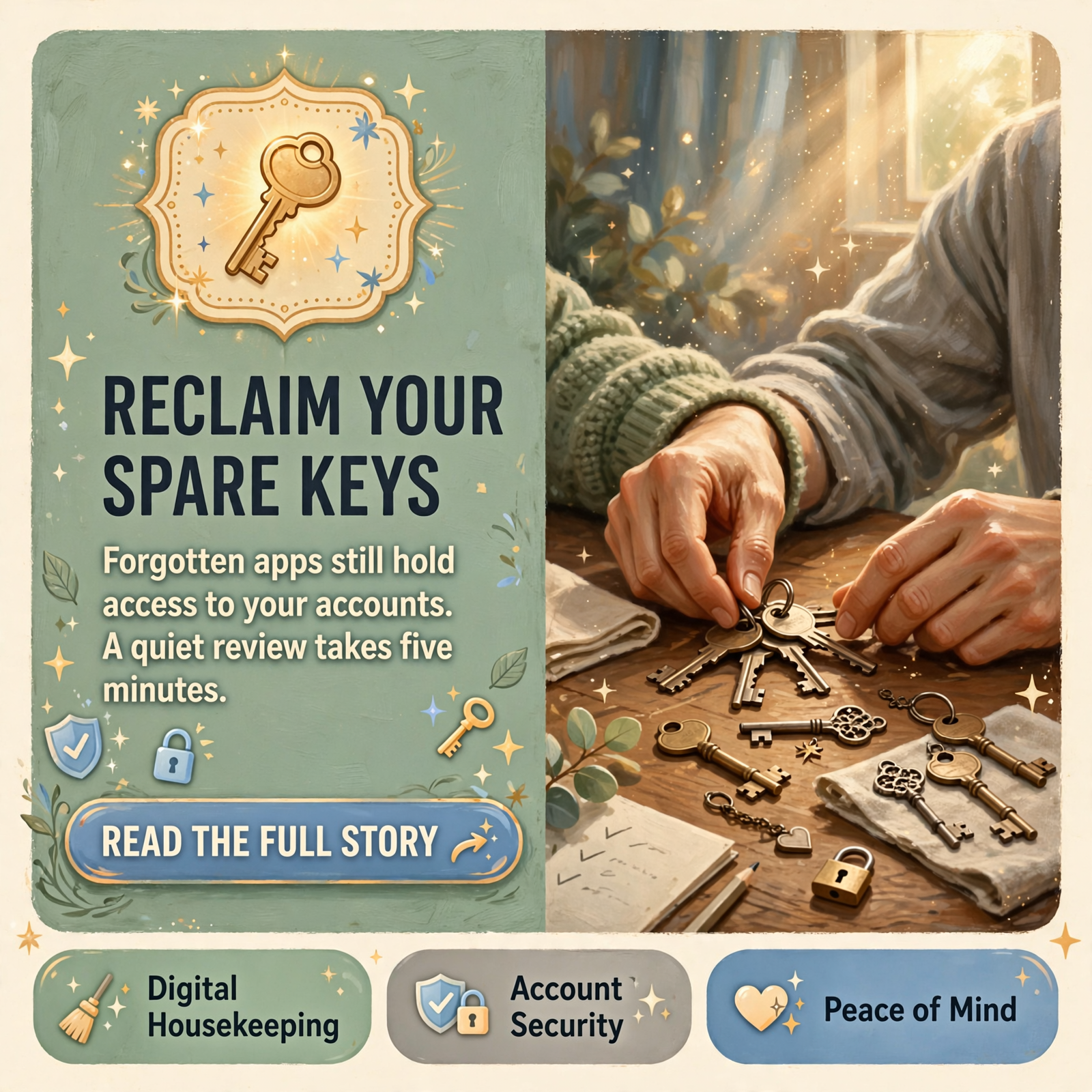
📱 Review and Revoke Old App Access to Google, Apple and Microsoft: A Calm Cyber Month Housecleaning Tip

Or: Walk Your Linked Apps List, Remove What You Don’t Use, and Peek at Your Recovery Email and Phone
By Thomas Seest, Dunlap.Today · Wednesday, October 14, 2026
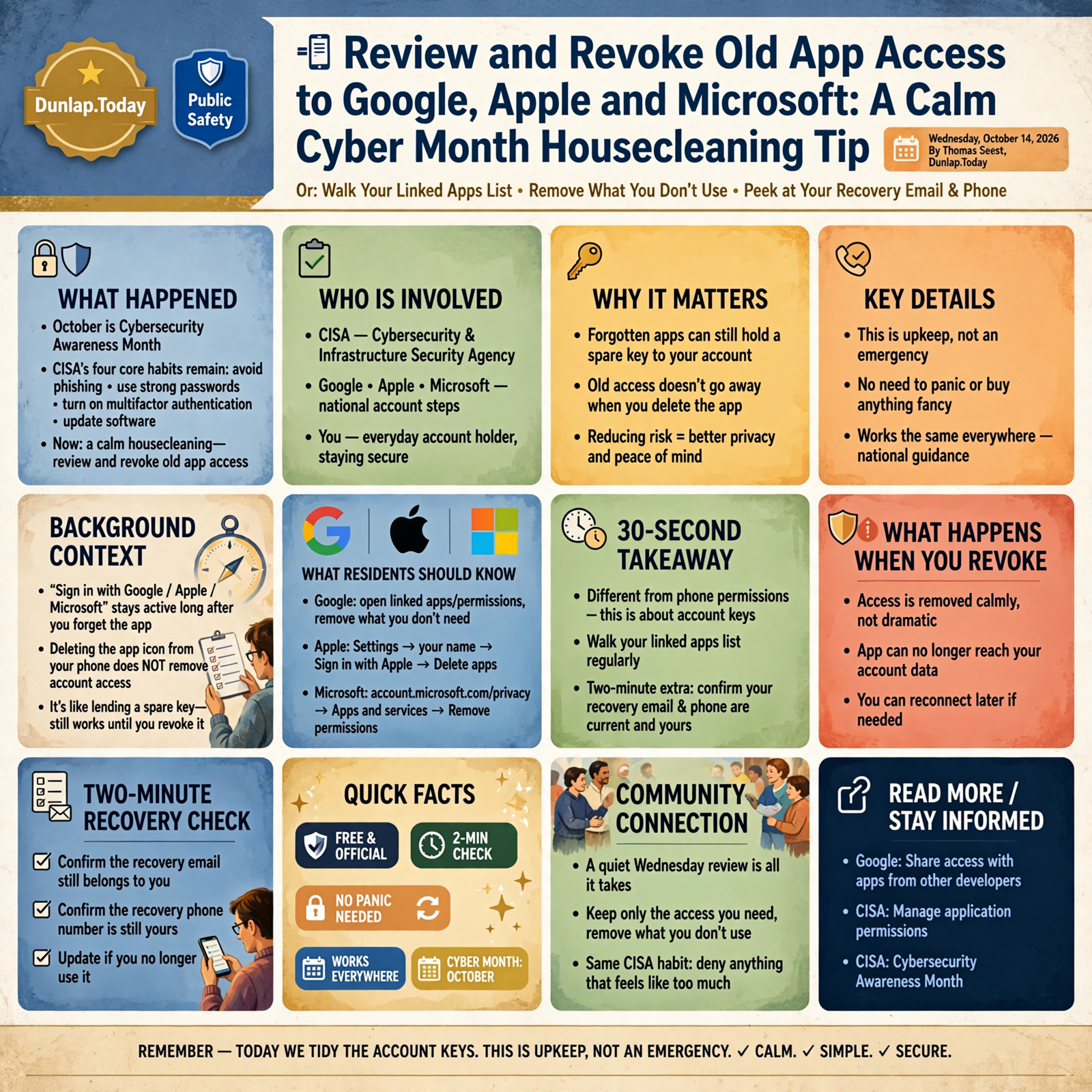
October is Cybersecurity Awareness Month, and CISA’s four core habits stay the same: avoid phishing, use strong passwords, turn on multifactor authentication, and update software. Yesterday we put a second lock on email and bank. Today we take the next porch step — walking the list of apps that still hold a spare key to your main accounts.
Here’s what’s in this ninth Tech Help for Everyone: why “Sign in with Google / Apple / Microsoft” can keep working long after you forget the app, how to review and remove linked apps at Google, Apple and Microsoft, what happens when you revoke access (spoiler: it’s calm, not dramatic), plus a two-minute check that your recovery email and phone are still the ones you use.
These are national CISA, Apple, Google and Microsoft steps. They work the same in Dunlap as anywhere else. This is upkeep, not an emergency. Nobody needs to panic or buy anything fancy.
⏱️ What this means for you in 30 seconds
- Different from phone permissions: Earlier this month we trimmed camera, mic and location on the phone. Today we tidy the account keys — apps allowed to reach your Google, Apple or Microsoft data.
- Google: Open your linked apps / permissions page, review each app, remove access you don’t need.
- Apple: Settings → your name → Sign in with Apple → Delete apps you no longer use.
- Microsoft: account.microsoft.com/privacy → Apps and services that can access your data → Remove these permissions.
- Two-minute extra: Confirm the recovery email and phone on each account still belong to you.
🔑 Why a Forgotten App Can Still Hold a Spare Key
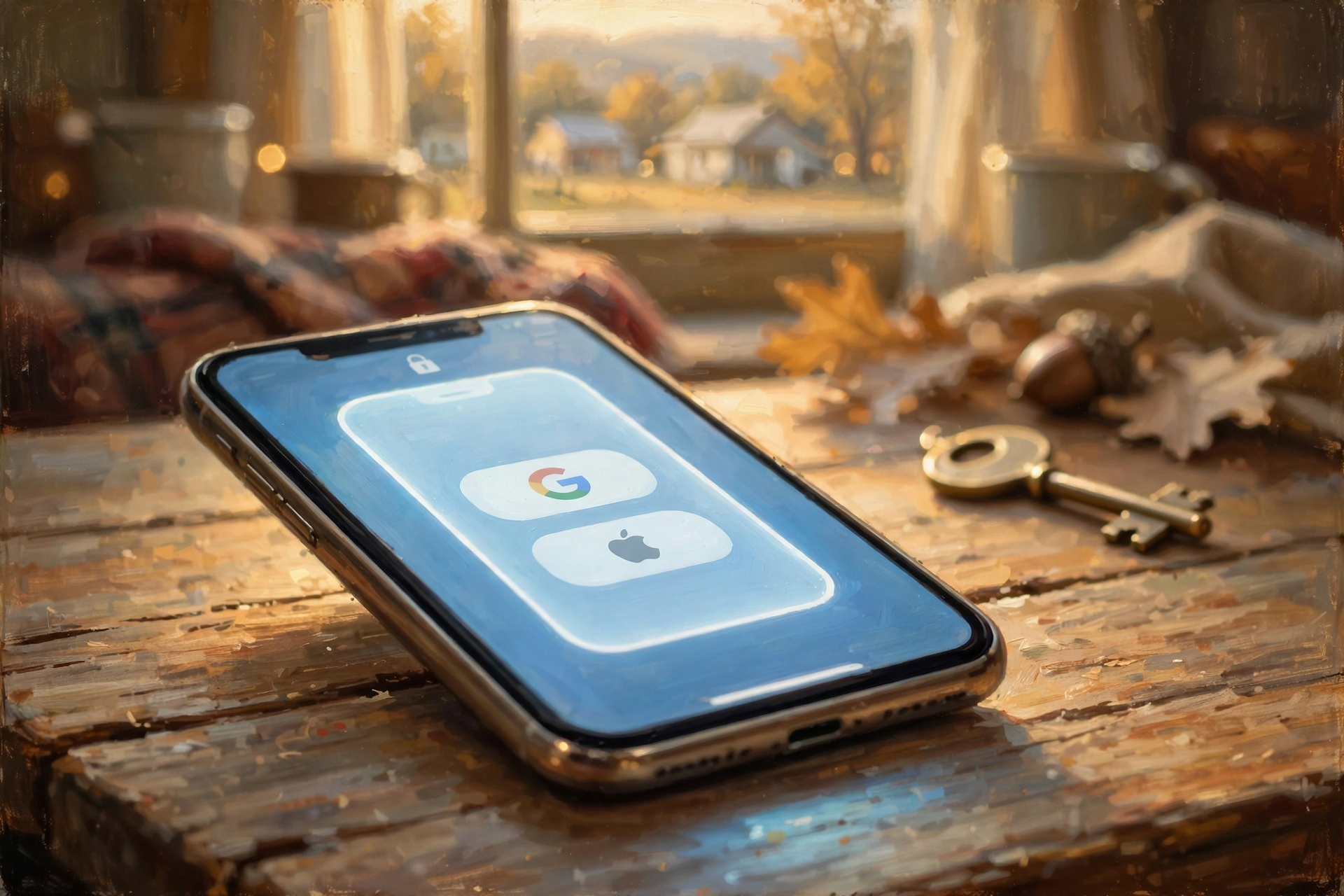
When you tap Sign in with Google, Sign in with Apple or Sign in with Microsoft, you’re handing that app a limited key to parts of your account — often your name and email, sometimes calendar, contacts, Drive files or mail. Google is clear: only give access if you trust the app, and never type your Google password into a third-party screen when the official sign-in button will do.
Here’s the porch truth: deleting the app icon from your phone does not always take that key back. The connection lives on the account until you revoke it. That’s like lending Cousin Billy the spare key to the feed room, then forgetting he still has it after he moved to Chattanooga. The lock still works for him until you change the lock or ask for the key back.
CISA’s guidance on managing application permissions is the same spirit: only keep access you need, remove what you don’t use, and deny anything that feels like too much. Their training leans on device permissions; today’s tip applies that habit to the big three account dashboards.
What it means for you: If you signed into a shopping site, a photo editor, a game or a “free trial” months ago and never opened it again, that app may still be on your linked list. A quiet Wednesday review is all it takes.
👉 Read more (Google: Share access with apps from other developers) · CISA: Manage application permissions · CISA: Cybersecurity Awareness Month
📧 Google: Walk Your Linked Apps List

Google keeps linked apps in one place so you can review or remove them anytime.
- On a computer or phone browser, open myaccount.google.com/permissions (or search Google Account Help for “Manage links between your Google Account & apps”).
- Look under sections such as Access to your Google Account and Sign in with Google.
- Tap or click an app → See details → read what it can reach (basic profile, Gmail, Drive, Contacts, and so on).
- If you don’t use it, choose Remove access or Stop using Sign in with Google and confirm.
Google notes that removing access stops the app from reaching your Google Account going forward. It does not erase data the app already copied — if you care about that, contact the app’s developer separately. Removing a Sign in with Google link also stops automatic sign-in; you can always set up a new password with the app later if you still need it.
What it means for you: Start with anything labeled with broad mail, Drive or contacts access that you don’t recognize or haven’t used in months. Keep the ones you open every week — your church calendar sync, your trusted photo editor, your password manager. This is sorting the junk drawer, not throwing out the toolbox.
👉 Read more (Google: Manage links with apps from other developers) · Open your Google permissions page
🍎 Apple: Sign in with Apple, One List

Apple gathers every app and website you use with Sign in with Apple in one calm list.
- iPhone or iPad: Settings → tap your name → Sign in with Apple.
- Mac: System Settings → your name → Sign in with Apple.
- Web: Sign in at account.apple.com → Sign-In & Security → Sign in with Apple.
Select an app or developer you no longer use → tap or click Delete → confirm. Apple says you’re signed out of that app on your device. Next time you visit, you can choose Sign in with Apple again or create a new account. If one developer covers several apps, stopping Sign in with Apple for one may apply to all of theirs — Apple warns about that upfront.
While you’re there, if you used Hide My Email, you can turn off forwarding for a developer so their mail stops landing in your real inbox.
What it means for you: Same porch rule as Google. Keep what you still use. Delete the rest. Your Apple Account password stays put; you’re only reclaiming the spare keys.
👉 Read more (Apple: Manage your apps with Sign in with Apple)
🪟 Microsoft: Apps and Services That Can Access Your Data

For a personal Microsoft / Outlook / Hotmail account, Microsoft’s privacy dashboard is the front door.
- Sign in at account.microsoft.com/privacy.
- Open Overview, scroll to Other privacy settings → Apps and services.
- Choose Apps and services that can access your data.
- Select an app you don’t recognize or don’t use → Remove these permissions.
Microsoft’s own account-data pages put it simply: your account, your data, your choices. Labels can shift a little over time, so if the menu wording looks different, search the privacy dashboard for “Apps and services” — you’re looking for the list of third parties that can reach your data.
What it means for you: Do Microsoft after Google and Apple, or start with whichever account holds your main email. One account a night is plenty. By Friday you’ll have walked all three without missing supper.
👉 Read more (Microsoft: Your account, your data, your choices) · Open the Microsoft privacy dashboard
🚫 What Revoking Does — and Doesn’t Do

A few calm facts so nobody frets:
- Revoking cuts off future access. Google says the app can’t reach your Google Account after you remove access. Apple signs you out of that Sign in with Apple app. Microsoft removes those data-sharing permissions.
- It is not a factory reset. Your email, photos and bank apps stay put. You’re only reclaiming keys you handed out.
- You might need a new password for that old app. If you still want the service, open it and set up a regular account or sign in again the official way.
- Work or school accounts are different. An administrator may have approved some apps for you. If you can’t remove one, that’s normal — ask your admin. Personal Gmail, Apple and Microsoft accounts are yours to tidy.
What it means for you: Think of this as collecting loaned casserole dishes after the church supper. You want your dishes back. You’re not canceling the church.
👉 Read more (Google: What happens when you remove a link) · Apple: What happens if you stop using Sign in with Apple
📞 Two-Minute Extra: Recovery Email and Phone

While you’re already in Security settings, peek at the spare tire:
- Google: Google Account → Security → recovery phone and recovery email. Confirm they’re numbers and addresses you still control.
- Apple: Settings → your name → Sign-In & Security → check trusted phone numbers and recovery contacts.
- Microsoft: account.microsoft.com/security → Manage how I sign in / security info — confirm the backup email and phone.
The FTC keeps reminding folks that email is the master key to other accounts. If your recovery phone is a number you lost two moves ago, fix it on a calm day — not during a lockout. Pair that with yesterday’s MFA tip and you’ve got a sturdy porch railing.
What it means for you: Two minutes. Write down what you changed. Help a neighbor do the same. It’s still Cybersecurity Awareness Month.
👉 Read more (FTC: Protect your accounts)
✅ Your Connected-Apps Wednesday Checklist

- ✅ Open Google linked apps / permissions and remove anything you don’t use.
- ✅ Open Sign in with Apple and Delete apps or developers you abandoned.
- ✅ Open Microsoft privacy → Apps and services that can access your data → Remove stale permissions.
- ✅ Keep apps you still use weekly; don’t yank the ones that sync your calendar or password manager.
- ✅ Confirm recovery email and phone on each account still belong to you.
- ✅ Remember: deleting the phone icon ≠ revoking account access. Use the account dashboard.
- ✅ Help a parent, neighbor or church friend walk one list. It’s still Cybersecurity Awareness Month.
Practical rule: Once or twice a year, walk your Google, Apple and Microsoft linked-apps lists. Remove what you don’t use. Keep recovery email and phone current. Deleting an app icon is not the same as taking the spare key back.
— Dunlap.Today
📚 Plain-English Tech Glossary
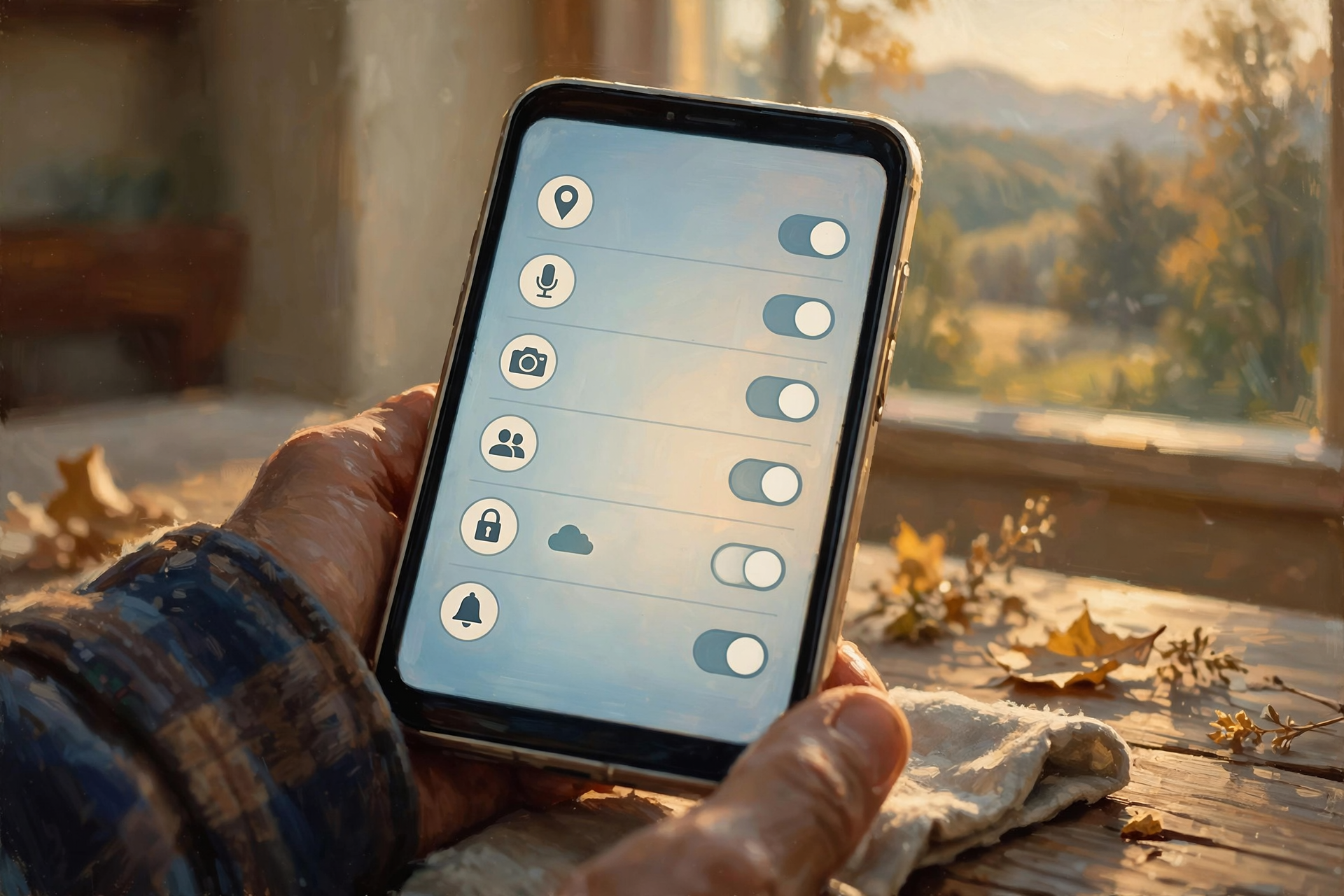
- Linked / connected / third-party app: An app or website from another company that you allowed to reach parts of your Google, Apple or Microsoft account.
- Sign in with Google / Apple / Microsoft: A button that lets you create or open an account using your big email login instead of inventing yet another password.
- Revoke / remove access: Turning off that permission so the app can no longer reach your account data going forward.
- OAuth / permissions grant: The behind-the-scenes handshake that issues the spare key. You don’t need the jargon — just the review list.
- Hide My Email (Apple): A private relay address Apple can give an app so your real inbox stays tucked away.
- Recovery email / phone: Backup contacts the company uses if you get locked out or need a reset code.
- Device app permissions: Camera, mic, location switches on the phone itself — related, but a different screen from today’s account keys.
- Cybersecurity Awareness Month: The annual October campaign (led with CISA and partners) promoting simple online safety habits.
❓ Frequently Asked Questions

I deleted the app from my phone. Am I done?
Not necessarily. Google, Apple and Microsoft keep the account-level link until you remove it on their dashboards. Do both: delete unused apps on the phone, and revoke leftover access in the account list.
Will revoking break my email or bank app?
No. You’re removing third-party connections, not your Gmail, Outlook or banking apps themselves. If an app you still need stops signing in, open it and sign in again the official way.
How often should I do this?
A calm pass every few months — or anytime you try a free trial and abandon it — is plenty. Cybersecurity Awareness Month is a handy reminder, the way spring cleaning reminds you to air out the closets.
What if I don’t recognize an app on the list?
Remove its access. If it was something you truly needed, you can always reconnect later from the official site or app store. Better a five-minute reconnect than a forgotten key sitting out.
Is this the same as the camera and mic permissions tip?
Related spirit, different drawer. Phone permissions control what a installed app can use on the device. Today’s tip controls what outside apps can reach through your Google, Apple or Microsoft account login.
My work Google or Microsoft account won’t let me remove an app. Now what?
That’s common. Administrators control some work and school approvals. Ask your IT person. Tidy your personal accounts tonight; leave the workplace list to the folks who manage it.
🔗 Other Resources

- CISA: Cybersecurity Awareness Month
- CISA: Manage application permissions for privacy and security
- Google Account Help: Manage links with apps from other developers
- Google Account Help: Share access with apps from other developers
- Google: Your third-party apps with account access
- Apple Support: Manage your apps with Sign in with Apple
- Microsoft Support: Your account, your data, your choices
- Microsoft: Privacy dashboard
- FTC Consumer Advice: Protect your accounts
🌻 Steady Habits, Steady Mind

You don’t need to fortify the whole farm in one afternoon. Walk one linked-apps list, take back the spare keys you don’t need, confirm the recovery phone still rings your pocket, and call it a good Wednesday’s work. That’s the kind of quiet chore that lets you leave the porch light on and go to bed without wondering who still has the feed-room key.
Keep learning, keep exploring and keep your cool. Read Dunlap.Today for calm, clear Valley news, and find local businesses, including the folks who fix computers and phones, anytime on Dunlap.Directory.
Know about an upcoming event or story in the Sequatchie Valley? Submit it here.



0 Comments