
📺 Your TV Keeps Notes on What You Watch: How to Turn Off “Viewing Data” in About Five Minutes
Or: There’s a Nosy Neighbor Living in Your Television. Here’s How to Politely Pull the Curtains
By Thomas Seest, Dunlap.Today · Monday, October 19, 2026
Football’s on, the holiday movies are coming and the remote has worked its way back between the couch cushions. Here’s something most folks don’t know about the big screen in the living room: if it’s a smart TV (one that connects to the internet for Netflix, YouTube and the like), it very likely keeps track of what’s on the screen and uses it to help pick the ads you see. Over the past few days, tech writers at Engadget (Oct. 18) and MakeUseOf (Oct. 17) both put out reminders on how to turn that off. That’s not a reason to worry. It’s a good nudge to spend five minutes in the settings menu.
Here’s what’s in this fourteenth Tech Help for Everyone: what your TV is keeping track of, and why it’s in the news, how to tell what kind of smart TV you have, the “viewing data” switch, brand by brand, turning down personalized ads, quieting voice features you don’t use, and why it pays to check back after big updates, or when a new TV comes home for Christmas.
This is national advice from Consumer Reports, the FTC and tech reporters. It works the same in Dunlap as anywhere else. Menus differ by brand and year, so if yours looks a little different, look for words like “Privacy,” “Viewing” or “Ads,” or ask a handy grandkid to sit with you.
⏱️ What this means for you in 30 seconds
- Most smart TVs notice what’s on the screen. The feature is often called ACR (automatic content recognition). It mostly helps pick ads and recommendations.
- You can turn it off. Look in Settings for Privacy, then a switch with a name like Viewing Information, Viewing Data or Use Info from TV Inputs.
- Turn down personalized ads and reset the advertising ID while you’re there. You’ll still see ads, just less targeted ones.
- Don’t use the talking remote? Turn off voice features you don’t need.
- Your shows keep playing. Turning these off barely changes how you watch TV.
- Remember: Check again after a big TV update, and say “no thanks” to viewing data when you set up a new TV.
🗞️ Why Smart TVs Are in the News This Week, and Why It’s No Cause for Alarm
On Oct. 18, Engadget explained that most smart TVs use automatic content recognition (ACR), which looks at small samples of what’s on the screen and matches them to known shows, a bit like a song-identifying app on a phone. It can recognize what you watch through built-in apps and even through things plugged into the TV, like a cable box or game console. The day before, MakeUseOf’s writer said ACR is one of the first things he turns off, and that doing so “will barely affect your TV viewing experience.”
This isn’t new. Consumer Reports says it began reporting on TV data collection back in 2015, and in 2017 the FTC and New Jersey settled with Vizio for $2.2 million over collecting viewing histories from 11 million TVs without people’s knowledge or consent. Consumer Reports says that since then, TV makers have been more careful to ask permission first. The catch is that the question shows up during setup, buried in a stack of screens most of us click right through.
What it means for you: Your TV isn’t up to anything sinister. It’s more like a talkative clerk at the general store who remembers everything you bought and mentions it to the salesmen. Nice enough, but you’re allowed to ask him to keep it to himself.
👉 Read more (Engadget: Your smart TV is tracking what you watch) · MakeUseOf: Settings to turn off · FTC: The 2017 Vizio settlement
🔍 Step One: Figure Out What Kind of Smart TV You Have

Here’s a wrinkle that trips folks up: the name on the front of the TV isn’t always the system running inside it. Consumer Reports explains that Samsung, LG and Vizio mostly run their own systems, but many other brands borrow one:
- Roku TV is built into sets from brands including TCL, Hisense, Insignia, Onn, Philips, Sharp, Westinghouse and Roku itself.
- Amazon Fire TV is built into sets from Amazon, Hisense, Insignia, Panasonic, Pioneer and Toshiba.
- Google TV (or the older Android TV) runs on sets from Sony, TCL, Hisense and Philips.
The easy tell: press the Home button and look at the main screen. You’ll usually see a Roku, Fire TV or Google TV logo, or the TV maker’s own menu.
What it means for you: It’s like knowing the engine under the hood. A pickup might say one name on the tailgate and have another company’s motor inside. Once you know which “engine” you have, the right switch is easy to find.
👉 Read more (Consumer Reports: How to turn off smart TV snooping features)
📺 Step Two: Flip the “Viewing Data” Switch, Brand by Brand
Here are the spots Consumer Reports and Engadget point to. Menus move around from year to year, so treat these as a map, not a promise:
- Samsung: Settings > All Settings > General & Privacy > Terms & Privacy. Turn off Viewing Information Services (and Interest-Based Advertising).
- LG: Settings > All Settings > Support > Privacy & Terms > User Agreements. Turn off Viewing Information, which powers a feature called Live Plus. Consumer Reports notes these are off by default on LG during setup, so you may already be set.
- Vizio: Settings > All Settings > Admin & Privacy. Turn off Viewing Data. (Older sets may call it Smart Interactivity.)
- Roku TVs (TCL, Hisense and others): Settings > Privacy > Smart TV Experience. Uncheck Use Info from TV Inputs.
- Amazon Fire TV: Settings > Preferences > Privacy Settings. Turn off Device Usage Data, Collect App and Over-the-Air Usage and Interest-Based Ads. Consumer Reports says all three are on by default.
- Sony: Settings > All Settings. Turn off Samba Interactive TV.
What it means for you: This is the one switch that matters most, like turning off the porch light you don’t need burning all night. Once it’s off, the TV stops reporting on everything that crosses the screen through its inputs.
👉 Read more (Consumer Reports: Step-by-step for each brand) · Engadget: How to switch ACR off
🎯 Step Three: Turn Down the Personalized Ads and Reset the Ad ID
Many TVs give your set an advertising ID, a sort of name tag ad companies use to recognize it. Consumer Reports says resetting it now and then can cut down on tracking. Where to look:
- Roku: Settings > Privacy > Advertising. Uncheck Personalize Ads and reset the advertising ID.
- Google TV (Sony, TCL, Hisense and others): Settings > Privacy > Ads. Reset or delete the advertising ID.
- Samsung: Turn off Interest-Based Advertising in the same Terms & Privacy spot as above.
- LG: Leave Interest-Based & Cross-Device Advertising turned off. Consumer Reports says that one lets LG target ads on phones and laptops that share your home internet, too.
Both Consumer Reports and MakeUseOf are clear on one thing: you’ll still see ads. They just won’t be tailored to your viewing habits.
What it means for you: Think of junk mail. You’ll still get the sale papers, but the store stops writing your name on the front. That’s a fair trade for a couple of clicks.
👉 Read more (Consumer Reports: Resetting the advertiser ID) · MakeUseOf: Personalized ads and diagnostics
🎙️ Step Four: Quiet the Voice Features You Don’t Use
Many remotes have a microphone button so you can say “find westerns” instead of pecking out letters. MakeUseOf says your voice searches may be sent to an outside service to be processed, and if you rarely use voice search, it’s worth turning off. It’s also clear this “isn’t to say your TV is listening in on your every word.” On Roku TVs, Consumer Reports says you can set microphone access under Settings > Privacy > Voice. On newer Samsung sets, it says voice assistants aren’t turned on unless you choose them.
While you’re in the menus, MakeUseOf suggests looking for a setting like Usage and Diagnostics, Send Diagnostic Data or Product Improvement Program and switching it off if you’d rather not share it.
What it means for you: If you love the talking remote, keep it. It’s handy, especially for tired eyes. If it just sits there, turning it off is like unplugging a radio in a room nobody uses.
👉 Read more (MakeUseOf: Voice search is convenient, but not essential)
🔄 Check Back After Big Updates, and When a New TV Comes Home
Engadget recommends checking back now and then, because some TVs can turn ACR back on after a software update. MakeUseOf’s writer says he checks his TV’s privacy settings after each major update, since new options can show up. And if a new TV is on the Christmas list, Consumer Reports says the permission screens come up during setup. On Samsung, for example, you can check or uncheck the boxes one by one instead of tapping “agree to all.”
What it means for you: It’s like checking the gate latch after a storm. Usually it’s fine, but it only takes a second to be sure. Jot “TV privacy” on the same calendar page as your smoke-detector batteries, and look again when the clocks fall back on Sunday, Nov. 1.
👉 Read more (Engadget: Check back after updates) · Consumer Reports: Saying no during setup
✅ Your Monday TV Privacy Checklist
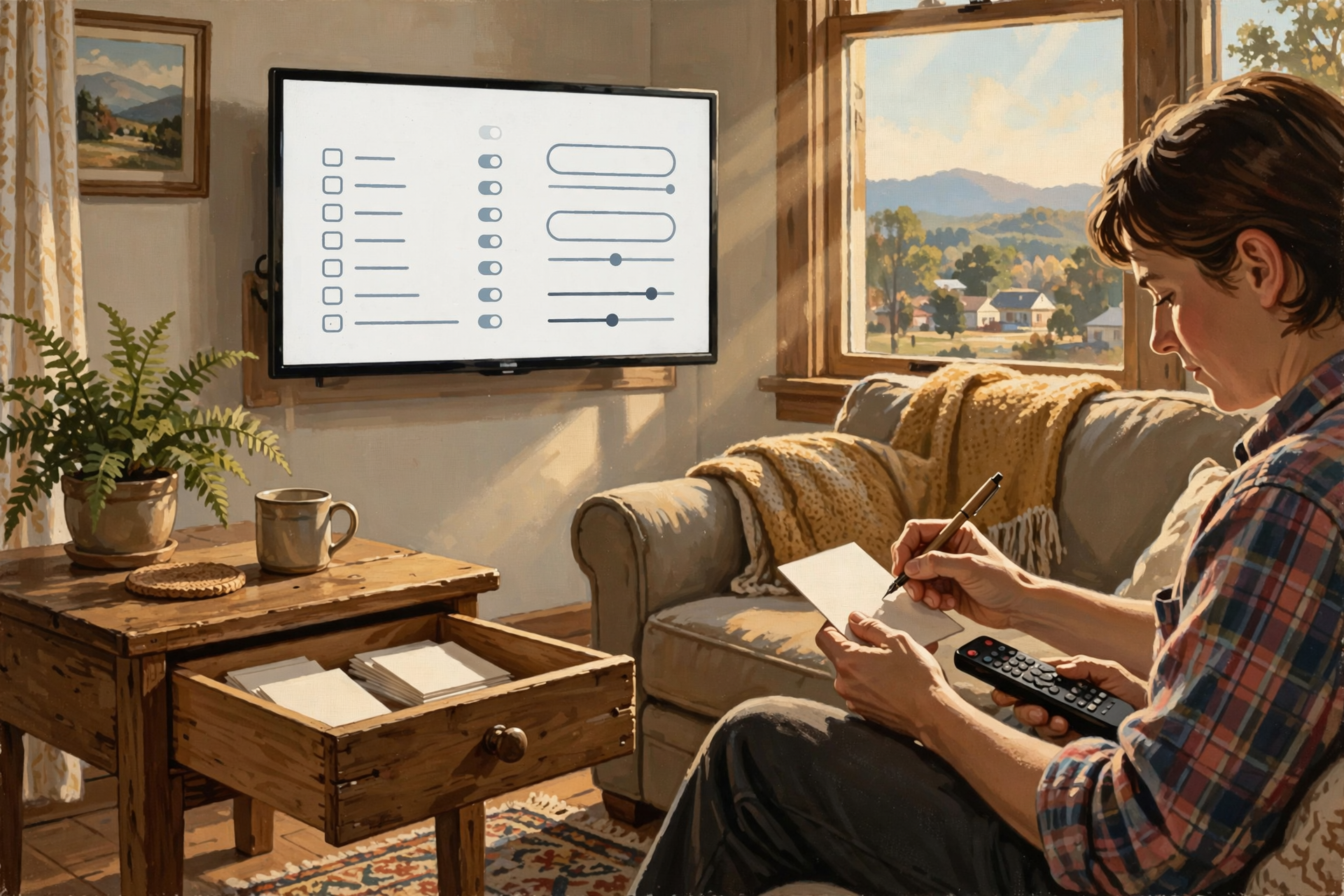
- ✅ Press Home and see whether your TV runs Roku, Fire TV, Google TV or the maker’s own menu.
- ✅ Open Settings > Privacy (or Terms & Privacy, or Admin & Privacy).
- ✅ Turn off viewing data: Viewing Information, Viewing Data, Use Info from TV Inputs or Samba Interactive TV.
- ✅ Turn off personalized ads and reset the advertising ID.
- ✅ Don’t use voice search? Turn it off. Love it? Keep it.
- ✅ Turn off diagnostics sharing if you’d rather not send it.
- ✅ Write it down: Put a card in the remote drawer saying what you turned off and the date.
- ✅ Check again after a big TV update, and when the clocks change Nov. 1.
- ✅ New TV for Christmas? Read each setup screen and skip “agree to all.”
Practical rule: Find your TV’s Privacy menu, switch off viewing data and personalized ads, and look again after every big update.
— Dunlap.Today
📚 Plain-English Tech Glossary

- Smart TV: A television that connects to the internet so it can run apps like Netflix, YouTube and streaming channels.
- ACR (automatic content recognition): A feature that samples what’s on your screen and matches it to known shows and ads. It goes by different names on different brands.
- Platform: The system running inside your TV, like Roku TV, Fire TV, Google TV, or Samsung’s and LG’s own.
- Advertising ID: A behind-the-scenes code ad companies use to recognize your TV. Resetting it gives the TV a fresh one.
- Personalized (interest-based) ads: Ads picked based on what you watch or do. Turning this off means more general ads, not fewer ads.
- Voice recognition: The feature that lets you talk to your remote or TV to search or change channels.
- Diagnostic data: Technical reports about how the TV is working, like crash reports, sent to the maker.
- Inputs (HDMI): The plugs on the back of the TV for a cable box, antenna box, DVD player, game console or streaming stick.
- Software update: A new version of the TV’s built-in software that fixes problems and sometimes adds or moves settings.
❓ Frequently Asked Questions

Will turning these off break my TV or my shows?
No. MakeUseOf says turning off ACR “will barely affect your TV viewing experience.” You might get fewer tailored recommendations. Consumer Reports notes that on Roku TVs it also switches off a feature that suggests other ways to watch a show, and on LG it means less-targeted recommendations from Live Plus.
Will I stop seeing ads?
No. You’ll still see ads, but they won’t be picked based on your viewing habits.
Is my TV listening to everything we say in the living room?
MakeUseOf says voice features don’t mean your TV is listening to your every word. Voice searches you make may be sent off to be processed, so if you never use the microphone button, it’s fine to turn voice features off.
Does this stop Netflix and the other apps from knowing what I watch?
No. MakeUseOf and Consumer Reports both note that streaming apps collect their own information. Turning off ACR cuts off one separate source, the TV itself, which is still worth doing.
I use a Roku stick or Fire TV stick plugged into an older TV. Does this apply?
Streaming sticks and boxes have their own privacy settings, so check the Settings menu on the stick too. Engadget notes you may need to change the settings on a streaming device as well as the TV.
Couldn’t I just take the TV off the internet?
You could, but you’d lose the built-in apps. Engadget also notes that, according to Wirecutter, some TVs keep collecting ACR data while offline and send it the next time they connect. Flipping the switch in Settings is the simpler fix.
Is this really worth five minutes?
Consumer Reports thinks so for many of us: “You’ve already paid hundreds or thousands of dollars for your TV. There’s no need to provide the company with your personal data as well.”
🔗 Other Resources
- Engadget: Your smart TV has one big problem: It’s tracking what you watch (Oct. 18, 2026)
- MakeUseOf: I turned off these settings and stopped my smart TV from tracking so much (Oct. 17, 2026)
- Consumer Reports: How to turn off smart TV snooping features (brand-by-brand guide)
- FTC: Vizio to pay $2.2 million over viewing histories collected without consent (2017)
- FTC: What Vizio was doing behind the TV screen (2017)
🌻 Pull the Curtains, Keep the Show

You don’t have to give up your favorite programs, your ballgames or your Christmas movies to get a little privacy back. Press Home, find Privacy, flip a couple of switches and write down what you did on a card for the remote drawer. That’s less time than it takes to make a pot of coffee, and the TV keeps right on playing. The show is for you. The notes about it don’t have to go anywhere.
Keep learning, keep exploring and keep your cool. Read Dunlap.Today for calm, clear Valley news, and find local businesses, including the folks who install TVs, set up internet and fix electronics, anytime on Dunlap.Directory.




0 Comments