
🔐 A Sunday Privacy Checkup: Camera, Mic and Location Permissions on iPhone and Android

Or: How to See Which Apps Can Look, Listen and Know Where You Are—Then Tighten Anything That Feels Too Loose
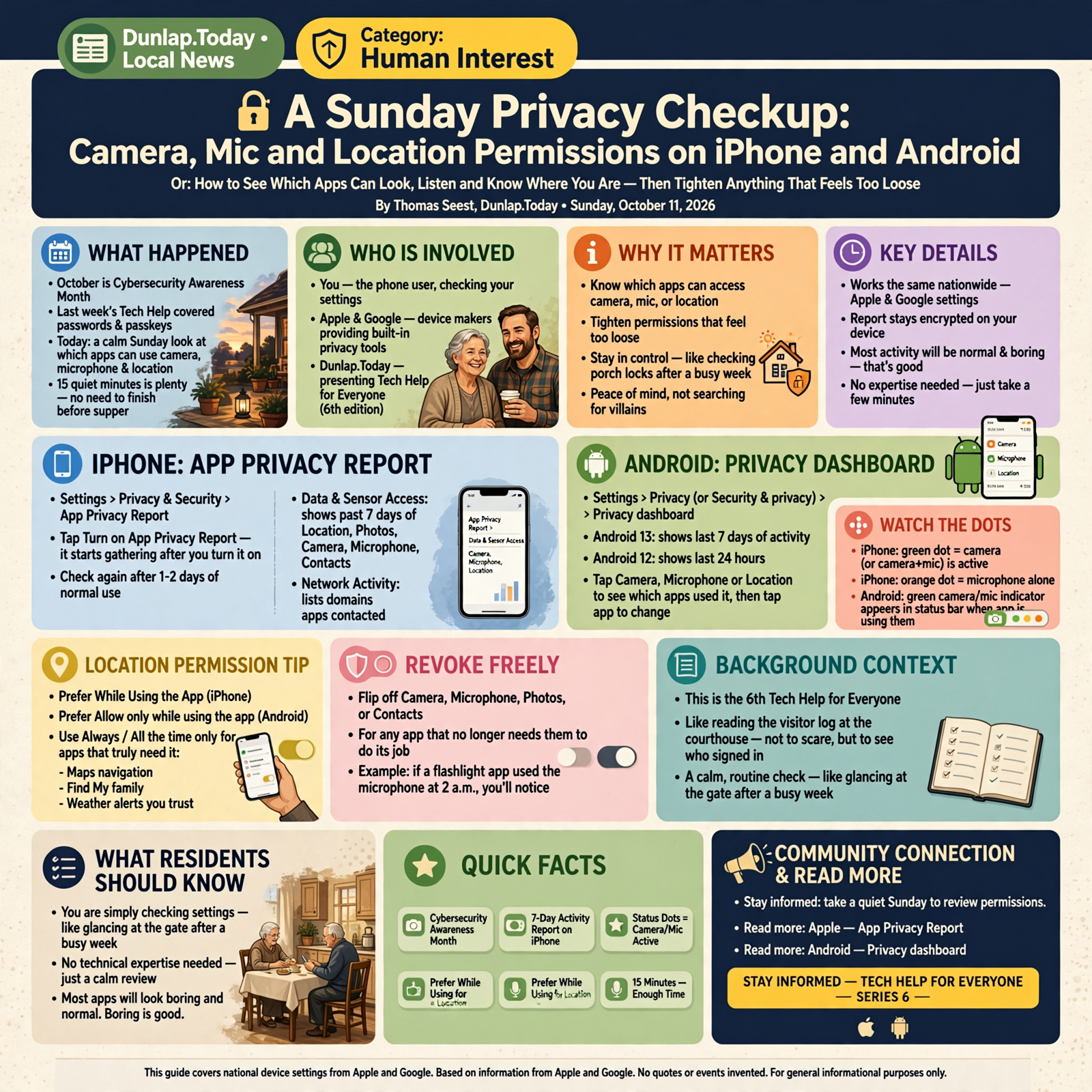
October is Cybersecurity Awareness Month, and last week’s Tech Help covered passwords and passkeys. Today’s tip is the next calm step: a short Sunday look at which apps can use your camera, microphone and location. You are not hunting for villains. You are checking the porch locks the way you glance at the gate after a busy week.
Here’s what’s in this sixth Tech Help for Everyone: how to turn on Apple’s App Privacy Report or Android’s Privacy Dashboard, what the green and orange camera/mic dots mean, how to prefer “While Using” location over “Always”, and how to revoke camera, microphone, photos or contacts access for apps that no longer need it.
These are national device settings from Apple and Google. They work the same in Dunlap as anywhere else. None of them need to be finished before supper—fifteen quiet minutes is plenty.
⏱️ What this means for you in 30 seconds
- App Privacy Report (iPhone): Settings > Privacy & Security > App Privacy Report. Shows which apps used location, camera, mic and more in the past 7 days.
- Privacy Dashboard (Android 12+): Settings > Privacy (or Security & privacy) > Privacy dashboard. Same idea—recent camera, mic and location use.
- Status dots: On iPhone, green means camera (or camera+mic); orange means microphone alone. Android shows camera/mic indicators in the status bar when an app is using them.
- Location default: Prefer While Using the App (iPhone) or Allow only while using the app (Android). Save Always / All the time for apps that truly need background location (Maps navigation, Find My family, weather alerts you trust).
- Revoke freely: Flip off Camera, Microphone, Photos or Contacts for any app that does not need them to do its job.
📋 Turn On the Built-In Privacy Scoreboard
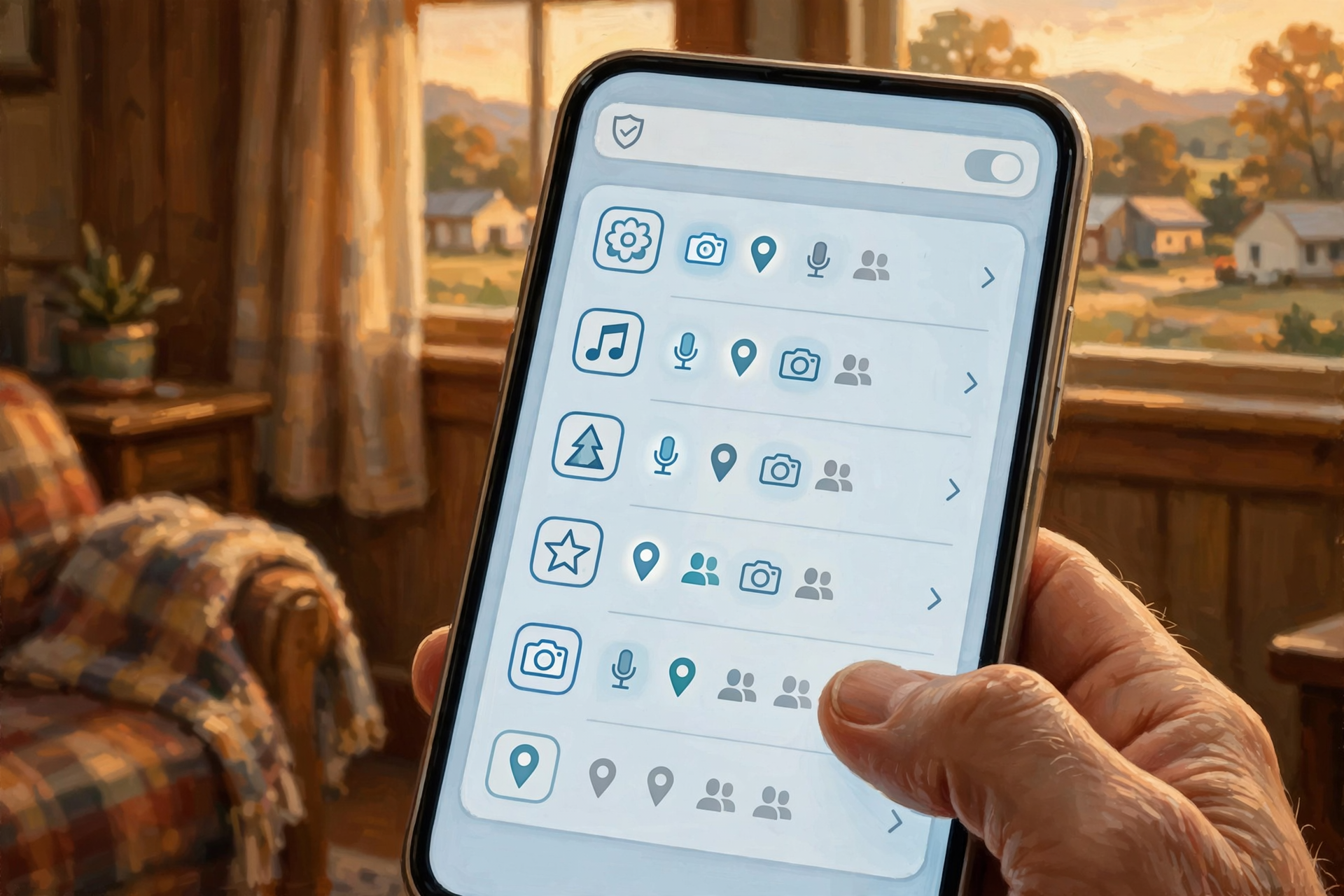
Apple and Google both give you a plain scoreboard so you can see what actually happened—not just what you remember tapping “Allow” on months ago.
On iPhone or iPad (iOS 15.2 or later), go to Settings > Privacy & Security > App Privacy Report and tap Turn on App Privacy Report. Apple says it starts gathering information only after you turn it on, so give it a day or two of normal use. Then open it again: Data & Sensor Access shows how often apps touched Location, Photos, Camera, Microphone, Contacts and more in the past 7 days. Network Activity lists domains apps contacted. The report stays encrypted on your device.
On Android 12 and up, open Settings > Security and Privacy (or Privacy) and tap Privacy dashboard. Google says Android 13 shows the last 7 days of activity; Android 12 shows the last 24 hours. Tap Camera, Microphone or Location to see which apps used that permission, then tap an app to change it.
What it means for you: Think of this like reading the visitor log at the courthouse—not to scare yourself, but to see who signed in. If a flashlight app somehow used the microphone at 2 a.m., you will notice. Most apps will look boring and normal. Boring is good.
👉 Read more (Apple: App Privacy Report) · Android: Privacy dashboard
🟢 Watch the Green and Orange Dots (Your Phone’s Porch Light)

You do not have to open Settings every time. Your phone already waves a little flag when the camera or mic turns on.
Apple says that whenever an app uses the camera (including camera and microphone together), a green indicator appears. An orange indicator appears when an app uses the microphone without the camera. A recent-use message also shows at the top of Control Center. On many Android phones (Android 12 and up), Google says a notification appears when the camera or microphone is in use—swipe down and tap the indicator once to see which app, tap again to manage permissions. You can also add camera and mic tiles to Quick Settings to shut them off system-wide when you want a quiet stretch.
What it means for you: That green or orange blip is like the porch light clicking on when someone steps up to the door. If you are not on a video call or recording a voice note and the light is on, pause and check which app is talking. Most of the time it is the app you just opened. When it is not, change the permission.
👉 Read more (Apple: camera & microphone access) · Android: camera & mic indicators
📍 Location: Prefer “While Using,” Not “Always”
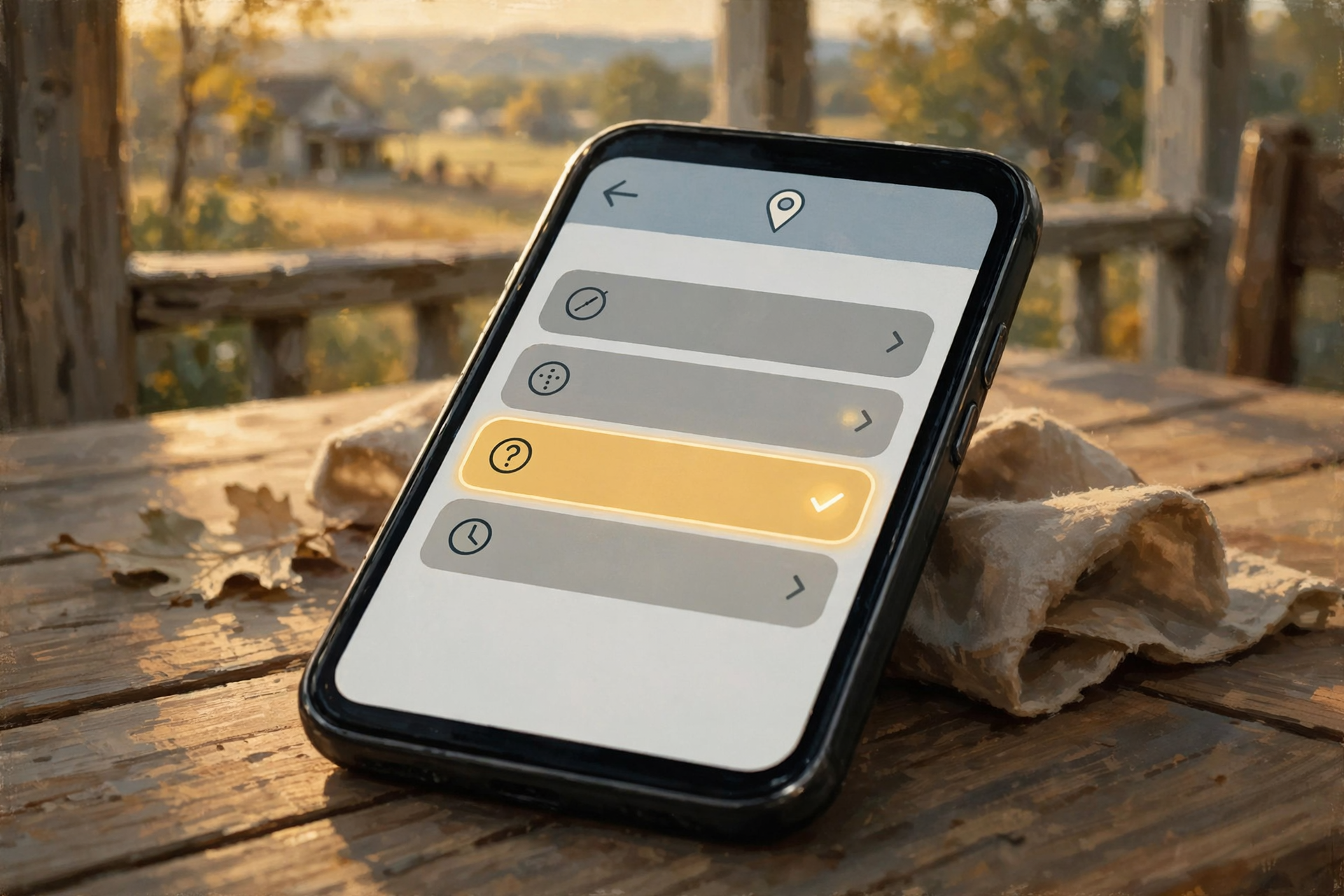
Location is the permission that feels most personal—knowing whether you are at the feed store, the ball field or home. Both Apple and Google let you choose how often an app can ask.
On iPhone, go to Settings > Privacy & Security > Location Services, tap an app, and pick among options Apple documents: Never, Ask Next Time Or When I Share (then you can choose Allow Once, While Using, or Don’t Allow), While Using the App, or Always. Apple notes that While Using means the app can use location when it (or one of its features) is visible on screen. Always allows background use even when the app is closed. For many apps you can also turn off Precise Location so they only get an approximate area—often enough for weather or a store finder.
On Android, Google’s Permission manager lets you set location to Allow only while using the app, Ask every time, Don’t allow, or—for location only—All the time. Path: Settings > Security & Privacy > Privacy > Permission manager > Location (wording can vary by brand).
What it means for you: Maps, navigation and family Find My tools often need ongoing location while you drive or share. A shopping app, a one-time coupon scanner or a game almost never needs Always. Prefer While Using the way you prefer leaving the spare key with a neighbor you trust—not taped under every rock on the ridge.
👉 Read more (Apple: Location Services) · Apple: control location sharing · Android: change app permissions
📷 Camera, Mic, Photos and Contacts: Flip Off What You Don’t Need
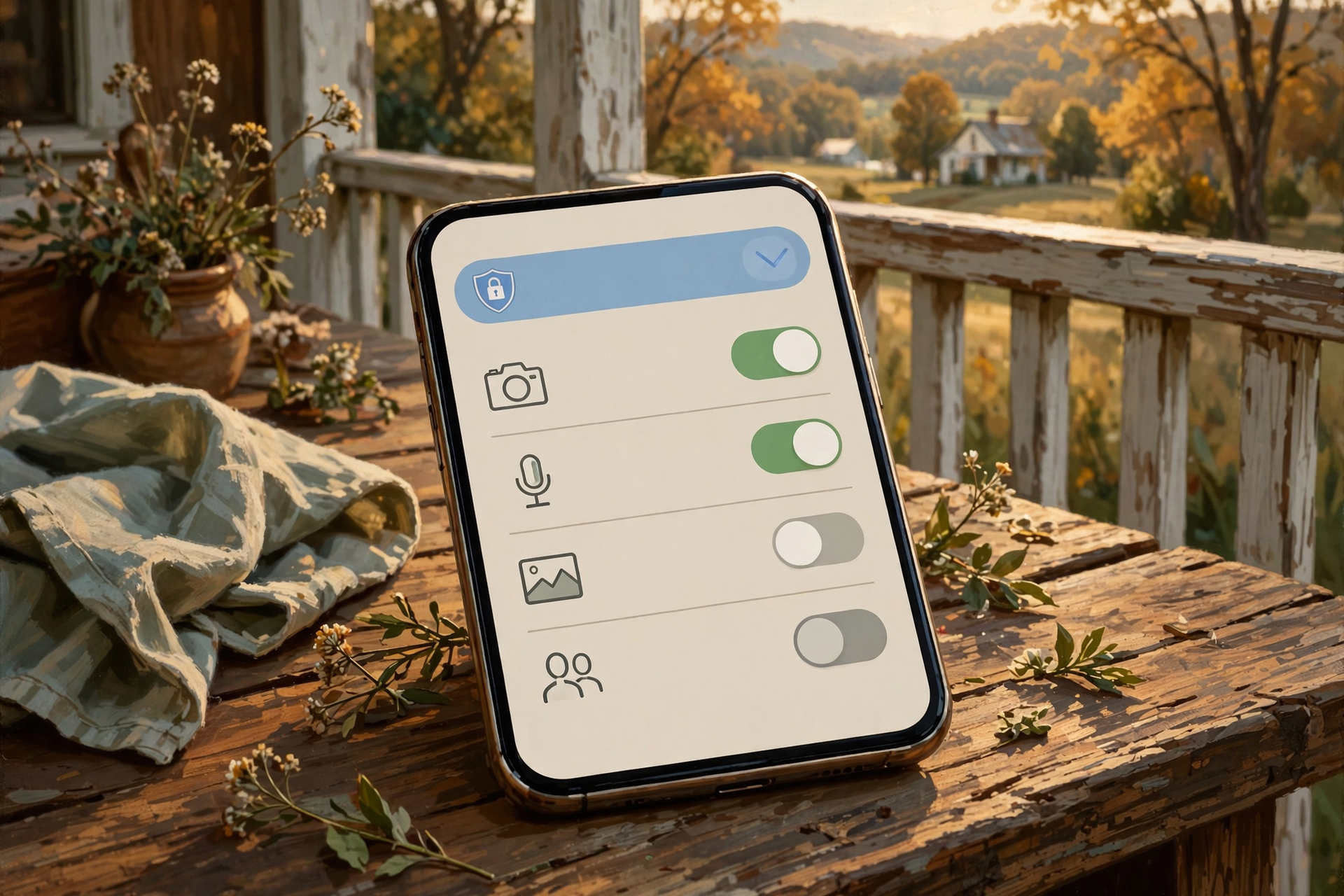
After you glance at the report, do a short walk through the permission lists themselves.
iPhone: Settings > Privacy & Security, then tap Camera, Microphone, Photos or Contacts. Each list shows apps that asked. Turn off any you do not recognize or no longer use. Apple requires apps to ask and explain before using camera or mic; you can change your mind anytime.
Android: Settings > Apps > [app] > Permissions, or Permission manager by type. For camera and microphone, prefer Allow only while using the app or Ask every time over a permanent Allow. Google also lets you turn off all Camera access or Microphone access under Privacy controls if you want a hard pause (for example during a private conversation).
Android can also pause unused apps and reset their permissions—turn on “Pause app activity if unused” under an app’s Unused app settings when your phone offers it.
What it means for you: This is like cleaning out the junk drawer: keep the flashlight and the tape measure; put the mystery key ring back where it belongs. A banking app may need the camera for mobile deposit. A recipe app usually does not need the microphone. When in doubt, turn it off—the app will ask again the next time that feature truly needs it.
👉 Read more (Apple: hardware permissions) · Android: Permission manager
✅ Your Sunday App-Permissions Checklist
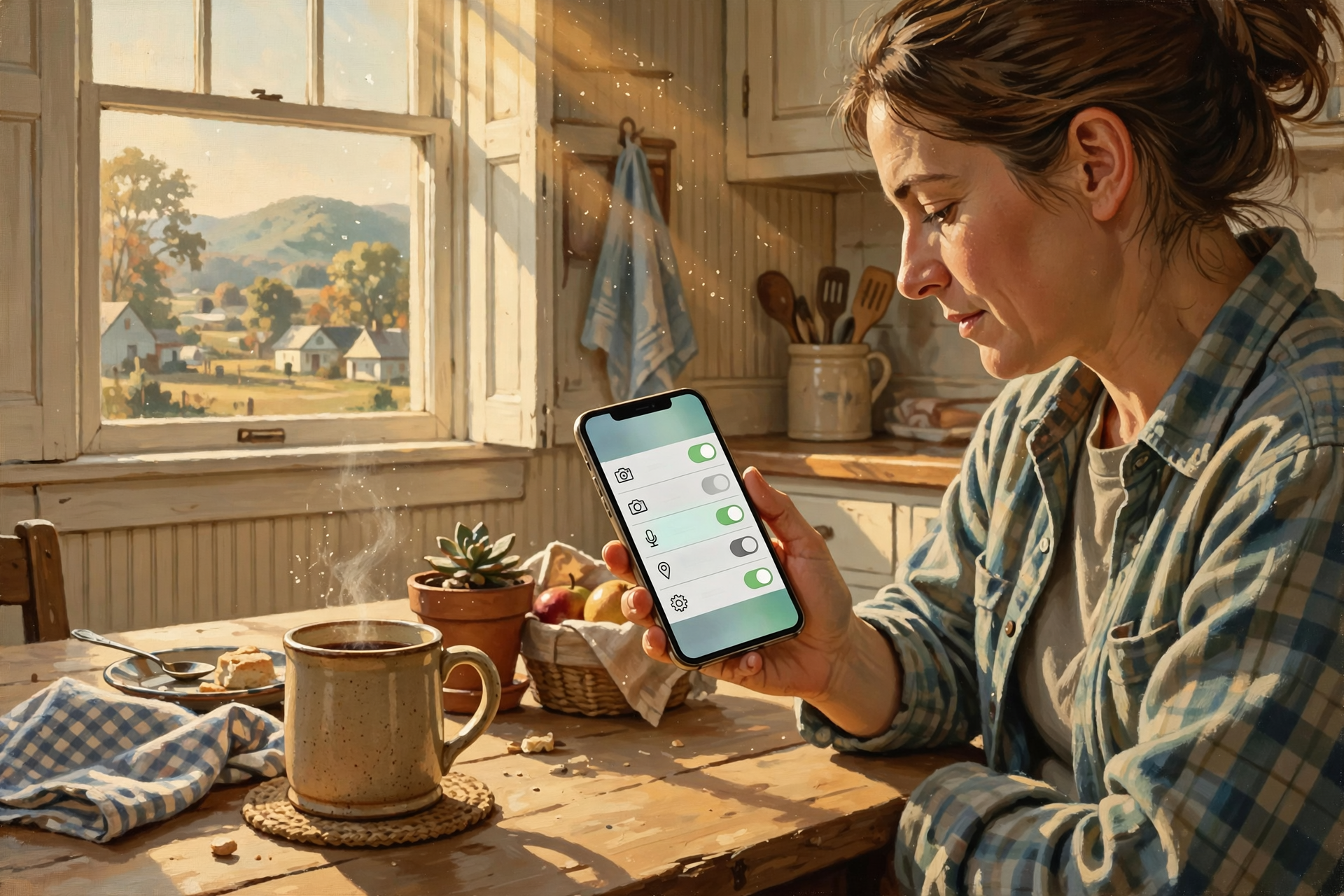
- ✅ Turn on App Privacy Report (iPhone) or open Privacy dashboard (Android 12+).
- ✅ Glance at Camera, Microphone and Location activity from the past day or week.
- ✅ Notice the green/orange (iPhone) or status-bar (Android) indicators when camera or mic is live.
- ✅ Set most apps to While Using / Allow only while using the app for location; reserve Always for tools you truly trust in the background.
- ✅ Turn off Precise Location for apps that only need a rough area.
- ✅ Revoke Camera, Microphone, Photos or Contacts for forgotten apps.
- ✅ Help a parent or neighbor do the same three switches over coffee—Cybersecurity Awareness Month style.
Practical rule: Prefer “While Using,” watch the camera/mic dots, and revoke any permission an app does not need to do its job.
— Dunlap.Today
📚 Plain-English Tech Glossary
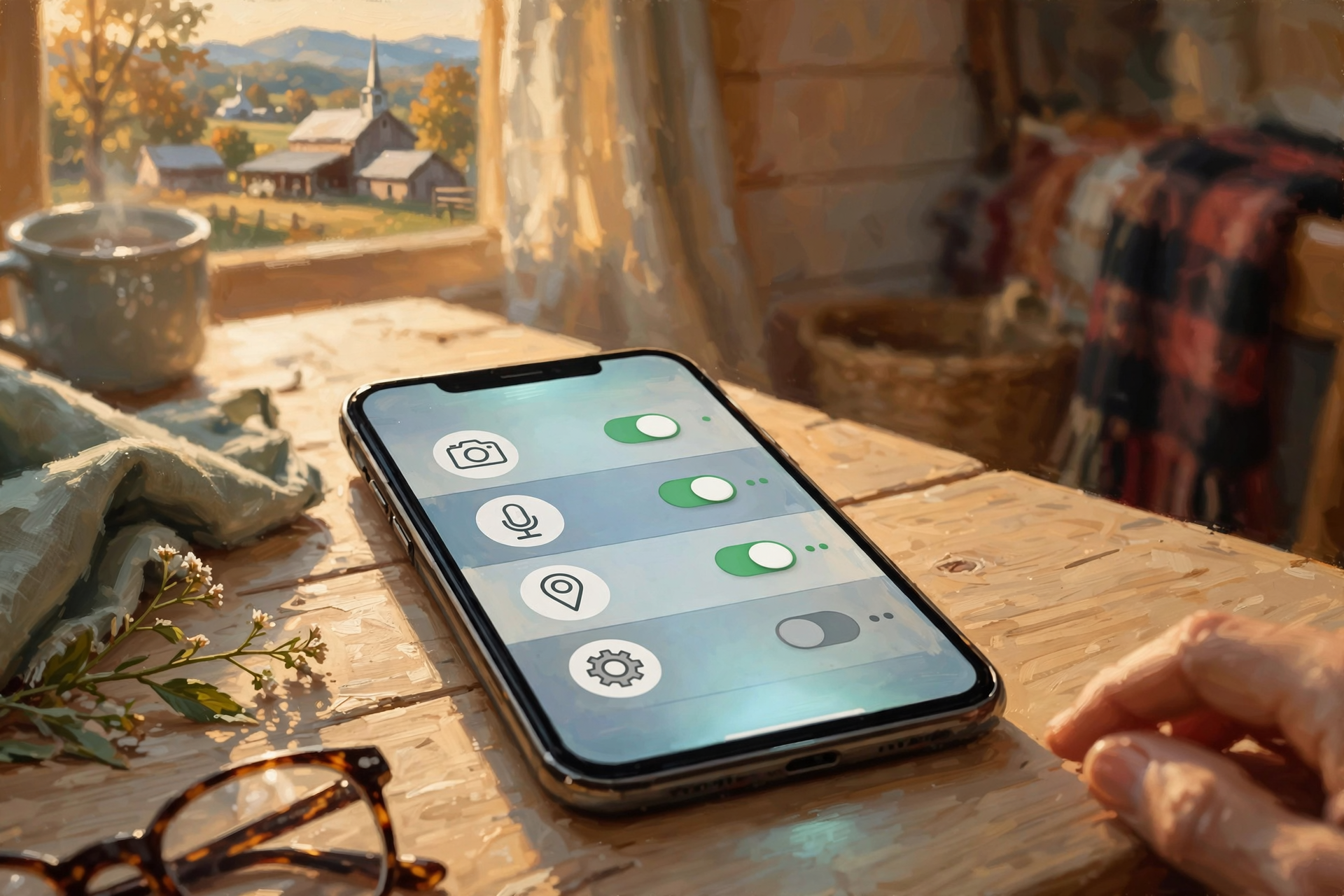
- App Privacy Report (Apple): An on-device report showing which apps accessed sensors and data (and which domains they contacted) over the past 7 days.
- Privacy Dashboard (Android): A settings screen that shows recent app use of camera, microphone, location and other permissions.
- Permission: A yes/no (or timed) choice you give an app to use a feature such as camera, mic or location.
- While Using the App: Location (or similar) access only while that app is open and visible—not quietly in the background.
- Always / All the time: Background access even when the app is closed. Useful for navigation and family location sharing; rarely needed for shopping or games.
- Precise Location: Exact GPS-style position versus a broader approximate area.
- Camera/mic indicators: Status icons that light up when an app is actively using the camera or microphone.
- Cybersecurity Awareness Month: An annual October campaign (CISA and partners) encouraging practical online safety habits.
❓ Frequently Asked Questions
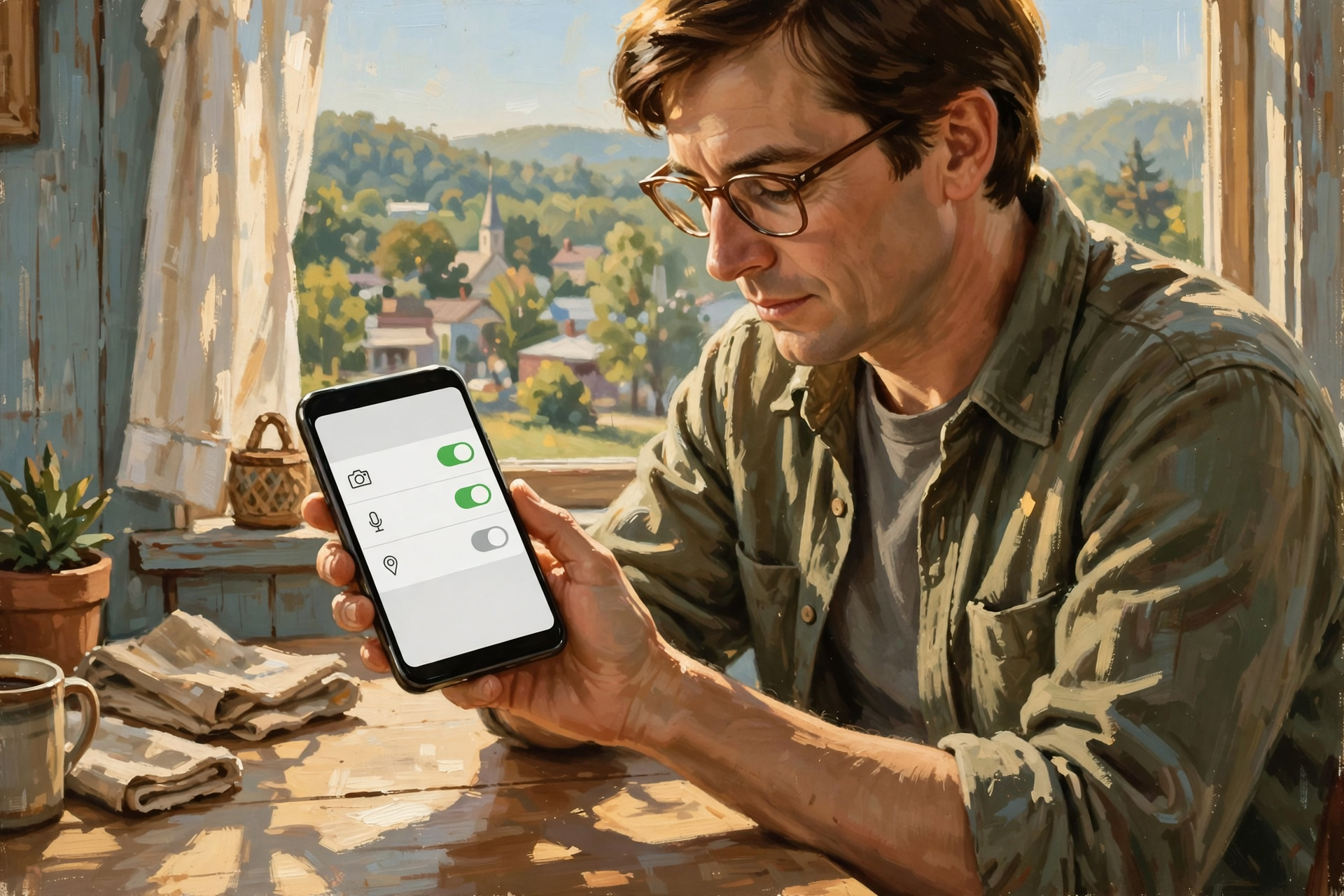
Will turning permissions off break my apps?
Usually only the feature that needs that sensor. Maps without location cannot navigate; a calculator without the microphone still adds numbers. If something you need stops working, turn that one permission back on.
Do I need a paid privacy app?
Not for this checkup. Apple and Google already include App Privacy Report, Privacy Dashboard, permission lists and status indicators for free.
What if App Privacy Report looks empty?
Apple says it only gathers data after you turn it on. Use your phone normally for a day, then check again.
Is “Ask every time” annoying?
For apps you open once a month, it is a helpful reminder. For daily apps, While Using is usually the sweet spot.
Does this replace passwords and passkeys?
No—it sits beside them. Last week’s Tech Help covered password managers and passkeys. Today’s tip is about sensors and location. Together they are a calm October pair.
🔗 Other Resources
- Apple: About App Privacy Report
- Apple: Control access to camera, microphone and hardware
- Apple: Turn Location Services on or off
- Apple: Control the location information you share
- Android Help: Privacy dashboard
- Android Help: Change app permissions
- Android Help: Camera and microphone indicators
- CISA: Cybersecurity Awareness Month
🌻 Calm Eyes, Clear Choices, Steady Phone

You do not need to audit every app before church or kickoff. Turn on the report, glance at camera and location, flip off one or two leftovers and call it a good Sunday tune-up. Your phone works for you—not the other way around.
Keep learning, keep exploring and keep your cool. Read Dunlap.Today for calm, clear Valley news, and find local businesses, including the folks who fix computers and phones, anytime on Dunlap.Directory.




0 Comments