
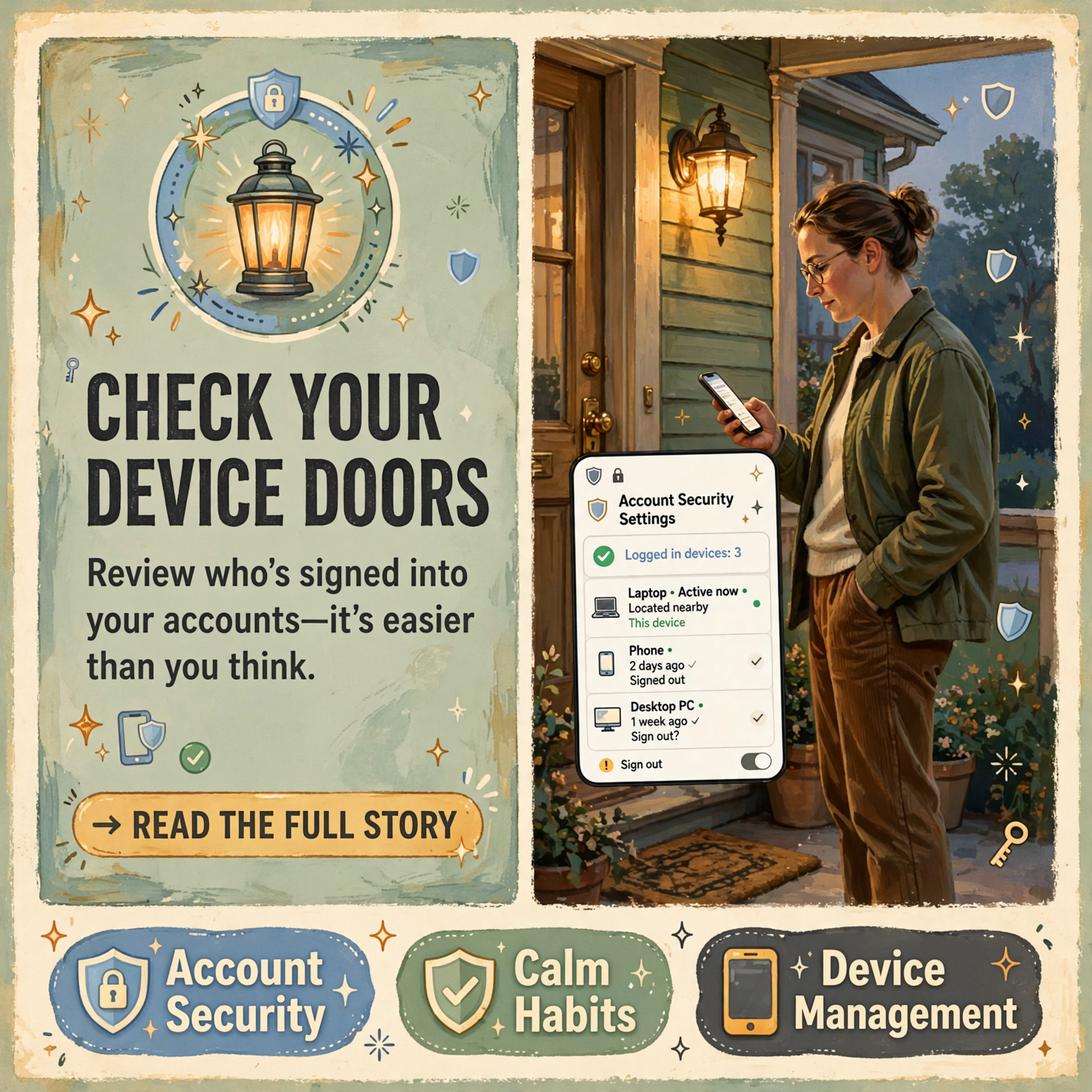
📱 Review Login Alerts and Signed-In Devices on Google, Apple and Microsoft: A Calm Cyber Month Porch Tip

Or: Walk Your Devices List, Treat Alerts Like a Porch Light, and Don’t Click the Email Link
By Thomas Seest, Dunlap.Today · Thursday, October 15, 2026
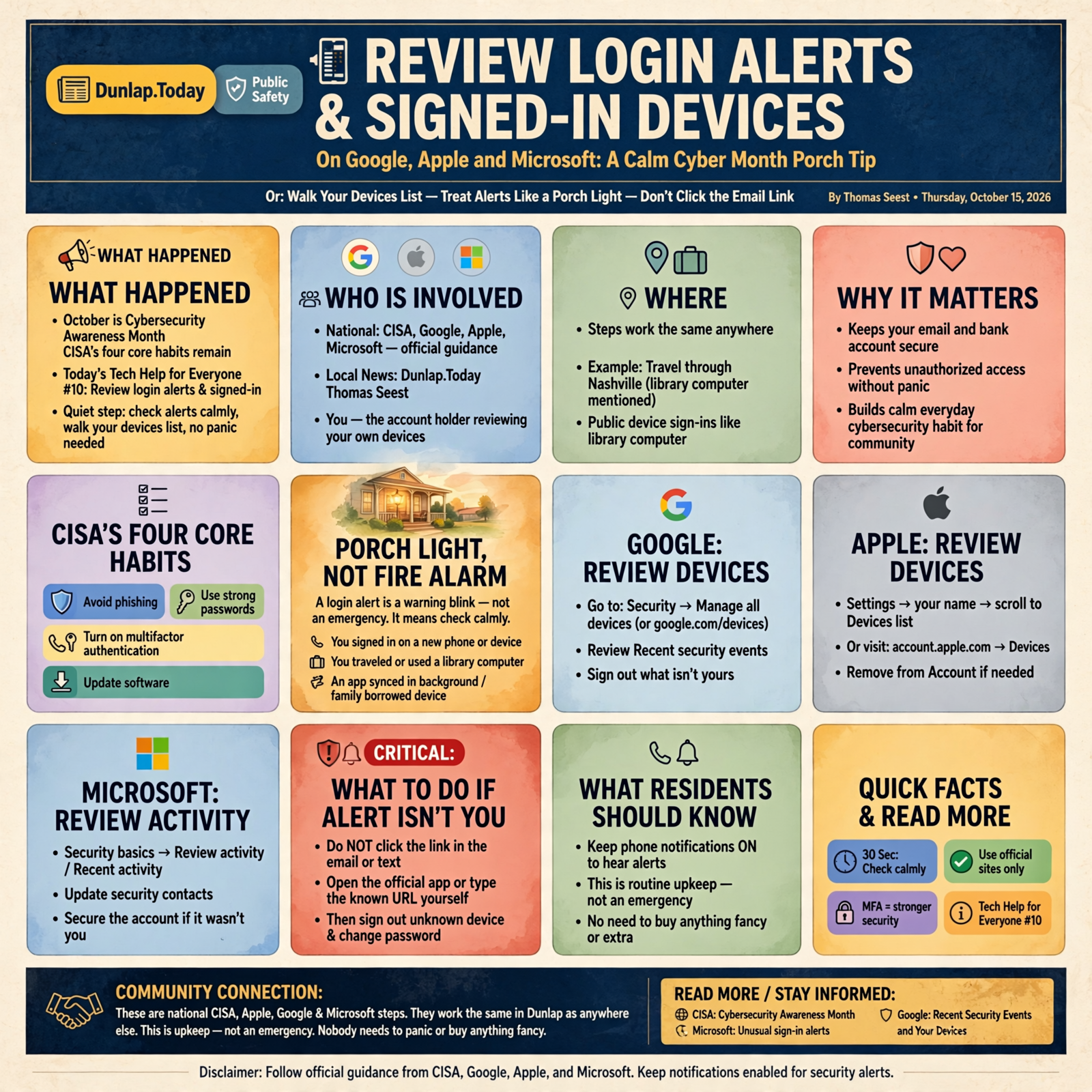
October is Cybersecurity Awareness Month, and CISA’s four core habits stay the same: avoid phishing, use strong passwords, turn on multifactor authentication, and update software. Earlier this week we put a second lock on email and bank, then took back spare keys from old linked apps. Today’s porch step is quieter still — reading the blink of a login alert and walking the list of devices still signed into your main accounts.
Here’s what’s in this tenth Tech Help for Everyone: why a login alert is a porch light, not a fire alarm, how to review signed-in devices on Google, Apple and Microsoft, what to do if an alert isn’t you (open the official site — don’t click the email link), plus a short note on keeping phone notifications on so you actually hear that porch light.
These are national CISA, Apple, Google and Microsoft steps. They work the same in Dunlap as anywhere else. This is upkeep, not an emergency. Nobody needs to panic or buy anything fancy.
⏱️ What this means for you in 30 seconds
- Porch light, not fire alarm: A “new sign-in” or “unusual activity” notice means check calmly — often it was you on a new phone, a trip, or a library computer.
- Google: Security → Manage all devices (or google.com/devices); review Recent security events; sign out what isn’t yours.
- Apple: Settings → your name → scroll the Devices list → Remove from Account if needed (or account.apple.com → Devices).
- Microsoft: Security basics → Review activity / Recent activity; update security contacts; secure the account if it wasn’t you.
- Critical: If you get an alert email or text, open the official app or type the known URL. Do not click the link in the message.
💡 Why a Login Alert Is a Porch Light, Not a Fire Alarm

When Google, Apple or Microsoft notice a sign-in from a new place or device, they often send an email, a text or a phone notification. Microsoft says they may alert you when someone tries from a new location or device. Google sends notices when unusual sign-in activity shows up. That blink is the porch light — something moved near the gate. It is not automatically a break-in.
Plenty of calm explanations exist: you bought a new phone, you signed in at the library, you traveled through Nashville, an app synced in the background, or Cousin Billy borrowed your tablet for five minutes at the reunion. Google even notes that times on the devices page can look more recent than you remember because apps sync quietly.
CISA’s Cybersecurity Awareness Month campaign still puts “spot phishing fast” among the basics. The porch habit is simple: see the light, walk out with a smile, check who it is, and only then decide if you need to tighten the latch.
What it means for you: When an alert lands, take a breath. Open your official account page the safe way (below). Confirm it was you — or sign out the stranger and change the password if it wasn’t. No drama required.
👉 Read more (CISA: Cybersecurity Awareness Month) · Microsoft: Unusual sign-in alerts
📧 Google: Recent Security Events and Your Devices

Google keeps your signed-in computers and phones in one place so you can review or sign out anytime.
- On a computer or phone browser, open your Google Account → Security & sign-in.
- On the Your devices panel, choose Manage all devices — or go straight to google.com/devices.
- You’ll see devices where you’re currently signed in, or have been in the last few weeks. Tap a device or session for details.
- Sessions you don’t recognize? Sign out. Google says to sign out on devices that are lost, no longer yours, or don’t belong to you.
- Also open Recent security events → Review security events. If something looks wrong, use Secure your account and follow the password-change steps.
Google’s Security Checkup (from Recommended actions or Security) is a friendly once-over for recovery options and other tips — a nice companion walk after the devices list.
What it means for you: Start with anything labeled with a city you weren’t in, a phone model you don’t own, or a browser you never use. Keep your everyday phone and home computer. This is counting the spare keys on the nail by the kitchen door, not tearing down the barn.
👉 Read more (Google: See devices with account access) · Google: Suspicious sign-in emails · Google: Security Checkup · Open google.com/devices
🍎 Apple: Your Name, Then the Devices List
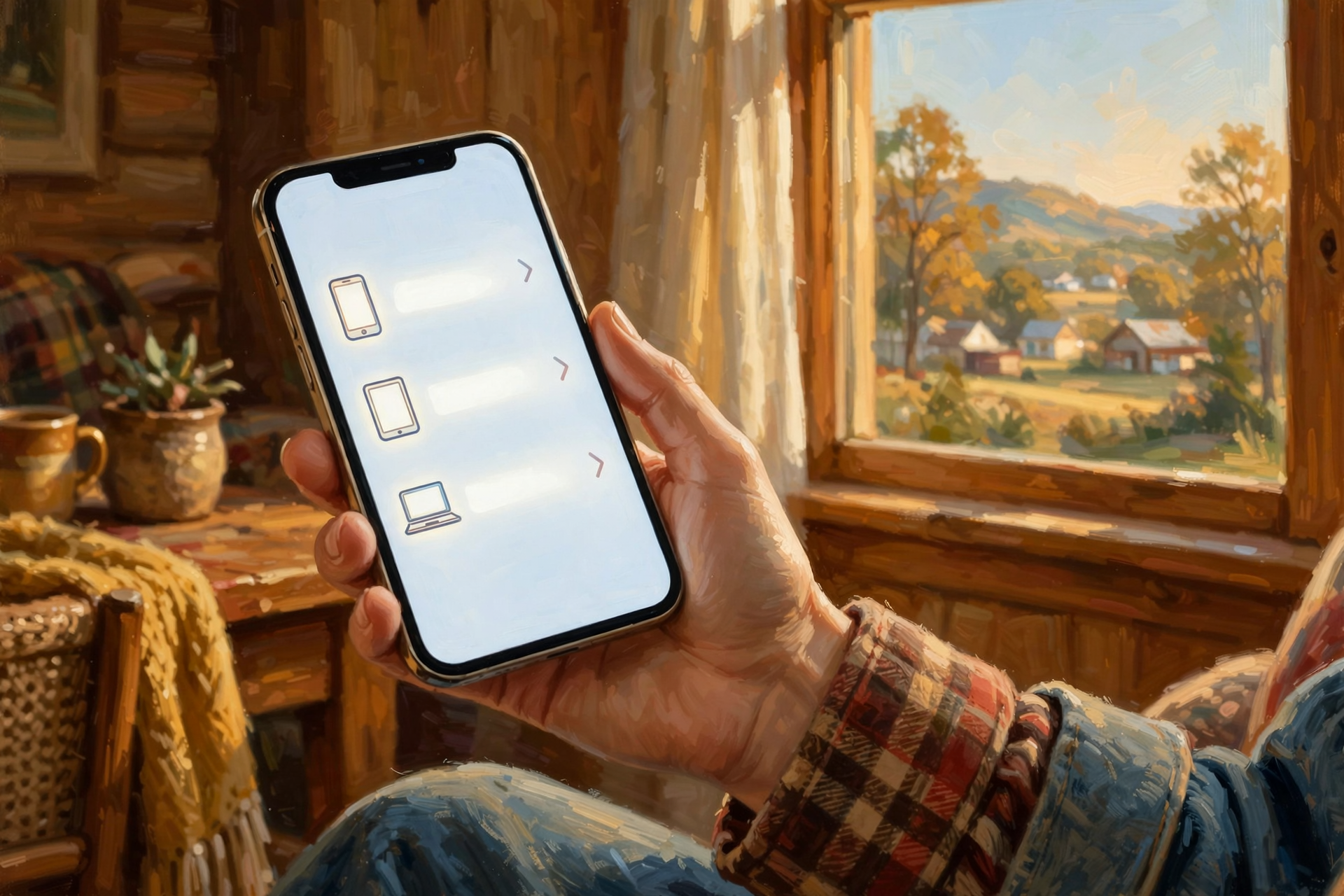
Apple shows every device signed into your Apple Account in one calm scroll.
- iPhone or iPad: Settings → tap your name → scroll down to see the list of devices.
- Mac: System Settings → your name → scroll to the devices list.
- Web: Sign in at account.apple.com → Devices (you may need View Details to authenticate first).
Tap or click a device name to see its info. If you aren’t using it anymore — or you don’t recognize it — choose Remove from Account, read the message, and confirm. Apple says a removed device loses access to iCloud, Find My and other Apple services, and it won’t show two-factor codes. It only reappears if someone signs in on that device again.
If an Apple device is lost, Apple’s guidance is to use Find My (Lost Mode or erase) rather than only removing it from the list while you’re still signed in on the missing gadget.
What it means for you: Same porch rule as Google. Keep what you still use. Remove the rest. Your Apple password stays put; you’re only clearing devices that shouldn’t still have a key.
👉 Read more (Apple: Review devices signed in to your Apple Account)
🪟 Microsoft: Security Basics and Recent Activity

For a personal Microsoft / Outlook / Hotmail account, the Security basics page is the front door.
- Sign in at account.microsoft.com/security.
- Choose Review activity to open the Recent activity page.
- If something is under Unusual activity and you’re sure it wasn’t you, expand it and select This wasn’t me. In Recent activity, expand and choose Secure your account when needed.
- If you think someone got in, go back to Security basics and Change password — strong, memorable, and not shared.
- While you’re there, confirm your security contact email and phone are current so Microsoft can reach you with real alerts.
Microsoft notes that travel, a new device or a new app can trigger an alert even when it was you — they may just need a security code. That’s the porch light doing its job.
What it means for you: Do Microsoft after Google and Apple, or start with whichever account holds your main email. One account a night is plenty. By the weekend you’ll have walked all three without missing supper.
👉 Read more (Microsoft: Unusual sign-in) · Open Microsoft Security basics
🚫 If the Alert Isn’t You — and Why You Never Click the Email Link

Here’s the rule that keeps the calm tip from turning into a trap:
- Do not click the link in the alert email or text. CISA’s phishing guidance is plain: if a message looks suspicious — or even if you think it might be real — don’t click any link or call any number in the message. Go to the company’s website by typing the address yourself or using a bookmark you already trust, then sign in normally.
- Google warns the same spirit: hackers sometimes copy “suspicious sign in” emails. Google says to be wary of messages that ask for passwords or send you to unfamiliar sites. Check activity inside your real Google Account, and report phishing in Gmail if the message feels fake.
- Microsoft tip: a legitimate unusual-activity email comes from the Microsoft account team at account-security-noreply@accountprotection.microsoft.com — but even then, open Security basics yourself rather than trusting a button in the mail.
- If it truly wasn’t you: sign out unfamiliar devices, use Secure your account / change password, and confirm recovery contacts still ring your phone.
What it means for you: Think of the email link like a stranger waving you toward a side road. You already know the way to the courthouse — type the address, drive there yourself, and check the bulletin board in person.
👉 Read more (CISA: Recognize and report phishing) · Google: Is this email really from Google? · FTC: Protect your accounts
🔔 Optional Extra: Keep System Login Alerts On Your Phone
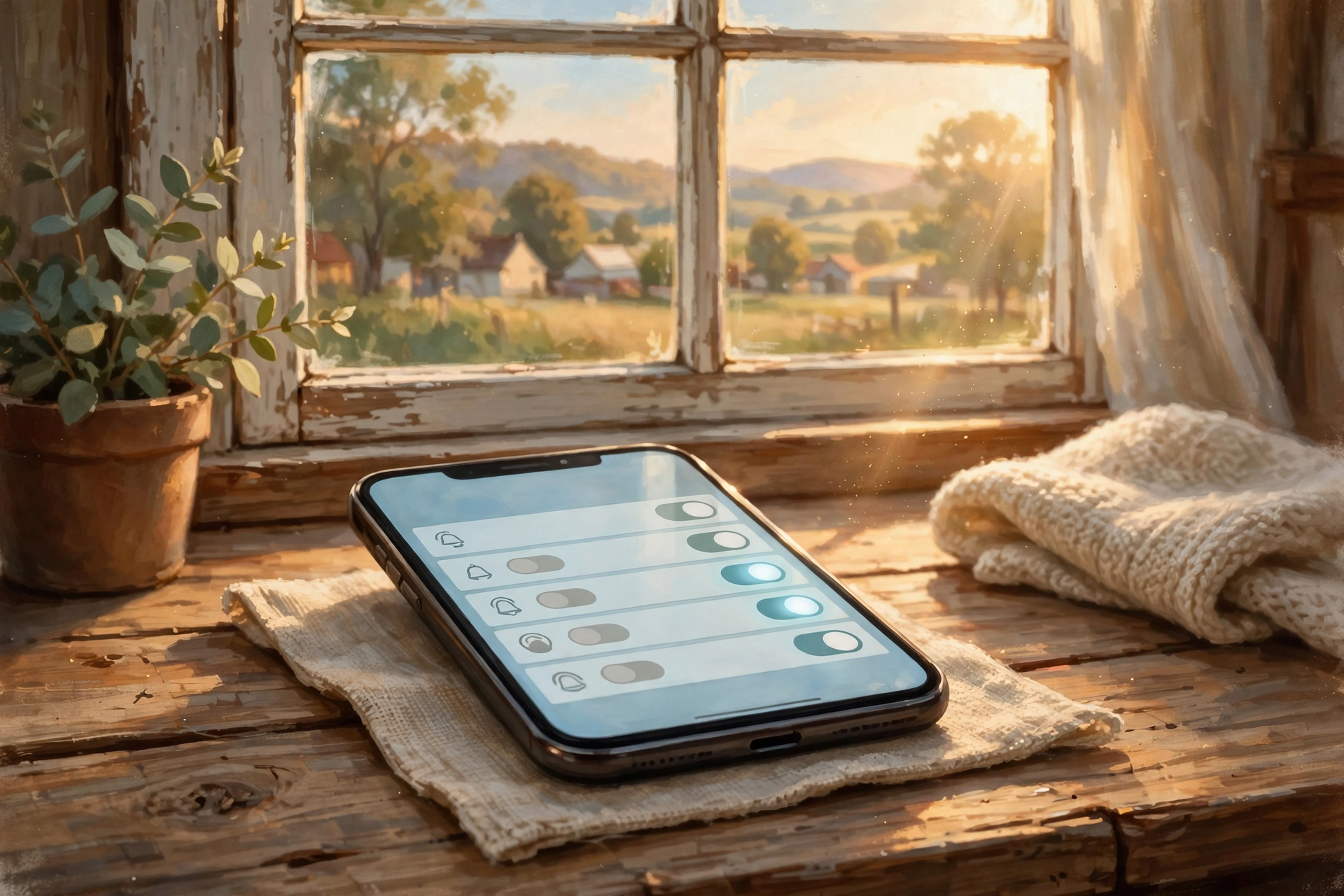
A porch light only helps if you can see it. On your phone, leave notifications on for the official Google, Apple ID / iCloud and Microsoft account apps (or the system account settings that deliver security alerts). You do not need every shopping app pinging you — just the big three security notices so a real “new sign-in” doesn’t sit unread until next week.
What it means for you: Two minutes in Settings → Notifications. Keep the security porch light bright; mute the junk-mail fireworks.
✅ Your Login-Alerts and Devices Thursday Checklist

- ✅ Open Google Manage all devices (or google.com/devices) and sign out anything that isn’t yours; skim Recent security events.
- ✅ Open Apple Settings → your name → Devices (or account.apple.com → Devices) and Remove from Account what you don’t use.
- ✅ Open Microsoft Security basics → Review activity; mark “This wasn’t me” / Secure your account if needed; update security contacts.
- ✅ Treat every alert as a porch light: calm check first, password change only if it wasn’t you.
- ✅ Never click the link in an alert email or text — type myaccount.google.com, account.apple.com or account.microsoft.com yourself.
- ✅ Optional: keep phone notifications on for Google / Apple ID / Microsoft security alerts.
- ✅ Help a parent, neighbor or church friend walk one devices list. It’s still Cybersecurity Awareness Month.
Practical rule: Once or twice a year — and anytime a login alert blinks — walk your Google, Apple and Microsoft signed-in devices lists. Sign out what isn’t yours. Open the official site yourself; never click the link in the alert email.
— Dunlap.Today
📚 Plain-English Tech Glossary
- Login / sign-in alert: An email, text or phone notice that someone (maybe you) signed in from a new device or place.
- Signed-in / trusted device: A phone, tablet or computer that still has an open session on your Google, Apple or Microsoft account.
- Session: Google’s word for a stretch of time you’re signed in from a browser, app or service — one device can show several sessions.
- Remove from Account (Apple): Remotely signs that device out of your Apple Account so it loses iCloud and related access.
- Recent activity / Unusual activity (Microsoft): The dashboard list of sign-ins; flag what wasn’t you and secure the account.
- Security Checkup (Google): A guided review of recovery options and other account safety tips.
- Phishing: A fake message that tries to trick you into clicking a link or typing a password on a fake site.
- Cybersecurity Awareness Month: The annual October campaign (led with CISA and partners) promoting simple online safety habits.
❓ Frequently Asked Questions

I got a login alert while I was traveling. Am I hacked?
Usually not. Microsoft and Google both say new locations and new devices commonly trigger alerts — even when it’s you. Open the official security page (don’t click the email), confirm the device, and you’re done. Change the password only if you don’t recognize the activity.
Why shouldn’t I click the “Review activity” button in the email?
Because scammers copy those emails. CISA says if you think a message might be real, still don’t click its links — go to the company’s site by typing the address or using a saved bookmark. Google warns that fake “suspicious sign-in” emails try to steal passwords.
What’s the difference between today’s tip and yesterday’s revoke-apps tip?
Different drawers. Linked apps are third-party keys to your account data. Today’s tip is about devices and sessions still signed in, plus how you calmly respond when an alert blinks.
How often should I check signed-in devices?
A calm pass every few months — or anytime you get an alert, sell a phone, or use a public computer — is plenty. Cybersecurity Awareness Month is a handy reminder, like checking the smoke-detector batteries when you change the clocks.
Will signing out a device delete my photos or email?
No. You’re closing the session on that gadget, not wiping your cloud library. Apple notes a removed device loses access to iCloud services on that device; your data stays with your account.
What if I don’t recognize a device but it might have been the library computer?
Sign it out. If it was you on a shared machine, signing out is exactly what you want after you leave. You can always sign in again next time from a device you trust.
🔗 Other Resources

- CISA: Cybersecurity Awareness Month
- CISA: Recognize and report phishing
- Google Account Help: See devices with account access
- Google Account Help: Suspicious sign-in prevented email
- Google Account Help: Make your account more secure (Security Checkup)
- Google: Your devices
- Apple Support: Review devices signed in to your Apple Account
- Microsoft Support: Unusual sign-in to your account
- Microsoft: Security basics
- FTC Consumer Advice: Protect your accounts
🌻 Steady Habits, Steady Mind

You don’t need to fortify the whole farm in one afternoon. Walk one devices list, treat the next alert like a porch light instead of a siren, type the official address instead of chasing the email link, and call it a good Thursday’s work. That’s the kind of quiet chore that lets you leave the light on and go to bed knowing you checked who was at the gate.
Keep learning, keep exploring and keep your cool. Read Dunlap.Today for calm, clear Valley news, and find local businesses, including the folks who fix computers and phones, anytime on Dunlap.Directory.
Know about an upcoming event or story in the Sequatchie Valley? Submit it here.




0 Comments