
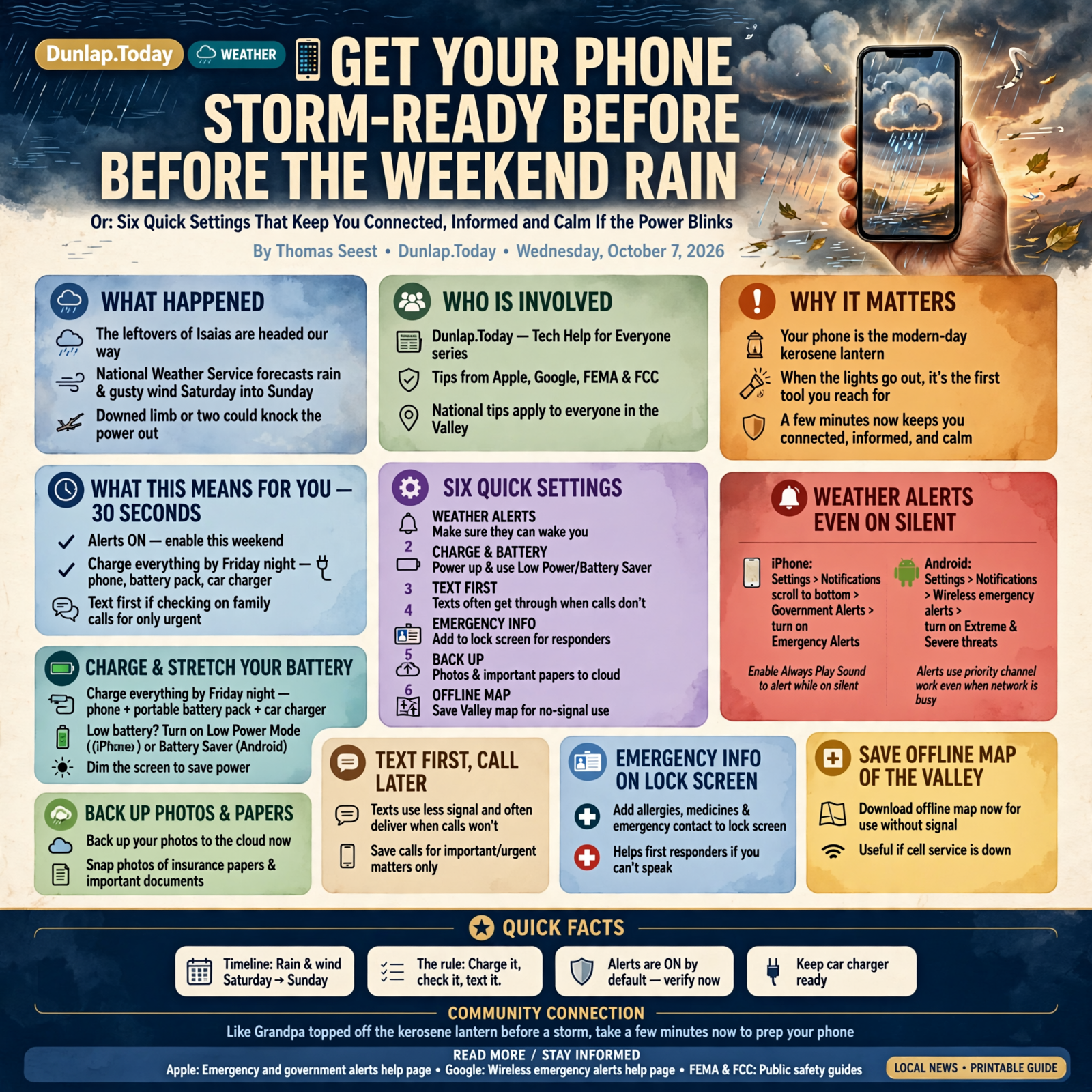
📱 Get Your Phone Storm-Ready Before the Weekend Rain
Or: Six Quick Settings That Keep You Connected, Informed and Calm If the Power Blinks
Your phone is the modern-day kerosene lantern. Most days it just sits on the counter, but when the lights go out, it’s the first thing everybody reaches for. And just like Grandpa topped off the lantern before a storm, a few minutes with your phone now means it’ll be ready if you need it.
The leftovers of Isaias are headed our way. The National Weather Service forecast for Dunlap calls for rain and gusty wind Saturday into Sunday, and a downed limb or two could knock the power out. That makes this a good week for a phone check-up. Here’s what’s in this second Tech Help for Everyone: how to make sure weather alerts can wake you up, how to charge up and stretch your battery, why a text often gets through when a call won’t, a free lock-screen setting that speaks for you in an emergency, backing up your photos and important papers and saving a map of the Valley that works without a signal.
These are national tips from Apple, Google and federal agencies like FEMA and the FCC. They work the same in the Valley as anywhere else. The weather and 911 details are local or statewide, and we say so where they are.
⏱️ What this means for you in 30 seconds
- Alerts on? iPhone: Settings > Notifications, scroll to the bottom. Android: Settings > Notifications > Wireless emergency alerts. Leave them on this weekend.
- Charge everything by Friday night, including any portable battery pack, and keep a car charger in the truck.
- Battery low? Turn on Low Power Mode (iPhone) or Battery Saver (Android) and dim the screen.
- Checking on family? Text first. Save calls for the important stuff.
- Add your emergency info to your lock screen so helpers can see your allergies, medicines and who to call.
- Back up your photos and snap pictures of your insurance papers.
- The rule to remember: Charge it, check it, text it.
🔔 Make Sure Weather Alerts Can Reach You, Even on Silent
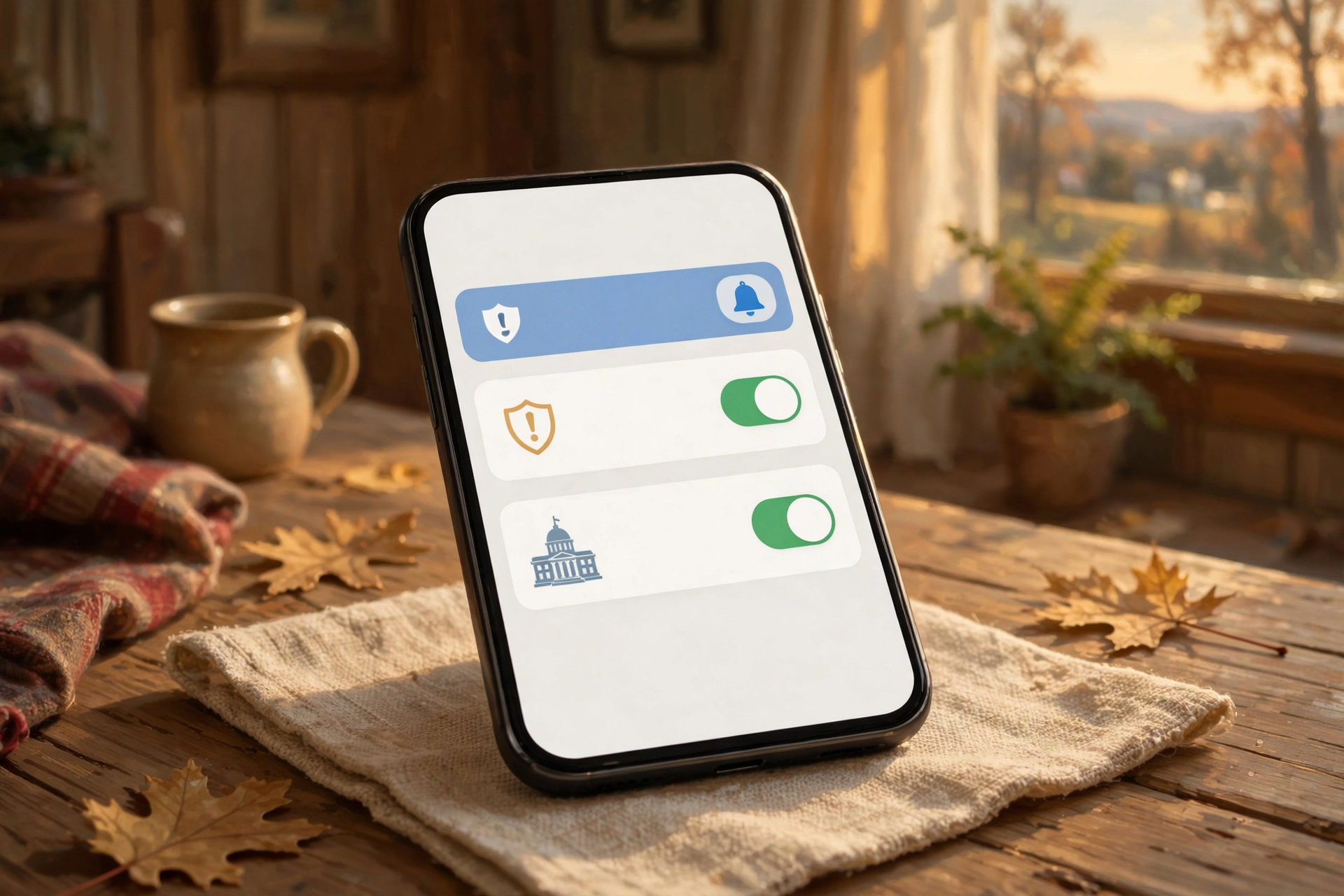
Emergency alerts are those loud, buzzing warnings that pop up for things like flash flood or tornado warnings. On both iPhones and Android phones, they’re turned on by default. But plenty of us have switched some off over the years, so it’s worth a peek.
On an iPhone (from Apple’s help page):
- Open Settings and tap Notifications.
- Scroll all the way to the bottom to Government Alerts.
- Make sure Emergency Alerts is on. Tap it to see two more choices: Local Awareness, which uses your rough location to make alerts more timely and accurate, and Always Play Sound, which lets an emergency alert sound even when your phone is on silent.
On an Android phone (from Google’s help page):
- Open Settings and tap Notifications, then Wireless emergency alerts. (On some phones it’s under Safety & emergency. If you can’t find it, type “emergency alerts” in the search bar at the top of Settings.)
- Turn on Extreme threats and Severe threats.
What it means for you: Think of it like a good farm dog. It’s quiet most of the time, but it barks when something’s wrong, and you want it to bark loud enough to wake you. Google notes these alerts come over a special channel that gets priority, so they can still reach your phone when the network is busy. If your phone usually sleeps on silent, turning on “Always Play Sound” on an iPhone is a smart move for Saturday night.
👉 Read more (Apple: Emergency and government alerts on iPhone) · Android: Manage emergency alerts
🔋 Charge Up Friday, Then Make the Battery Last
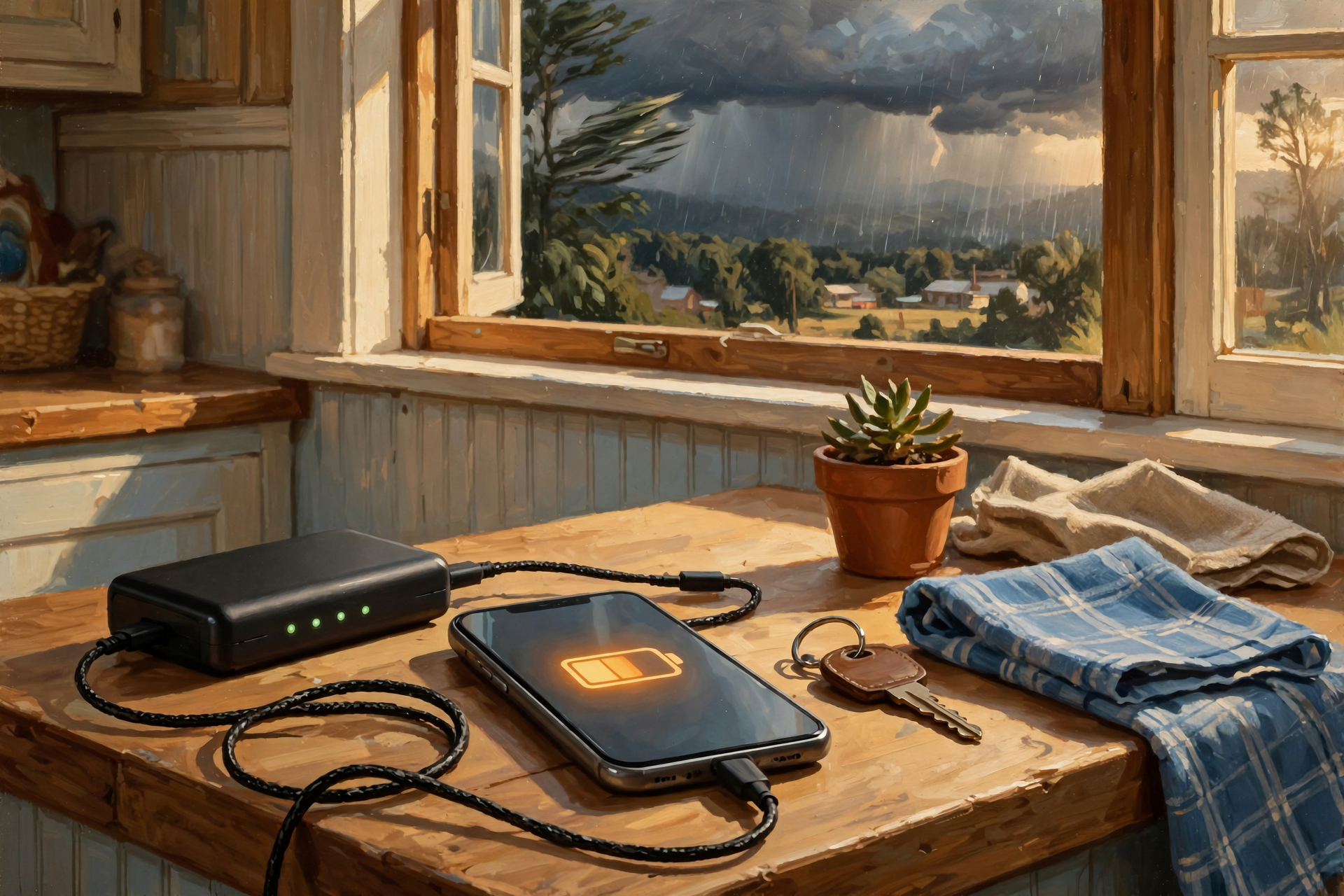
FEMA’s Ready.gov says to fully charge your phone and other devices before severe weather, keep a backup power source on hand and keep a portable phone charger in your car. If the power does go out, the FCC and the U.S. Department of Energy both suggest the same simple ways to save battery: turn down the screen brightness, close apps you aren’t using and keep calls short. Ready.gov also suggests low power mode or airplane mode when you don’t need the phone right away.
Low Power Mode on an iPhone: Open Settings, then Battery. On iPhone 15 and newer, tap Power Mode, then turn on Low Power Mode. On iPhone 14 and older, it’s right there on the Battery screen. You can also swipe down from the top-right corner and tap the battery button. Apple says the battery icon turns yellow when it’s on, and it turns itself off once you charge back above 80%.
Battery Saver on an Android: Swipe down from the top of the screen and tap Battery Saver, or go to Settings > Battery > Battery Saver. Names can vary a little by phone maker.
What it means for you: It’s like turning the thermostat down when you leave the house. Same phone, it just stops doing extra chores in the background. One important safety note from the Department of Energy: if you charge your phone in the car during an outage and the engine has to run, pull the car out of the garage first. Never run it in a closed garage. Your car radio is a good backup for local news, too.
👉 Read more (Ready.gov: Get Tech Ready) · Apple: Low Power Mode · Google: Get the most from your Android battery · Energy Dept.: Keeping devices charged
💬 Text First, Call Second: Why a Text Often Gets Through
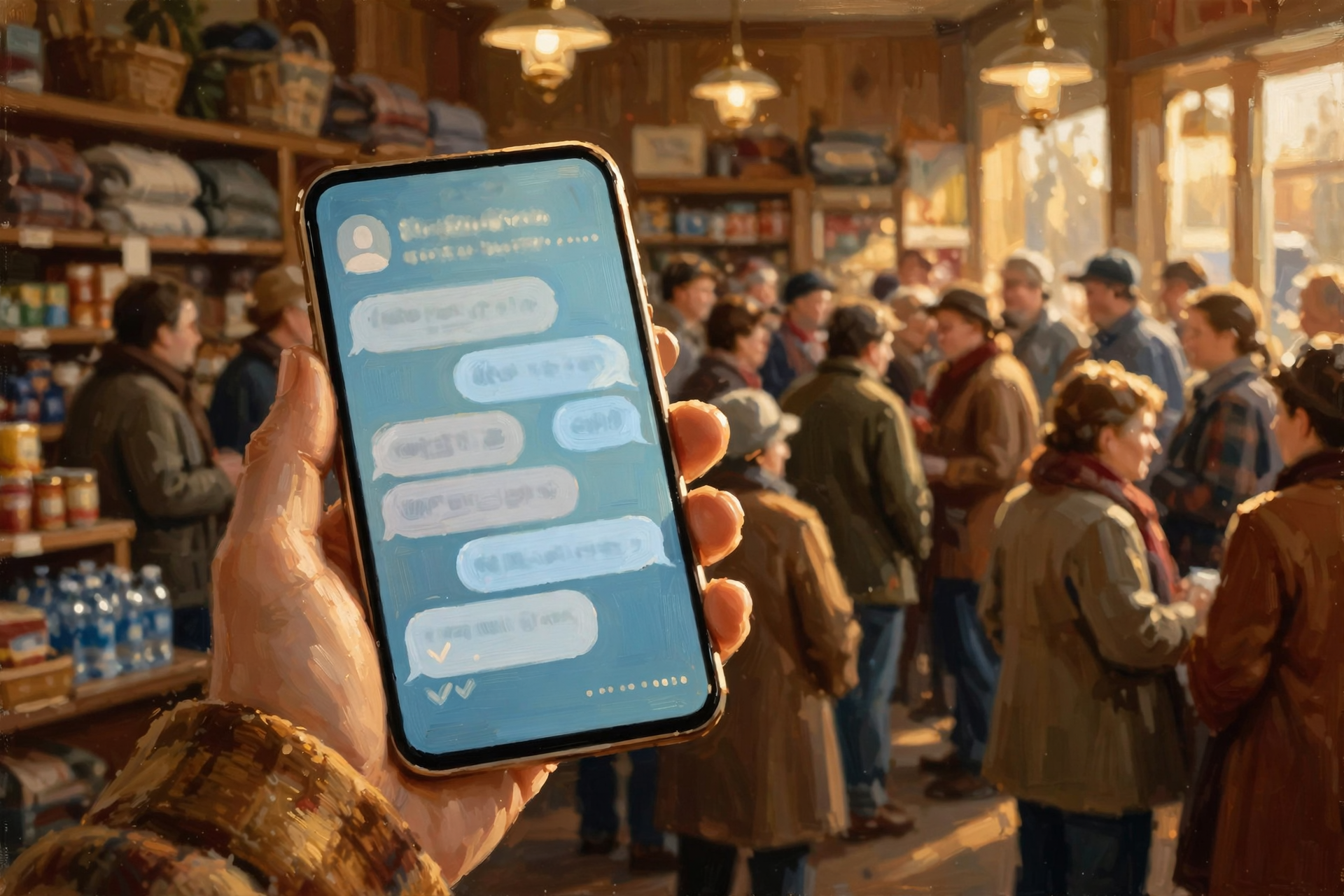
When lots of people pick up the phone at once, cell networks can get crowded, like the Walmart parking lot the day before a snowstorm. The FCC says text messages may go through when your call may not, and FEMA agrees texting is the best way to check on loved ones after a storm. The FCC also says to keep calls brief and, if a call won’t connect, to try another way, like a text, email or a landline if you have one.
About 911: The FCC says a voice call to 911 is always best when you can make one, since it gives dispatchers the most information. But texting 911 can help when you can’t talk. The Tennessee Emergency Communications Board reported that by the end of its 2025 fiscal year, 99% of Tennesseans could text 911. If you ever text 911 where it isn’t available, you’ll get an automatic message back telling you to call instead. Here at home, Sequatchie County’s 911 center lists its non-emergency number as (423) 949-9912 for things like a tree across the road that isn’t blocking anyone.
What it means for you: Make a plan with the family now: “If the lights go out, everybody texts in.” Ready.gov suggests setting up a family group text ahead of time. Show Grandma how to reply to a group text before the storm, not during it. And save streaming movies for after the network calms down, since the FCC says that helps emergency calls get through.
👉 Read more (FCC and FEMA: Emergency communications tips) · FCC: Text to 911 · Sequatchie County ECD 911
🩺 A Free Lock-Screen Setting That Speaks for You
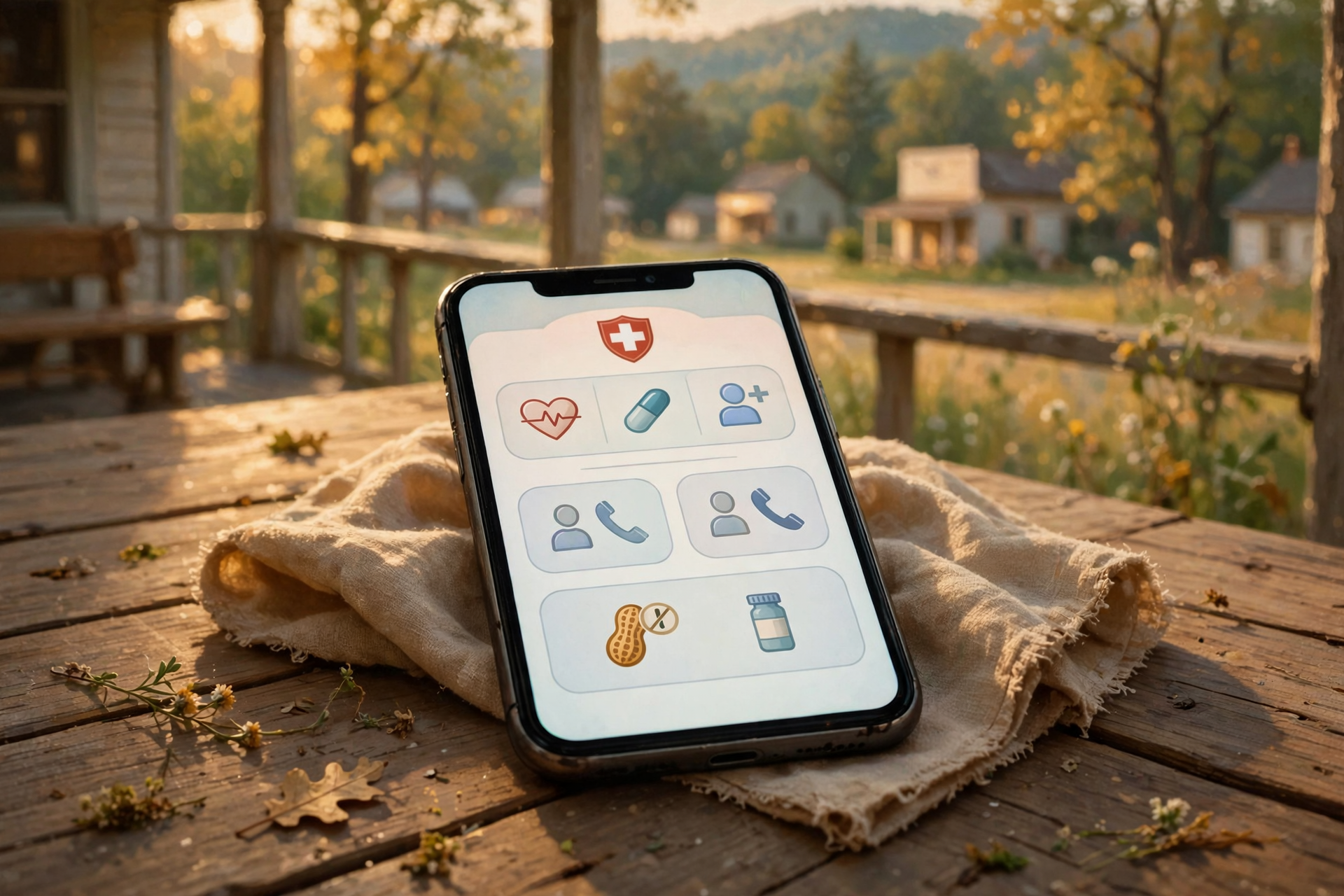
Both iPhones and Android phones let you put your allergies, medicines, health conditions and emergency contacts where a first responder can see them without your passcode. Apple says your iPhone can even share this “Medical ID” automatically when you call or text 911.
On an iPhone: Open the Health app, tap your picture in the top corner, then tap Medical ID. Tap Get Started or Edit, fill in what you want, add your emergency contacts, and turn on Show When Locked and Share During Emergency Call.
On an Android: Google’s help page says to open the Safety app (called Personal Safety on some phones), tap Your info, then add your Medical information and Emergency contacts. To show it on the lock screen, tap Emergency info access, then Show when locked. On some phones, you’ll find the same thing in Settings > Safety & emergency.
What it means for you: It’s like the note taped inside the kitchen cabinet that says who to call and what medicine Mama takes, except it rides along in your pocket. It’s especially handy for older folks, anyone with a serious allergy and anyone who works alone, like farmers out in a back pasture or a business owner closing up late. Only add what you’re comfortable with, since Google points out that anyone who picks up your phone can see what’s on the lock screen.
👉 Read more (Apple: Set up your Medical ID) · Google: Get help during an emergency with your Android phone
📸 Back Up the Grandbaby Pictures (and Your Insurance Papers)
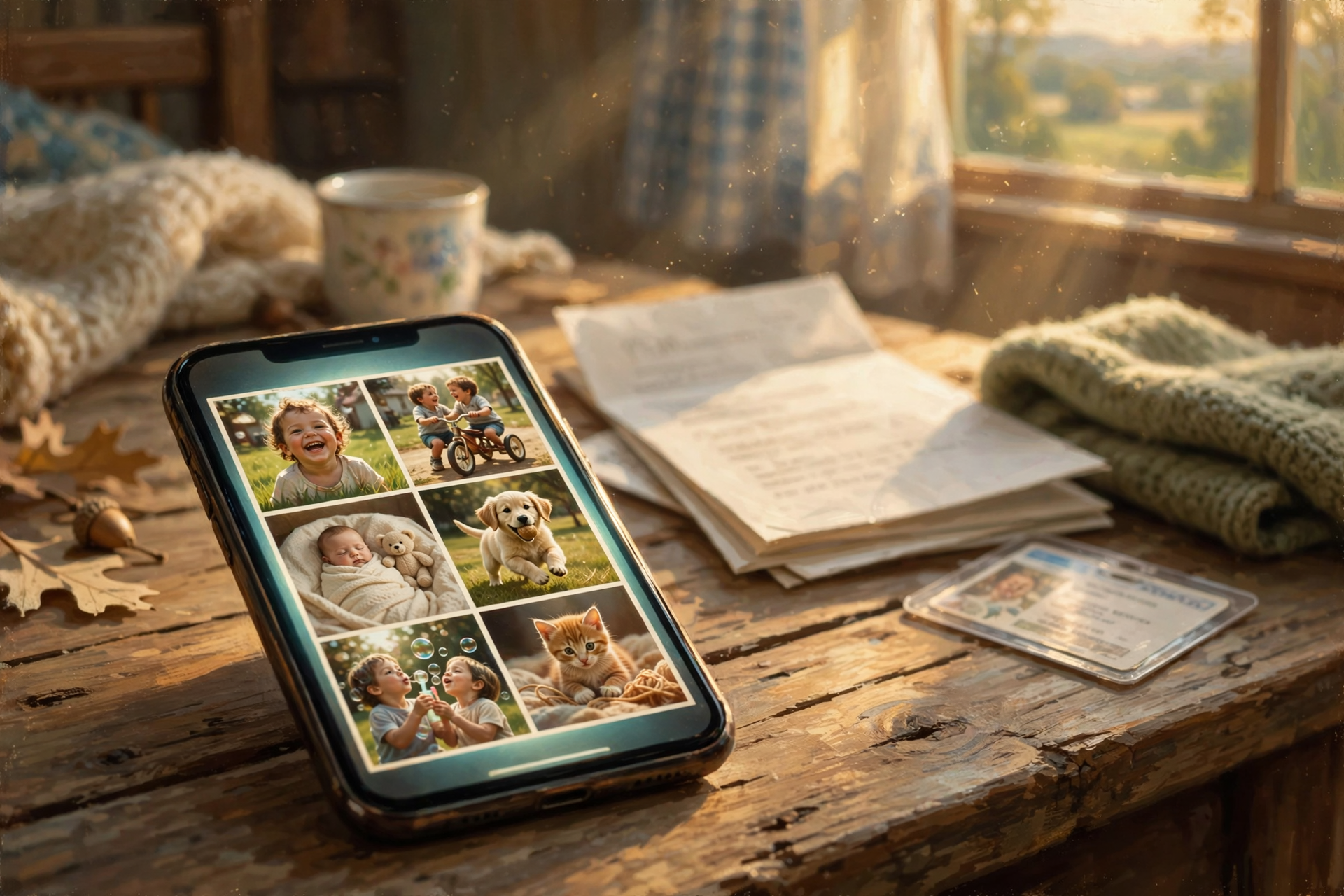
Ready.gov says to back up your photos and important documents before an emergency, and suggests using your phone’s camera to snap copies of things like insurance policies, IDs and medical records. Don’t forget your pet’s records, too.
On an iPhone: Apple’s steps are Settings, tap your name, then iCloud, then Photos, and turn on Sync this device. New this year: Apple says iPhones on iOS 27 have a Sync Immediately option on that same Photos screen. Choose For Today to push your pictures up faster, ideally while you’re on Wi-Fi so it doesn’t eat your data plan.
On an Android or with Google Photos: Open the Google Photos app, tap your profile picture, go to Photos settings > Backup and turn backup on.
What it means for you: A backup is like keeping a copy of the family Bible’s birth records at your sister’s house. If something happens to one, the other is safe. One heads-up from Apple: with iCloud Photos, deleting a photo on one device deletes it everywhere, though you get 30 days to recover it from the Recently Deleted album. Business owners, it’s a fine day to make sure your customer list and books are backed up, too.
👉 Read more (Apple: Set up and use iCloud Photos) · Google Photos: Back up photos and videos
🗺️ Save a Map of the Valley That Works Without a Signal
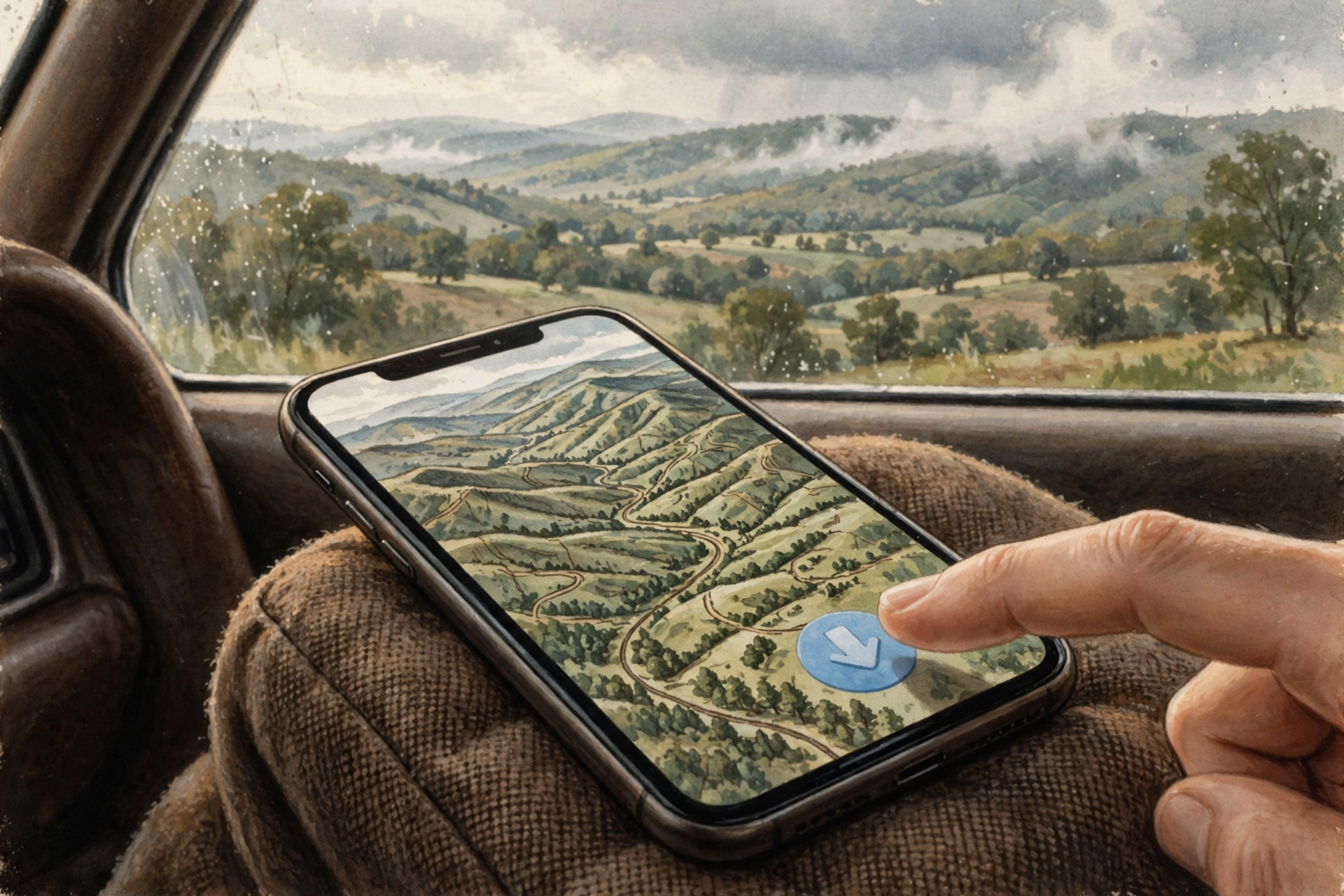
Out here, some hollows don’t get a bar of service on a sunny day, let alone in a storm. Google Maps lets you download an area to your phone so it still works offline. Google’s steps: open Google Maps, tap your profile picture, tap Offline maps, then Select your own map, stretch the box over the area you want and tap Download. Apple Maps on the iPhone has an offline maps option, too.
Google says offline maps can guide you as long as your whole route is inside the area you saved, but you won’t get live traffic or detour suggestions while offline. Downloaded maps also need to be refreshed now and then. Google Maps tries to update them on Wi-Fi, and you can turn on Auto-update offline maps in the Offline maps settings.
What it means for you: It’s the digital version of the paper road atlas in the glove box. Save a box that covers Dunlap, Pikeville, Jasper and Chattanooga, and you’ll have a map for the drives most of us make. And remember, a map can’t tell you if a road is flooded. If water covers the road, turn around.
👉 Read more (Google Maps: Download areas and navigate offline) · Apple: Download offline maps on iPhone
✅ Your 15-Minute Storm-Ready Phone Checklist
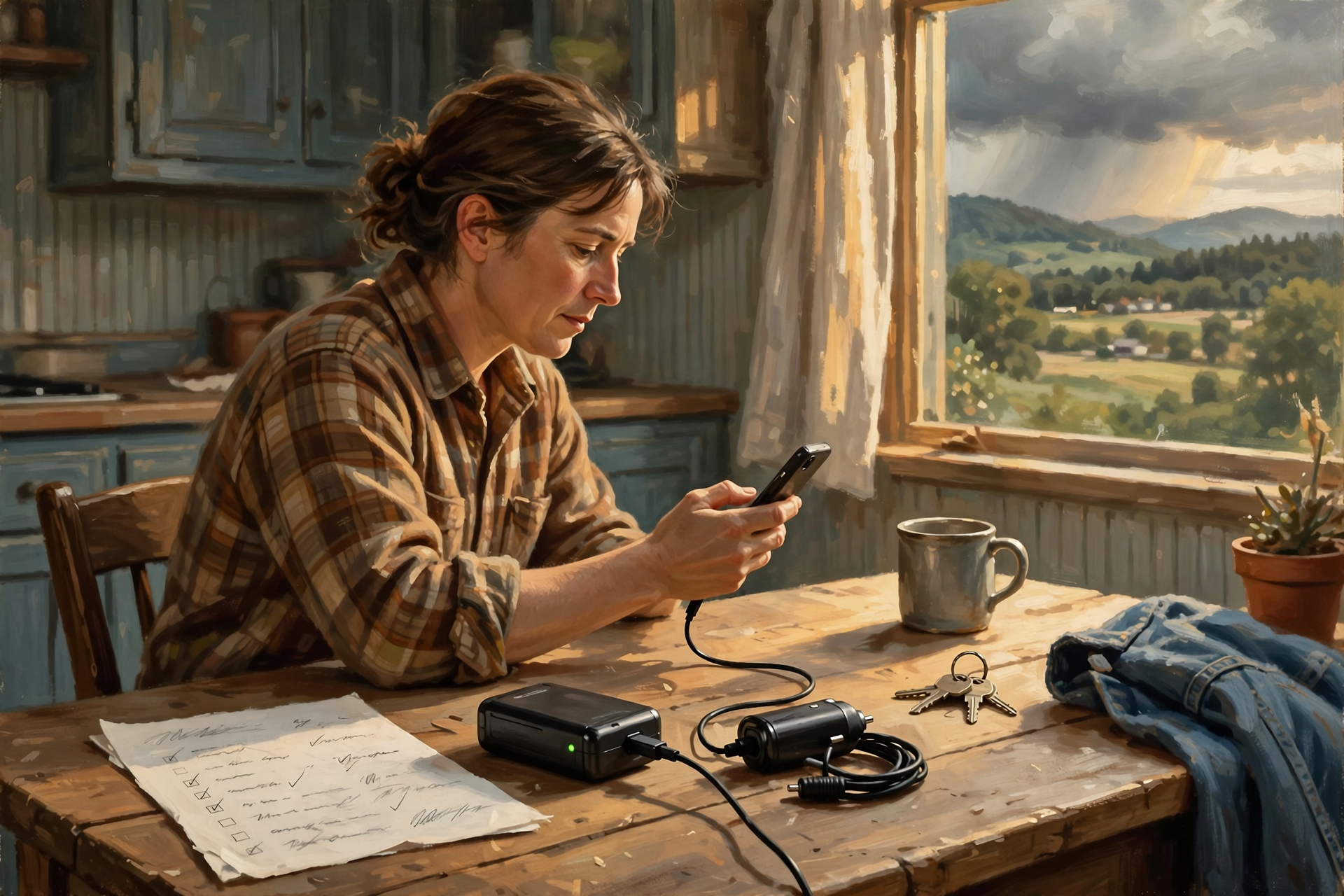
- ✅ Check that emergency alerts are on. iPhone owners, turn on Always Play Sound.
- ✅ Charge your phone, tablet and any battery pack by Friday night.
- ✅ Put a car charger in the truck, and only run the engine to charge outside the garage.
- ✅ Learn where Low Power Mode or Battery Saver lives on your phone.
- ✅ Start a family group text and agree: “If the lights go out, everybody texts in.”
- ✅ Fill in your Medical ID or emergency info and emergency contacts.
- ✅ Turn on photo backup and snap pictures of insurance cards and important papers.
- ✅ Download an offline map of the Valley and the roads you drive most.
- ✅ Write a few key numbers on paper, too, in case the phone dies: family, your doctor and the county’s non-emergency line, (423) 949-9912.
- ✅ Help a parent, grandparent or neighbor do the same.
Practical rule: Charge it, check it, text it. A full battery, alerts that can wake you and a text instead of a call will carry you through most stormy nights.
— Dunlap.Today
📚 Plain-English Tech Glossary
- Wireless Emergency Alerts (WEA): Official warnings, like flash flood or tornado warnings, sent straight to phones in an area. They make a loud, special sound.
- Local Awareness: An iPhone setting that uses your rough location to make emergency alerts more timely and accurate.
- Low Power Mode / Battery Saver: Settings that cut back on background chores so your battery lasts longer.
- Airplane mode: A setting that turns off your phone’s connections, which saves battery when you don’t need to make calls.
- Portable battery pack (power bank): A small rechargeable battery you can use to charge your phone without an outlet.
- Medical ID / emergency info: Health details and emergency contacts that first responders can see on your lock screen without your passcode.
- Lock screen: The screen you see before you unlock your phone.
- Backup: A safe copy of your photos and files kept somewhere else, like iCloud or Google Photos.
- Cloud: Storage on a company’s computers that you reach over the internet, so your files aren’t only on your phone.
- Offline map: A map saved on your phone that works without internet or cell service.
- Text-to-911: Sending a text message to 911 when you can’t safely make a call. A voice call is still best.
❓ Frequently Asked Questions
Can I turn off those loud alerts? They scare me half to death.
You can turn some types off, but it’s best to leave the weather ones on, especially this weekend. Some national alerts can’t be turned off at all. If the sound startles you, remember it only goes off for serious, official warnings, and it’s doing exactly its job.
Will Low Power Mode stop me from getting calls or alerts?
Apple’s list of what Low Power Mode limits includes email fetching, background app refresh, automatic downloads, iCloud photo syncing and screen brightness. Calls, texts and emergency alerts aren’t on that list. It’s a smart setting to use whenever the battery is getting low.
Is it safe to put my medical information on my lock screen?
It’s your choice. It’s there so helpers can read it in an emergency, which also means anyone holding your phone can see it. Many folks add just their allergies, key medicines and an emergency contact. You can change or remove it anytime.
Can I really text 911 here?
Tennessee’s emergency communications board reported that 99% of Tennesseans could text 911 as of its 2025 report. Still, the FCC says to always call 911 if you can and text only when you can’t. When you text, put your location and the kind of emergency in the very first message.
My phone is old and doesn’t have some of these settings. What should I do?
Menus vary by phone maker and age. Try typing the setting’s name into the search bar at the top of your Settings app. If it’s not there, the basics still work for every phone: charge it, keep it dry, keep calls short and text when you can.
Do I need to buy anything?
No. Every setting in this article is free. A portable battery pack and a car charger are handy extras if you don’t already have them, but they aren’t required.
🔗 Other Resources

- National Weather Service: Forecast for Dunlap
- Ready.gov: Power outages
- FCC: Tips for communicating in an emergency
- FEMA: Best way to communicate after a disaster
- Apple: Change notification settings on iPhone
- Google: Control notifications on Android
- Google: Use Battery Saver
- Tennessee Emergency Communications Board: 2025 annual report
🌻 Ready, Not Worried
A rainy weekend isn’t anything the Valley hasn’t seen a thousand times. The difference now is that most of us carry a pretty handy tool in our pocket, and fifteen minutes on Thursday or Friday gets it ready. Charge it up, check your alerts, start the family group text, then go enjoy the last of the sunshine. When the rain comes, put on a pot of soup and let it fall on the drought-dry fields.
We’ll be back with another plain-English tech tip in this series. Read Dunlap.Today for calm, clear Valley news all weekend, and find local businesses anytime on Dunlap.Directory.


0 Comments