
🛠️ It's Patch Tuesday: Restart Your Windows PC, Update Outlook, Try the New Glare-Cutting Magnifier and Get Ready for Easy Phone Photo Backups
Or: Microsoft’s Monthly Fix-It Day Is Here: What to Click, What to Skip and One New Trick for Tired Eyes
By Thomas Seest, Dunlap.Today · Tuesday, November 10, 2026
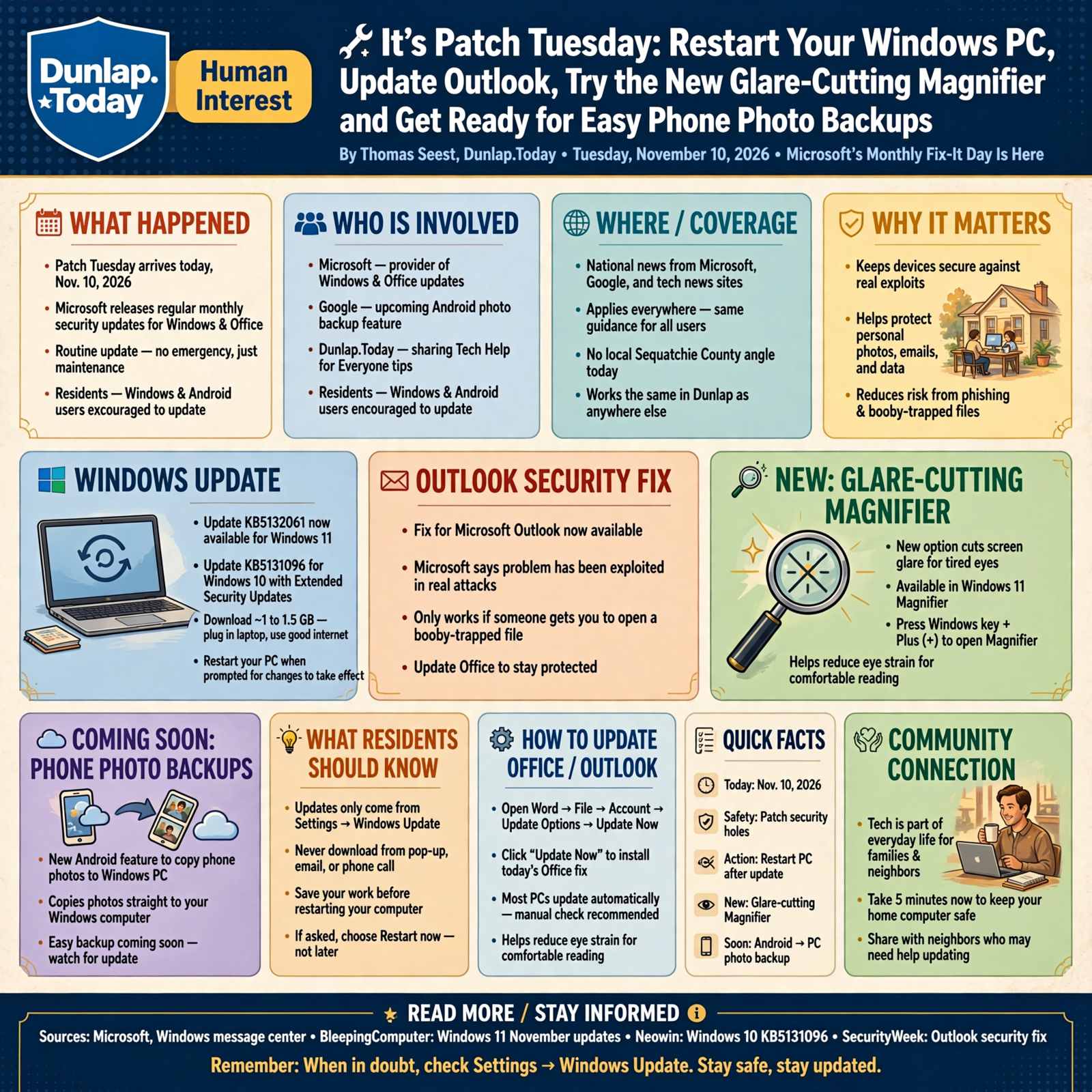
Good afternoon, neighbors. The second Tuesday of every month is what computer folks call “Patch Tuesday,” the day Microsoft sends out its regular batch of repairs for Windows and Office. Today is that day. Nothing is broken and nobody needs to panic. It’s just a good afternoon to let your computer take its medicine.
Here’s what’s in this thirty-sixth Tech Help for Everyone: letting today’s Windows update finish and restarting your PC, clicking “Update Now” in Office to get a fix for an Outlook problem Microsoft says crooks have already used, a new Magnifier option that cuts screen glare for tired eyes, and a coming Android feature that copies your phone photos straight to your Windows computer.
This is national news from Microsoft, Google and technology news sites. It works the same in Dunlap as anywhere else. There’s no local Sequatchie County angle today, and nothing here means your computer has a problem.
⏱️ What this means for you in 30 seconds
- Windows updates came out today, Nov. 10. Most PCs install them on their own. You just need to restart when asked.
- Outlook got a fix for a problem Microsoft says was used in real attacks. It only works if someone gets you to open a booby-trapped file.
- Update Office yourself: open Word, then File → Account → Update Options → Update Now.
- New for tired eyes: Windows 11’s Magnifier is getting a button that cuts glare. Press Windows key + Plus (+) to open Magnifier.
- Remember: Updates only come from Settings → Windows Update, never from a pop-up, email or phone call.
🪟 Let Today’s Windows Update Finish, Then Restart
This is national news from Microsoft and technology news sites.
Microsoft’s Windows message center says the November 2026 security update is now available for all supported versions of Windows, and Microsoft “recommend[s] that you install these updates promptly.” For most home computers running Windows 11, it shows up as update KB5132061. BleepingComputer reports it fixes security holes plus a few small bugs, and Windows Latest says it installs automatically as long as Windows Update is turned on.
If your PC is still on Windows 10 and signed up for Extended Security Updates, Neowin reports your November update is KB5131096, and it arrives the same way.
To check by hand: click Start, open Settings, choose Windows Update and click Check for updates. Windows Latest says the download is usually around 1 to 1.5 GB, so plug in your laptop and give it some time on good internet.
What it means for you: It’s like the co-op dropping off your feed order. It’s already on the porch; you just have to carry it in. For Windows, “carrying it in” means saving your work and choosing Restart when it asks, instead of clicking “later” for a week. Most fixes don’t take hold until you do.
👉 Read more: Microsoft, Windows message center · BleepingComputer, Windows 11 November updates · Neowin, Windows 10 KB5131096
📧 Click “Update Now” in Office to Get Today’s Outlook Fix
This is national news from Microsoft and security news sites.
Among today’s repairs is one for Microsoft Outlook, the email program that comes with Office. SecurityWeek reports Microsoft says this problem “has been exploited,” meaning crooks have already used it. Here’s how it works, in Microsoft’s words: an attacker could send “a specially crafted message file and convince a user to open it.” Opening it could make Outlook quietly connect somewhere it shouldn’t, without the usual warning, and leak sign-in information.
Two calming details: Microsoft rates it “moderate,” and the Zero Day Initiative says simply previewing an email isn’t enough to trigger it. Someone has to talk you into opening the file.
Office updates often install on their own, but you can nudge it. Microsoft’s steps:
- Open any Office app, like Word, and start a new document.
- Go to File → Account (in classic Outlook it’s File → Office Account).
- Under Product Information, choose Update Options → Update Now. If you only see “Enable Updates,” click that first.
- Close the “You’re up to date!” window when it’s done.
What it means for you: It’s like a latch on the gate that a sly fella figured out how to jiggle. Microsoft fixed the latch, and the update puts it on. In the meantime, the old rule still keeps you safe: don’t open an attachment you weren’t expecting, even if it seems to come from someone you know. Call them first and ask.
👉 Read more: SecurityWeek, Outlook fix · Microsoft, How to update Microsoft 365 or Office for Windows
🔍 A New Magnifier Button for Tired Eyes
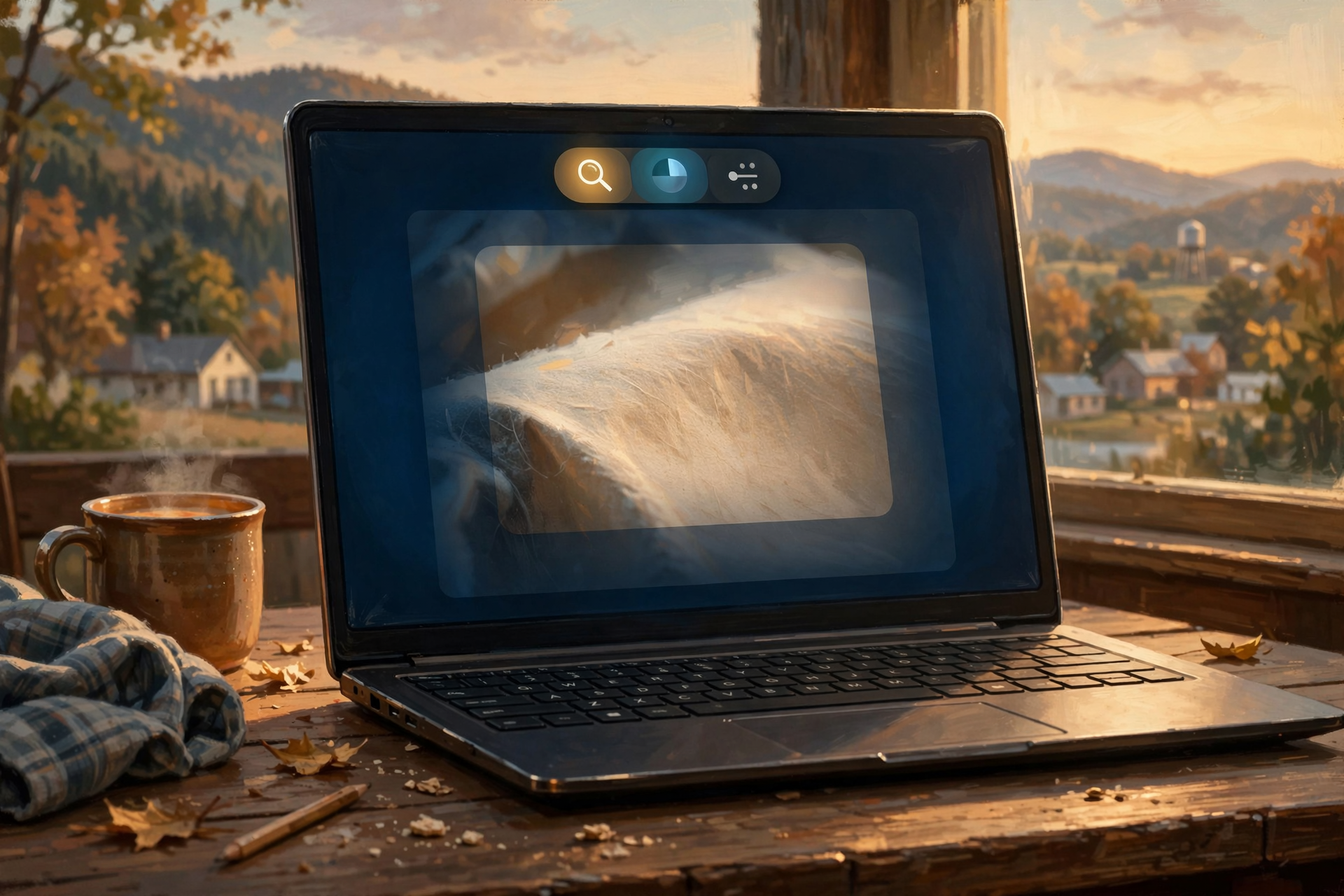
This is national news about Windows 11 from Windows Latest and Microsoft.
Today’s Windows 11 update also brings some small comforts. Windows Latest reports Magnifier, the free zoom tool built into Windows, is getting a contrast theme button on its toolbar that reduces glare while keeping the real colors in your photos and videos. It uses a dark theme by default. Microsoft says Magnifier is built in, so “there’s nothing to download or install.”
- Press Windows key + Plus (+) to open Magnifier and zoom in. Windows key + Minus (−) zooms back out.
- Press Windows key + Esc to close it.
- More choices live under Settings → Accessibility → Magnifier.
Windows Latest also reports the Privacy & security page in Settings now shows which apps have used your camera, microphone and location, right on the main page. Windows Latest says everything in this update rolls out gradually, so you may not see them right away.
What it means for you: It’s like a good pair of readers with a tint for the afternoon sun. If the bright white screen wears you out by the end of an evening, give the Magnifier a try. If the new glare button isn’t there yet, it’s coming; the zoom works today.
👉 Read more: Windows Latest, what’s new in KB5132061 · Microsoft, Use Magnifier
📸 Coming Soon: Phone Photos That Copy Themselves to Your PC
This is national news about Android phones from Google’s release notes and tech news sites.
Google’s November release notes for Android, reported by 9to5Google on Nov. 9, list a new feature: “Automatic backing up photos/videos from an Android to Windows using Quick Share.” Talk Android explains that instead of paying for cloud storage or digging out a cable, your phone would send pictures straight to your own computer at home.
It’s rolling out slowly, and Google hasn’t published a full how-to yet. Talk Android says you’ll need:
- A Windows 10 or 11 PC with Google’s free Quick Share for Windows app, signed in with your Google account.
- The same Google account on your Android phone.
- Both on the same home Wi-Fi, with Bluetooth turned on.
What it means for you: It’s like having a second shoebox for the family pictures, kept at home. Nothing to do today if you don’t want to. If you’d like to be ready, get Quick Share for Windows only from Google’s own site or the Microsoft Store, and keep your phone’s updates current. iPhone owners: this one isn’t for you, and nothing changes.
👉 Read more: 9to5Google, November Google System Updates · Talk Android, how to get ready
✅ Your Patch Tuesday Checklist
- ✅ Save your work and restart when Windows asks this week.
- ✅ Or check yourself: Start → Settings → Windows Update → Check for updates.
- ✅ Plug in your laptop and use good Wi-Fi; the update can take a while.
- ✅ In Word: File → Account → Update Options → Update Now to get the Outlook fix.
- ✅ Don’t open attachments you weren’t expecting. Call the sender first.
- ✅ Try Windows key + Plus (+) for Magnifier; Windows key + Esc closes it.
- ✅ Android and a Windows PC? Watch for Quick Share photo backup, and download apps only from official stores.
- ✅ Ignore any pop-up, email or caller saying you must “install an update” through them.
Practical rule: Real updates come from Settings, not from strangers, so let them install, restart and keep the unexpected attachments closed.
— Dunlap.Today
📚 Plain-English Tech Glossary
- Patch Tuesday: The second Tuesday of each month, when Microsoft releases its regular security repairs.
- Patch / update: A repair sent to your computer to fix bugs or close security holes.
- KB number: Microsoft’s label for a specific update, like KB5132061. Handy if you ever need to tell a helper what’s installed.
- Restart: Turning the computer off and back on through the Start menu so updates can finish.
- Extended Security Updates (ESU): A program that keeps sending security fixes to Windows 10 PCs that are signed up for it.
- Exploited: A weakness that crooks have actually used, not just one that experts found.
- Attachment: A file sent along with an email, like a picture, document or another email.
- Magnifier: A free Windows tool that zooms in on your screen so things are easier to see.
- Contrast theme: A color setting that darkens bright backgrounds to cut glare.
- Quick Share: Google’s tool for sending photos and files between nearby Android phones and Windows PCs.
❓ FAQ
Do I have to do anything today?
Not today exactly. Most Windows PCs download the update on their own. The one thing that matters is restarting when Windows asks, sometime this week.
How do I know if my Outlook is fixed?
Follow Microsoft’s steps: open Word, go to File → Account, then Update Options → Update Now. When it says “You’re up to date!” you’re set. If you only see an “About” button, your Office may be managed by an employer, so ask their help desk.
I use Outlook.com in my web browser. Do I need to do anything?
The reports about this fix name the Outlook program that’s installed with Office on Windows. Keeping your browser and Windows updated is still a good habit, and the “don’t open surprise attachments” rule works everywhere.
My computer says it’s still on Windows 10. Am I in trouble?
No. If it’s signed up for Extended Security Updates, it gets its November update (KB5131096) through Windows Update like before. If you’re not sure, check Settings → Update & Security → Windows Update, or ask someone you trust to look.
A pop-up says my computer needs an urgent update and gives a phone number. Is that Microsoft?
No. Real Windows updates show up in Settings → Windows Update. Close the pop-up, and never call a number from one or let a stranger connect to your computer.
I don’t see the new Magnifier glare button. Did I miss it?
Probably not. Windows Latest reports today’s new features roll out gradually. Magnifier’s zoom (Windows key + Plus) works now, and the glare button should show up in time.
Other Resources
- Microsoft — Windows message center (November 2026 security update)
- BleepingComputer — Windows 11 KB5132061 & KB5131087 cumulative updates released (Nov. 10, 2026)
- Windows Latest — Windows 11 KB5132061 is out with new features (Nov. 10, 2026)
- Neowin — Patch Tuesday update KB5131096 for Windows 10
- SecurityWeek — Exploited Outlook zero-day patched by Microsoft
- Zero Day Initiative — The November 2026 Security Update Review
- Microsoft Support — How to update Microsoft 365 or Office for Windows
- Microsoft Support — Use Magnifier to make things on the screen easier to see
- 9to5Google — What’s new in Android’s November 2026 Google System Updates (Nov. 9, 2026)
- Talk Android — Automatic photo backups from Android to Windows PCs (Nov. 9, 2026)
🌿 Keep Learning, Stay Calm

Patch Tuesday is a routine chore, like changing the furnace filter: easy to put off, nice once it’s done. Let Windows install, restart when it asks, click Update Now in Office, and keep that old rule about surprise attachments. Then try the Magnifier some evening and see if your eyes thank you.
For more calm, clear help made for Sequatchie Valley readers, keep reading Dunlap.Today, and find local folks who can help with phones and computers anytime on Dunlap.Directory.
Know about an upcoming event or story in the Dunlap, TN area? Submit it here.



0 Comments