
🧰 Make the Phone Fit the Person: Simple Mode, Bigger Buttons and Plain Old Back Buttons for a New or Hand-Me-Down Phone

Or: You Don’t Have to Learn the Whole Toolbox: Turn On the Phone’s Simple Mode and Keep Just the Hammer, the Tape Measure and the Phone Book
By Thomas Seest, Dunlap.Today · Thursday, November 5, 2026
Good afternoon, neighbors. Thanksgiving is three weeks from today, and this is the time of year a lot of us get a new phone, inherit a grandchild’s old one, or find ourselves setting one up for Mom or Dad at the kitchen table. Most of the frustration with a smartphone isn’t the phone itself. It’s all the extra: tiny letters, a dozen apps nobody asked for, and swipes that seem to do something different every time.
Here’s what’s in this thirty-first Tech Help for Everyone: the “simple mode” hiding inside iPhones and Samsung phones, how to bring back plain Back and Home buttons on Android, three small settings that make any phone friendlier, and a quick word on the iOS 27.3 test version in the news this week.
Nothing here is urgent and nothing is broken. Think of it like lowering the bird feeder so you can actually reach it: same feeder, just set up for the person using it.
⏱️ What this means for you in 30 seconds
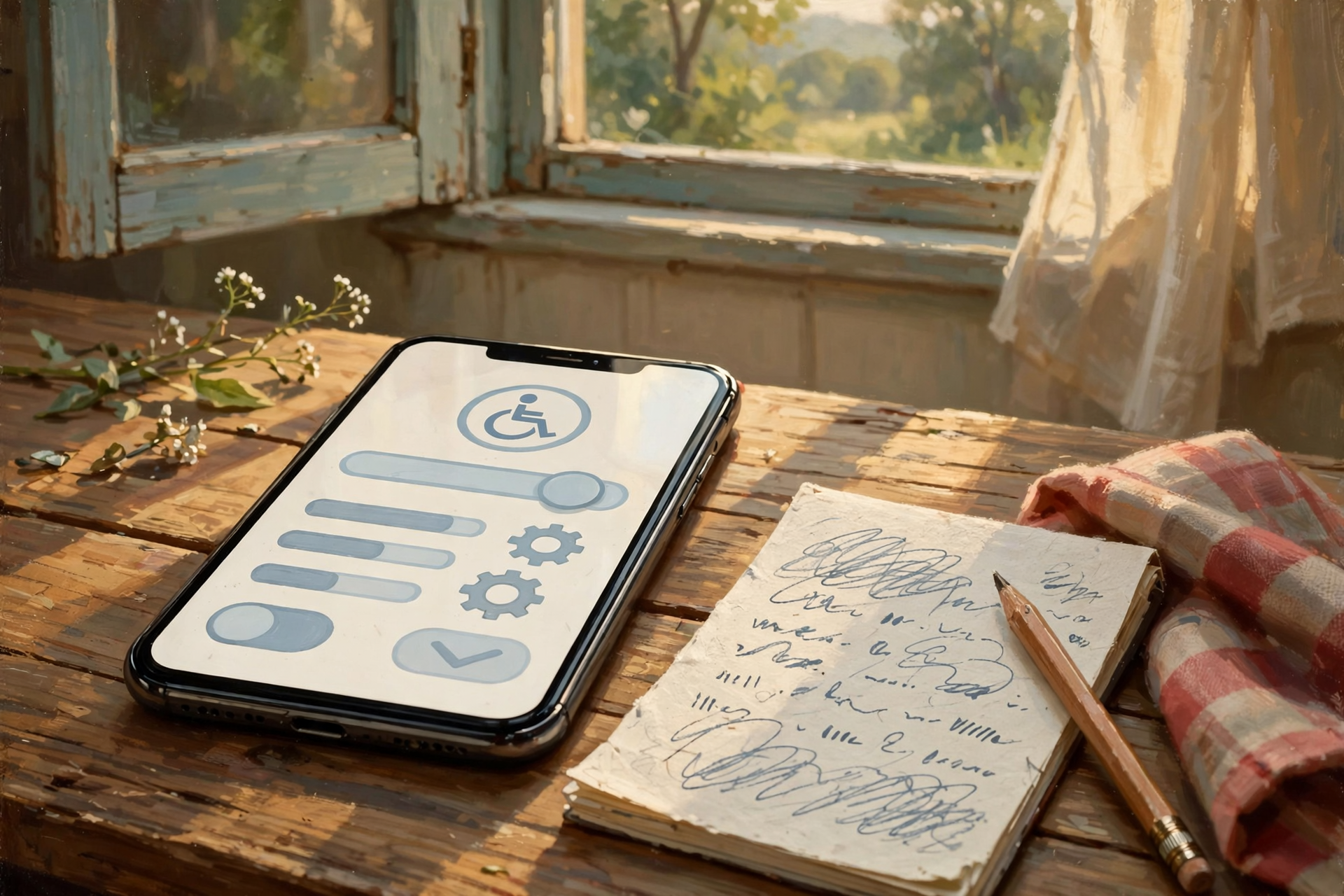
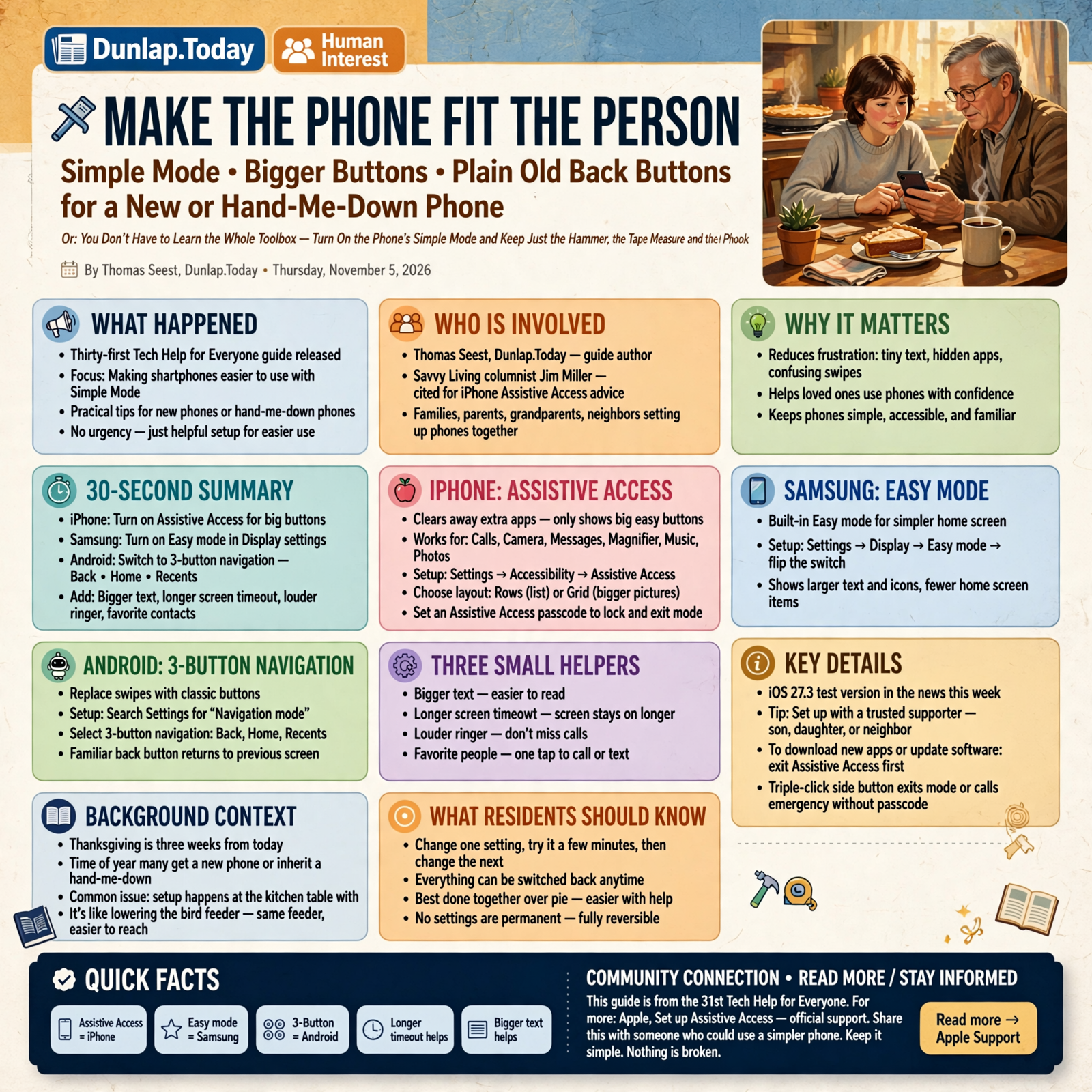
- iPhone simple mode: It’s called Assistive Access. Settings → Accessibility → Assistive Access → Set Up Assistive Access. Big buttons, only the apps you pick.
- Samsung simple mode: It’s called Easy mode. Settings → Display → Easy mode, then flip the switch.
- Android buttons instead of swipes: Search Settings for “Navigation mode” and pick 3-button navigation (Back, Home, Recents).
- Small helpers: Bigger text, a longer screen timeout, louder ringer, and your favorite people one tap away.
- Remember this: Change one setting, use the phone a few minutes, then change the next. Everything can be switched back.
🍎 iPhone: Assistive Access Turns the Phone Into a Few Big Buttons
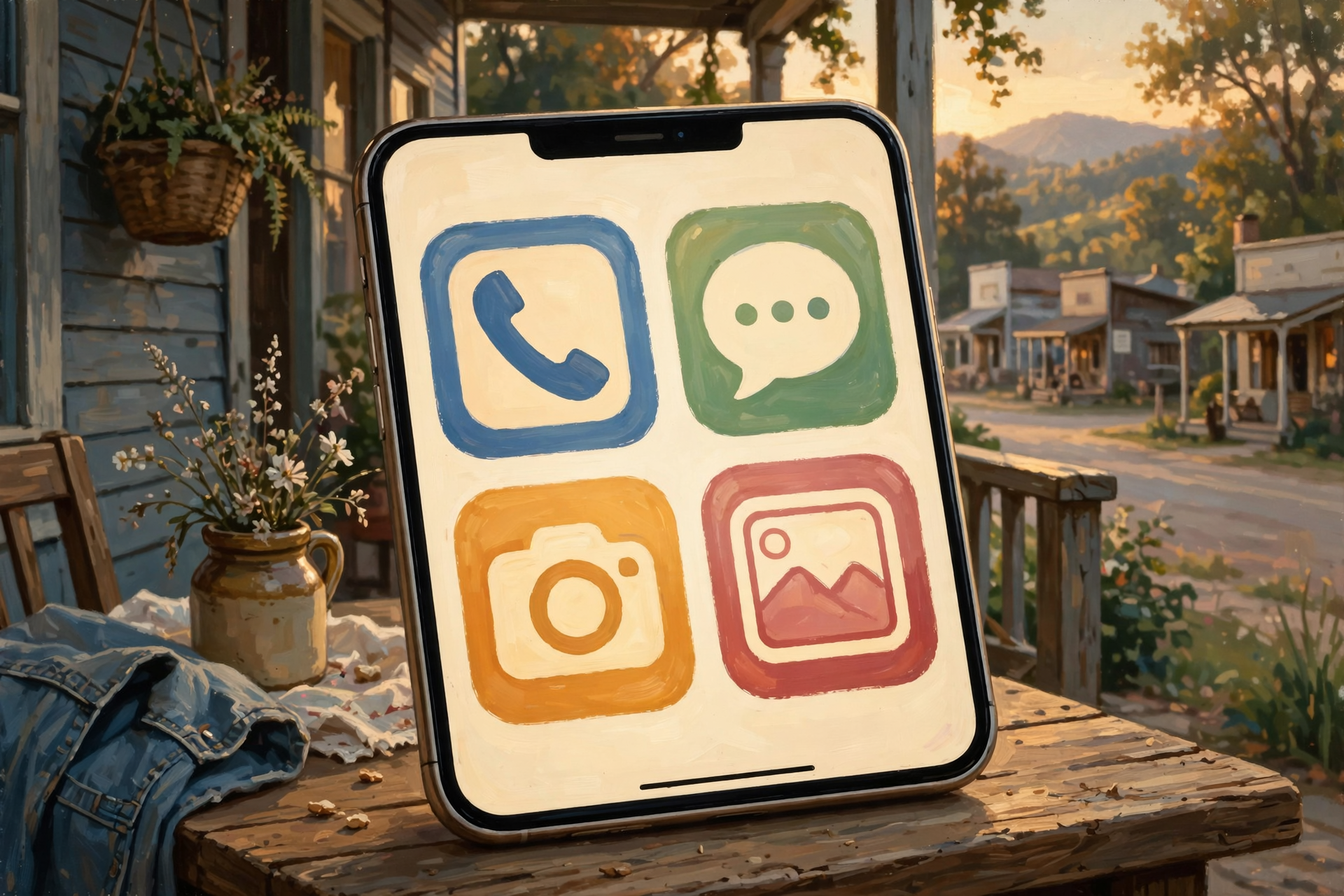
Savvy Living columnist Jim Miller, answering a reader whose parent was struggling with a new smartphone, pointed out that some phones can “clear away extra apps and only show big, easy buttons for the apps that are used the most, like Phone, Messages and Camera.” On iPhone, Apple calls that Assistive Access. Apple says in this mode “onscreen items are bigger, features are more focused, and it’s easier to navigate.”
Apple’s setup steps, in plain English:
- Go to Settings → Accessibility → Assistive Access, tap Set Up Assistive Access, then Continue.
- Pick the apps to keep. Apple has special big-button versions of Calls, Camera, Messages, Magnifier, Music and Photos, and you can add most other apps too.
- Choose a layout: Rows (an easy-to-read list) or Grid (bigger pictures and icons).
- Set an Assistive Access passcode. That’s the key to get in and out of the mode and change its settings.
To leave it, Apple says to triple-click the side button (or the Home button on older iPhones), tap Exit Assistive Access, and enter that passcode. A comforting detail: that same triple-click also lets you make an emergency call without the passcode.
What it means for you: It’s like cleaning out the junk drawer and keeping only the scissors, the tape and the flashlight. Apple says it may be easiest to set up with a “trusted supporter,” like a son, daughter or neighbor, so this is a good one to do together over pie. One thing to know: to download new apps or start a software update, you have to step out of Assistive Access first.
👉 Read more: Apple, Set up Assistive Access on iPhone · Apple, Enter and exit Assistive Access
📱 Samsung Galaxy: Easy Mode Is One Switch Away
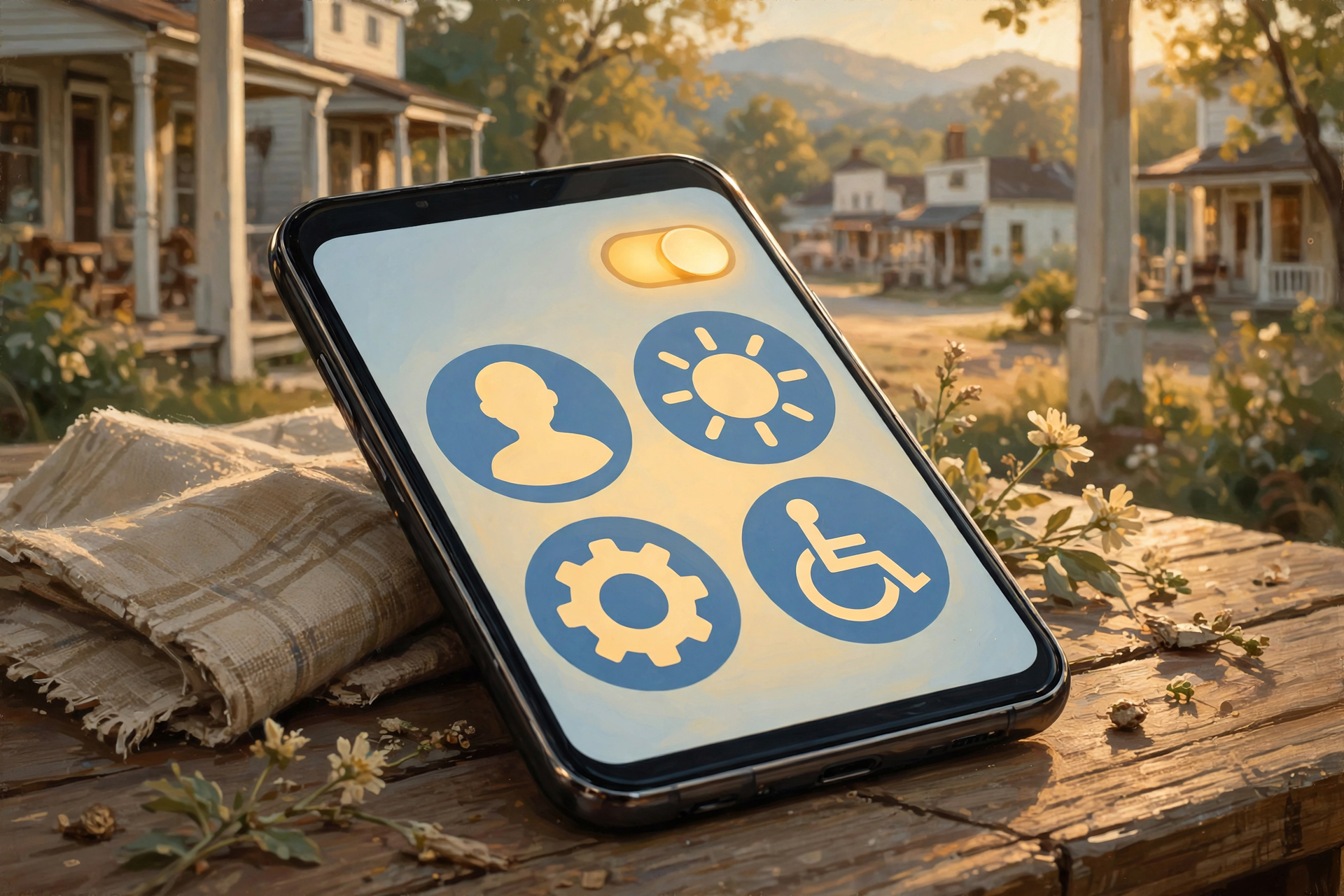
Samsung’s own help page says Easy mode “will enlarge the on-screen items, provide a high contrast keyboard, and help prevent accidental touches when tapping.” The steps are as short as they come: Settings → Display → Easy mode, then tap the switch to turn it on.
Tom’s Guide, walking through Easy mode, notes two more handy pieces: a Touch and hold delay setting for folks whose taps sometimes get read as long presses, and a speed dial page (swipe right from the main home screen) where you can put your most important people for quick calls and texts.
What it means for you: It’s the same phone with the print turned up and the clutter put away, like trading the fine-print almanac for the large-print one. Turning it off is the same switch, so there’s no risk in trying it for a week.
👉 Read more: Samsung, Adjust your Galaxy display settings (Use Easy mode) · Tom’s Guide, Your Samsung Galaxy phone comes with a hidden Easy Mode
🔙 Android: Bring Back the Plain Back and Home Buttons
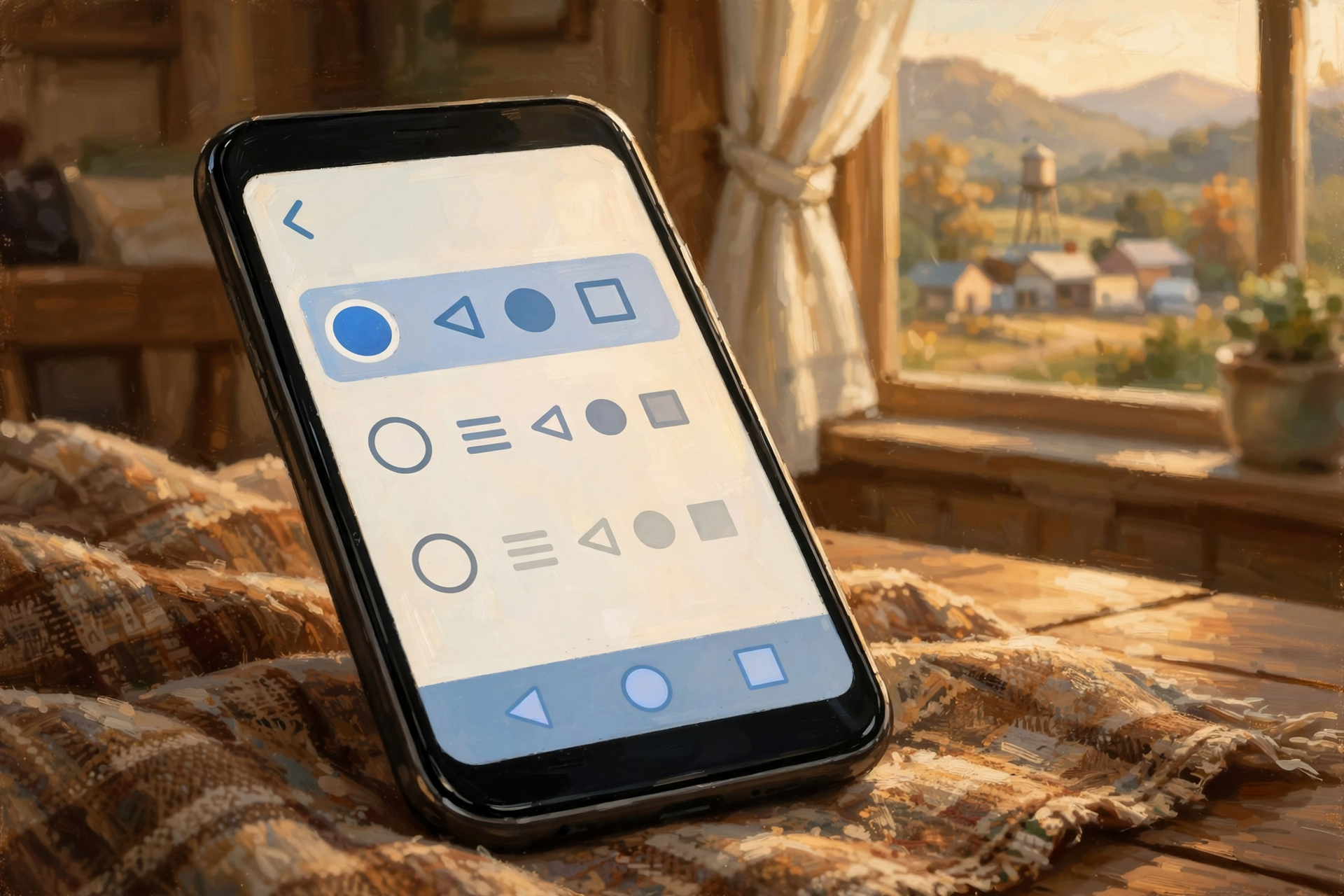
Newer Android phones often come set up for swiping: swipe up to go home, swipe from the edge to go back. If those swipes feel like trying to start a pull-cord mower in the cold, Android lets you switch to 3-button navigation, with buttons at the bottom of the screen for Back, Home and Recents (your recently used apps). Google’s own help page says 3-button navigation “is recommended for users with limited dexterity or who struggle to perform precise gestures.”
- Pixel: Settings → System → Navigation mode → 3-button navigation.
- Other Android phones: Settings → System or Gestures → Navigation mode. Menus vary, so the easiest trick is to tap the search box at the top of Settings and type “navigation.”
Google also says you can make text bigger by searching Settings for “Font size” (up to 200%) and make buttons and icons bigger by searching for “Display size.” There’s a Bold text switch under Accessibility → Display size and text, too.
What it means for you: Buttons you can see beat gestures you have to remember. That’s a gift to anybody with, as we like to say around here, a memory like a screen door.
👉 Read more: Android Help, Get around on your Android device · Android Accessibility Help, Change text & display settings
☎️ Three Small Settings That Make Any Phone Friendlier
Miller’s Savvy Living column lists a few “extra tips” that work on just about any phone. Here are the three we like best for the Valley:
- Let the screen stay on longer. Miller suggests increasing the screen timeout so the display doesn’t go dark while you’re still reading. On Android, search Settings for “Screen timeout.” On iPhone, it’s under Settings → Display & Brightness → Auto-Lock.
- Turn up the ringer and alert volume, so a call from the doctor’s office or the grandkids doesn’t slip by while you’re out on the porch.
- Put favorite people one tap away and move the most-used apps (Phone, Messages, Photos) to the first screen. Clear off the ones nobody uses.
While you’re at the kitchen table, TechRepublic suggests one more five-minute job: set up the phone’s emergency contacts and medical information, which can be shown from the lock screen so a first responder can see who to call. (Our October 7 storm-ready tip walked through this. If it’s a new phone, it’s worth doing again.)
What it means for you: These aren’t fancy. They’re like putting the porch light on a timer. Small, set-it-once changes that save a lot of fumbling later.
👉 Read more: Savvy Living, Smartphones Made Simple · TechRepublic, Your iPhone or Android can help in an emergency
🧪 Heard About iOS 27.3? It’s Still in Testing
You may see headlines this week about iOS 27.3. Apple posted the first beta (test version) for app developers on November 3. The Apple Post reports the update is expected to reach the public in December, with changes to the Health app, Safari and the bedside StandBy clock screen.
What it means for you: There’s nothing to download or do today. A beta is like the test batch of biscuits the cook tries before company comes. When the finished version is ready, your iPhone will offer it in Settings → General → Software Update, and if you turned on automatic updates from yesterday’s tip, it’ll take care of itself.
👉 Read more: Apple Developer, Get ready with the latest beta releases · The Apple Post, iOS 27.3 beta features
✅ Your Simple-Phone Checklist
- ✅ iPhone: Settings → Accessibility → Assistive Access → Set Up. Pick only the apps that get used.
- ✅ Write down the Assistive Access passcode and keep it where a trusted family member can find it.
- ✅ Remember the way out: triple-click the side button. That also reaches an emergency call.
- ✅ Samsung: Settings → Display → Easy mode → switch on. Fill in the speed dial page.
- ✅ Android swipes a pain? Search Settings for “navigation” → 3-button navigation.
- ✅ Bigger letters: search Settings for “Font size” (Android) or look under Display (iPhone).
- ✅ Longer screen timeout and a louder ringer.
- ✅ Favorites up front: the people you call most, one tap away.
- ✅ Emergency contacts and medical info filled in on any new phone.
- ✅ Write it on an index card by the charger: “Back. Home. Call. Text. Photo.” Practice those five before anything else.
Practical rule: Make the phone fit the person, not the other way around. One change at a time, and every switch can be flipped back.
— Dunlap.Today
📚 Plain-English Tech Glossary
- Assistive Access: Apple’s simplified iPhone mode with big buttons and only the apps you choose.
- Trusted supporter: Apple’s name for the family member or caregiver who helps set up Assistive Access.
- Easy mode: Samsung’s simpler home screen with larger text and icons and a high-contrast keyboard.
- Gesture navigation: Getting around the phone by swiping instead of tapping buttons.
- 3-button navigation: Android’s Back, Home and Recents buttons along the bottom of the screen.
- Recents / Overview: The button or screen that shows the apps you used lately.
- Screen timeout / Auto-Lock: How long the screen stays lit before it goes dark and locks.
- Touch and hold delay: How long you press before the phone treats it as a “long press” instead of a tap.
- Beta: A test version of software, mostly for developers, before the finished version is released.
❓ FAQ
Will simple mode erase my photos, contacts or texts?
No. Assistive Access and Easy mode change how the phone looks and works, not what’s stored on it. Your pictures and people are still there.
Can I turn it off if I don’t like it?
Yes. On Samsung, it’s the same Easy mode switch. On iPhone, triple-click the side button (or Home button), tap Exit Assistive Access, and enter the Assistive Access passcode. Savvy Living’s advice fits here: everything is reversible.
What if we forget the Assistive Access passcode?
Apple says you can use your Apple Account to exit Assistive Access and reset the passcode. Even so, writing it down and keeping it somewhere safe at home saves a headache.
Can someone in simple mode still call 911?
On iPhone, Apple says triple-clicking the side button (or Home button) lets you make an emergency call without the Assistive Access passcode. It’s still a good idea to practice once, without actually dialing, so everyone knows the move.
Is Assistive Access only for people with memory trouble?
Apple designed it to help people with cognitive disabilities use iPhone independently, but anybody who wants a calmer, simpler phone can set it up. Plenty of folks just want fewer buttons.
My Android isn’t a Samsung or a Pixel. Do these steps still work?
Most of them, though menu names vary by phone maker. The surest trick is the search box at the top of Settings. Type “navigation,” “font size” or “screen timeout,” and the phone takes you right there. Your carrier store or phone maker can help with the rest.
Should I install the iOS 27.3 beta to get the new features early?
No need. Betas are test versions for developers and can have bugs. The regular update is expected in December, and your iPhone will offer it when it’s ready.
Is any of this something to worry about?
Not one bit. It’s tidying up, like rearranging the kitchen so the coffee cups are on the low shelf.
🔗 Other Resources
- Savvy Living (Jim Miller): Smartphones Made Simple
- Apple: Set up Assistive Access on iPhone
- Apple: Enter and exit Assistive Access on iPhone
- Samsung: Adjust your Galaxy phone or tablet’s display settings (Easy mode)
- Tom’s Guide: Your Samsung Galaxy phone comes with a hidden Easy Mode
- Android Help: Get around on your Android device (Navigation mode)
- Android Accessibility Help: Change text & display settings
- TechRepublic: Your iPhone or Android can help in an emergency
- Apple Developer: Get ready with the latest beta releases (Nov. 3, 2026)
- The Apple Post: iOS 27.3 beta features
🌻 A Simpler Phone, a Calmer Day

None of this has to happen today. Some evening this week, or when the family’s gathered around the table later this month, pick one change and try it. If it helps, keep it. If not, flip it back. A phone that fits the person who’s holding it gets used more and worried about less. And if you know a neighbor who’s been fighting with a new phone, pass this along. That’s what front porches are for.
Keep learning, keep exploring and keep it simple. Read Dunlap.Today for calm, clear Valley news, and find local folks who can help with phones and computers anytime on Dunlap.Directory.
Know about an upcoming event or story in the Dunlap, TN area? Submit it here.




0 Comments