

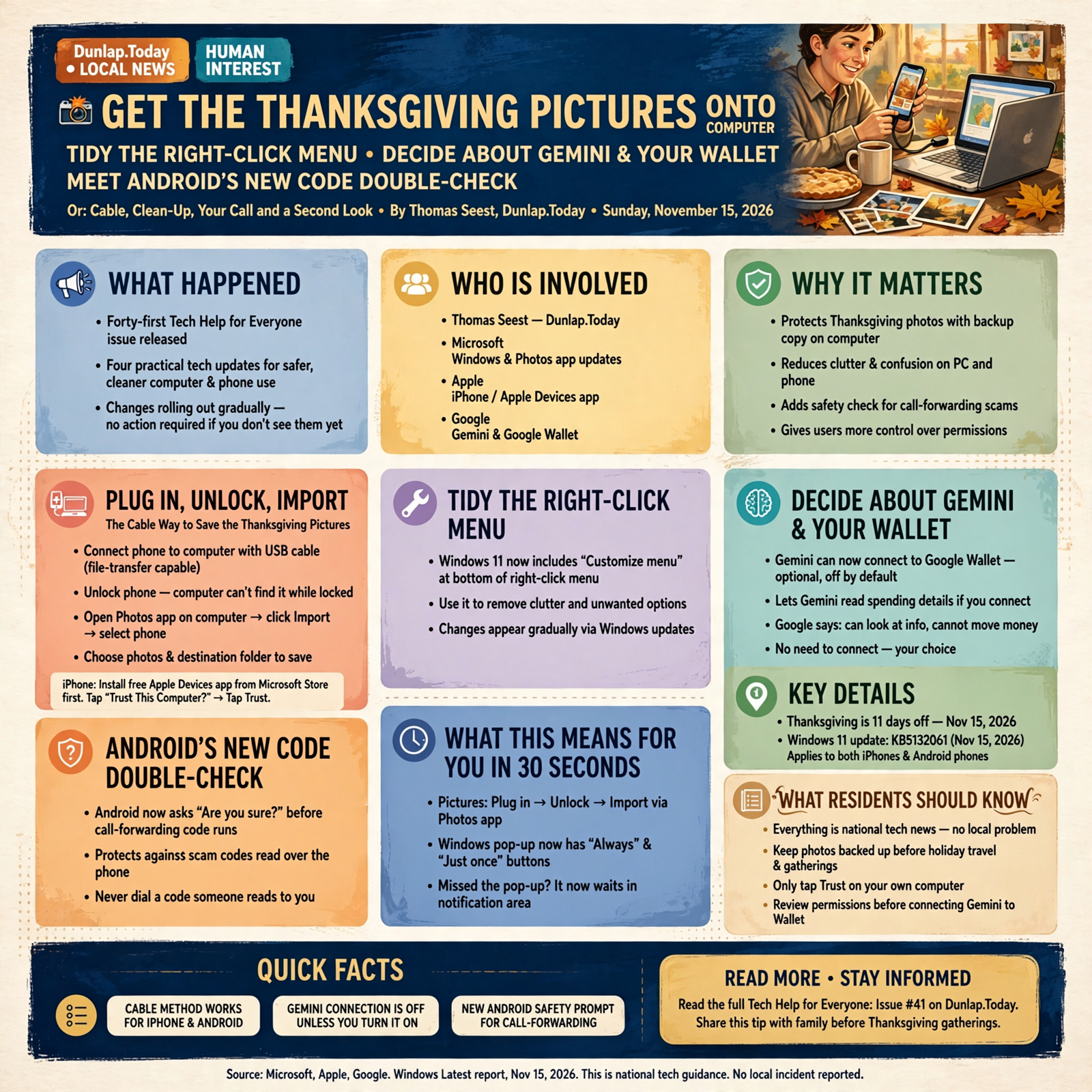
📸 Get the Thanksgiving Pictures Onto the Computer, Tidy the Right-Click Menu, Decide About Gemini and Your Wallet, and Meet Android's New Code Double-Check
Or: Cable, Clean-Up, Your Call and a Second Look
By Thomas Seest, Dunlap.Today · Sunday, November 15, 2026
Good afternoon, neighbors. Thanksgiving is 11 days off, and by that Thursday evening a lot of phones in the Valley will be stuffed fuller than the turkey: grandbabies, the long table, the pie that didn’t quite set. Phones get lost and dropped, so it’s a good idea to keep a second copy of those pictures on the home computer. This week brought a few small, friendly changes that make that and a couple of other chores easier.
Here’s what’s in this forty-first Tech Help for Everyone: how to copy pictures from your phone to a Windows computer with a plain USB cable, plus the friendlier “what do you want to do?” box Windows is rolling out; how to trim the clutter from the right-click menu on Windows 11; Google’s new option to connect Google Wallet to its Gemini helper, which stays off unless you turn it on; and a new “are you sure?” check on Android phones before a call-forwarding code can run.
Everything in today’s issue is national: Microsoft, Apple and Google instructions and tech news. Nothing here is a Sequatchie County news item, and nothing here means your computer or phone has a problem. Most of these changes arrive gradually, so don’t worry if you don’t see them yet.
⏱️ What this means for you in 30 seconds
- Phone pictures to the computer: plug in with a USB cable, unlock the phone, open the Photos app on the computer and click Import.
- iPhone asks “Trust This Computer?” Tap Trust only if it’s your own computer.
- Windows’ plug-in pop-up is getting a makeover with “Always” and “Just once” buttons. If you miss it, it now waits in the notification area.
- Windows 11 right-click menu cluttered? Look for Customize menu at the bottom.
- Gemini can now read your Google Wallet spending, but only if you connect it. Google says it can look, not move money. No need to do anything.
- Never dial a code someone reads to you over the phone. Updated Android phones now ask “are you sure?” before a call-forwarding code runs.
📸 Plug In, Unlock, Import: The Cable Way to Save the Thanksgiving Pictures
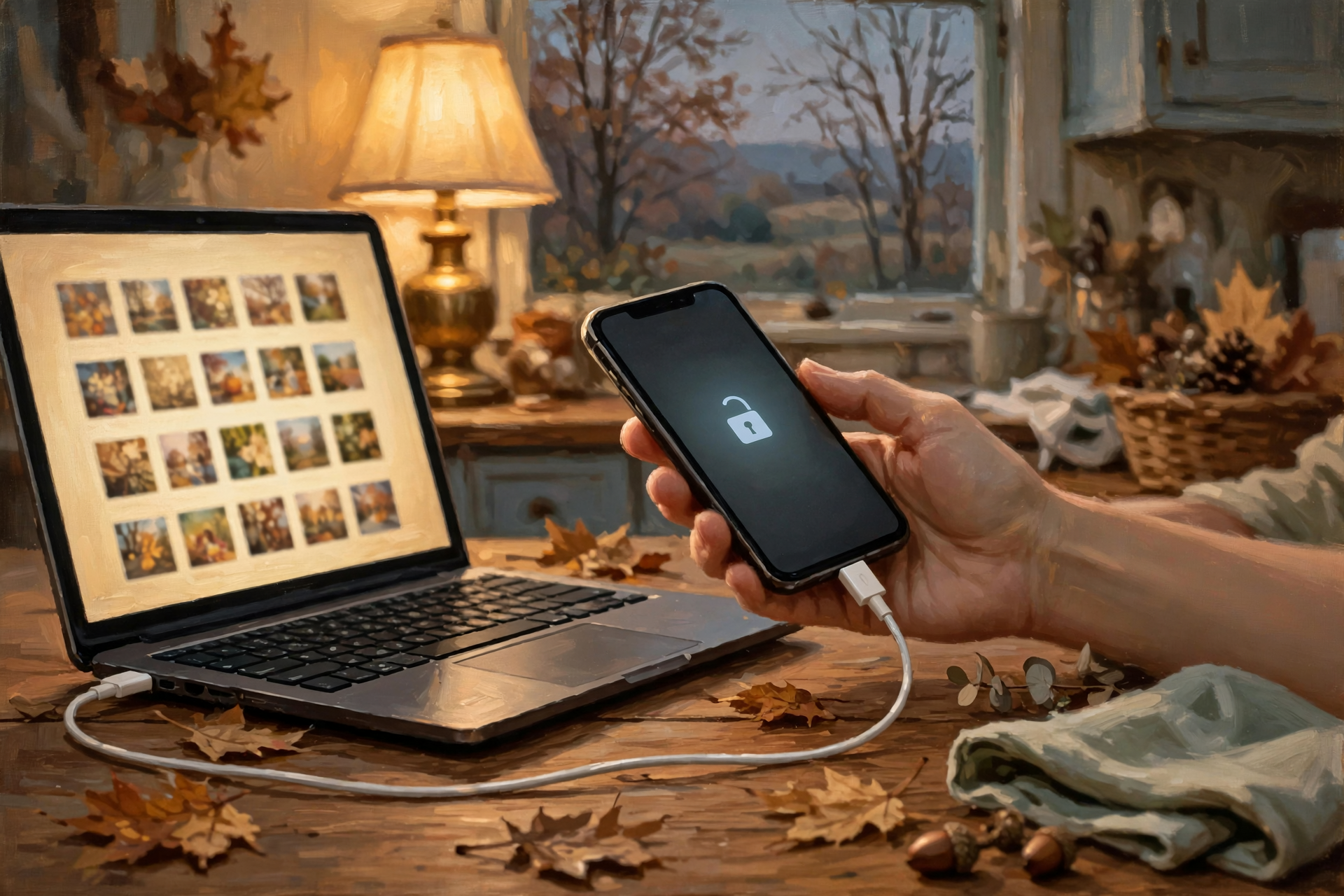
This is national how-to guidance from Microsoft and Apple, plus a Nov. 15 report from the tech news site Windows Latest.
Microsoft’s help page lays out the plain old cable method, and it works for both iPhones and Android phones:
- Connect the phone to the computer with a USB cable that can transfer files (some cheap cables only charge).
- Turn the phone on and unlock it. Microsoft says the computer can’t find the phone while it’s locked.
- On the computer, click Start, open Photos, click Import, pick your phone and follow the steps. You choose which pictures to copy and where to save them.
iPhone owners: Apple says to install the free Apple Devices app from the Microsoft Store first. When you plug in, the iPhone may ask “Trust This Computer?” Tap Trust or Allow. Apple also notes that if you use iCloud Photos, the full-size pictures may need to be downloaded to the iPhone before they’ll copy over. Android owners: Microsoft says you may need to change the phone’s USB setting from charging to file transfer or photo transfer. Look for the notice that pops up on the phone when you plug it in.
Meanwhile, Windows Latest reported on Nov. 15 that this month’s Windows 11 security update (KB5132061) includes a redesigned AutoPlay box, the little window that asks what to do when you plug in a phone, a camera card or a thumb drive. It now appears in the middle of the screen instead of the corner. It also has “Always” and “Just once” buttons so Windows can remember your choice, and if you miss it, the notice now stays in the notification area. The site says it’s rolling out gradually, so you may not see it right away. You could already change these choices in Settings → Bluetooth & devices → AutoPlay.
What it means for you: Copying your pictures to the computer is like putting the good photos in the cedar chest instead of leaving them all in your purse. Try it this week with a few fall pictures, so on Thanksgiving night it’s an old habit. If you click “Always” and change your mind later, the AutoPlay page in Settings lets you change it back.
👉 Read more: Microsoft, Import photos and videos from phone to PC · Apple, Transfer photos from your iPhone to your Mac or PC · Windows Latest, the new AutoPlay box (Nov. 15)
🖱️ Windows 11’s Right-Click Menu Gets a Junk-Drawer Clean-Out
This is national tech news from Windows Central (Nov. 8) about Windows 11’s November changes.
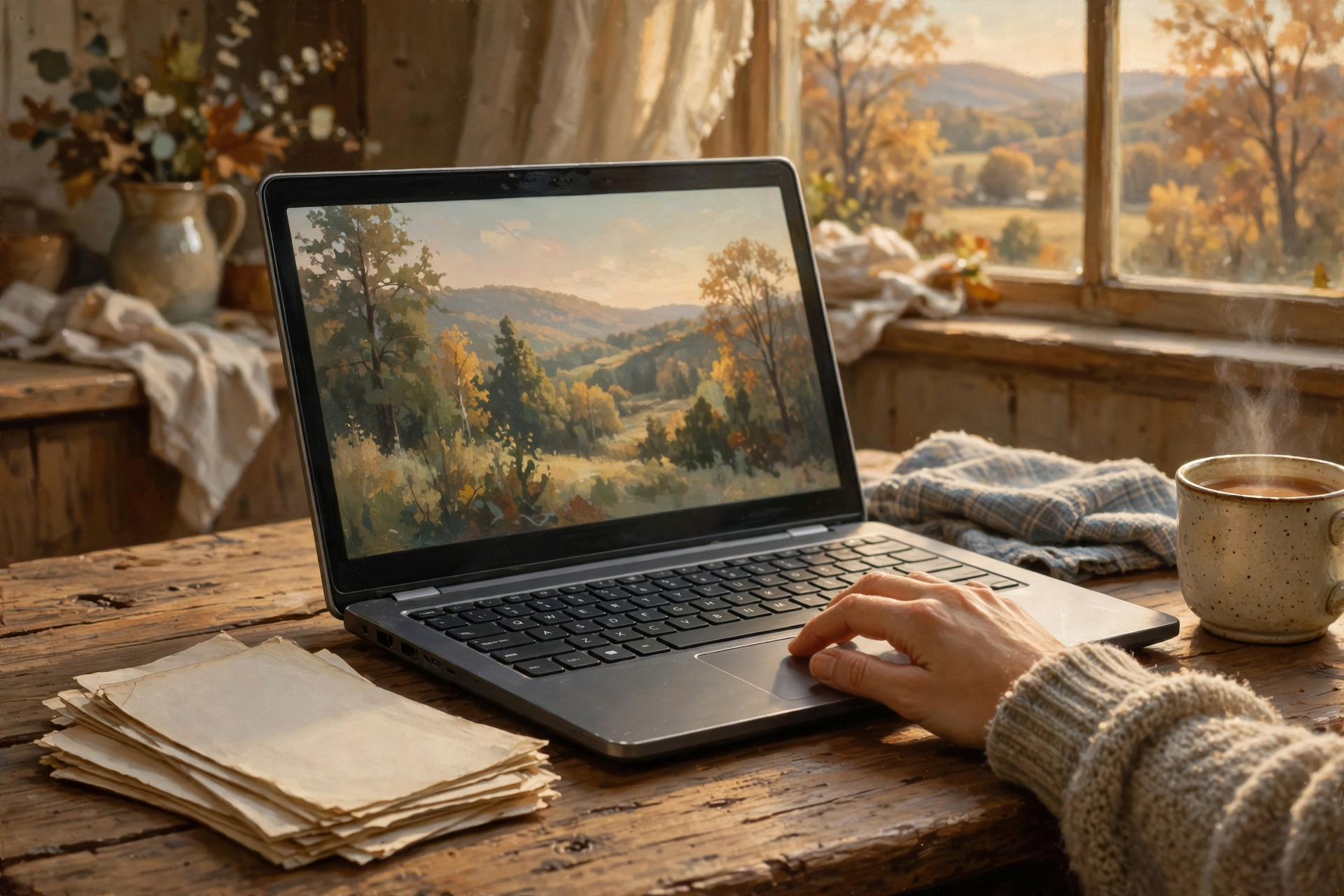
When you right-click a file or the desktop in Windows 11, you get a little menu of choices. Windows Central reported that starting with the November update, that menu gets less cluttered: extra items that other programs add are moved into their own submenu. There’s also a new “Customize menu” choice at the bottom. It opens a Settings page where you can turn commands on or off and add handy ones like “Print” and “Send to.” You can also get there through Settings → Personalization → Context menu. If you liked the old way, Windows Central says holding Shift while you right-click still shows the old menu, and you can simply keep the standard setup.
The same report says the Privacy & security page in Settings now groups the Location, Microphone and Camera controls together more clearly, so it’s easier to check which programs can use them. Like most Windows changes, these arrive gradually.
What it means for you: It’s like cleaning out the kitchen junk drawer so the scissors and the tape are right on top. If a helper sets your computer up, ask them to put Print on the right-click menu. That’s one less hunt for the folks who print recipes and boarding passes.
👉 Read more: Windows Central, 11 Windows 11 changes coming in November
💳 Gemini Can Now Look at Your Google Wallet, but Only If You Open the Door

This is a national Google announcement from Nov. 13.
Google announced on Nov. 13 that people using its Gemini AI app in the U.S. can now connect Google Wallet so Gemini can answer money questions based on their own spending. Google’s examples include charts of your spending, finding forgotten subscriptions and whether any went up in price, and setting a holiday budget from last year’s gift and travel spending. Google says people can also choose to link bank and credit card accounts to Wallet through a service called Plaid for more detail.
The key points, in Google’s own words: it’s something “you decide if and when” to turn on, under Connected Apps in Gemini’s Personal Intelligence settings; Gemini “can only read information from your accounts; it can’t move, manage, or invest your money”; and you can turn the connection on or off at any time. Google also added a Memory Summary page where you can see, fix or remove what Gemini remembers about you: Profile → Personal Intelligence → Memory Summary.
What it means for you: Connecting it is a little like handing a smart grandchild your bank statements and asking, “Where’s my money going?” That can be helpful, but it’s your choice, and you don’t have to do it. Nothing changes unless you turn it on. If you do try it, remember that AI answers can be wrong, so check any money advice against your real statement. And if you’d rather not, a pencil and last month’s statement still find forgotten subscriptions just fine.
👉 Read more: Google, Connect Google Wallet to Gemini for personal finance insights (Nov. 13)
☎️ Android Now Asks “Are You Sure?” Before a Call-Forwarding Code Runs
This is national news about Android phones from Google and Android Central.
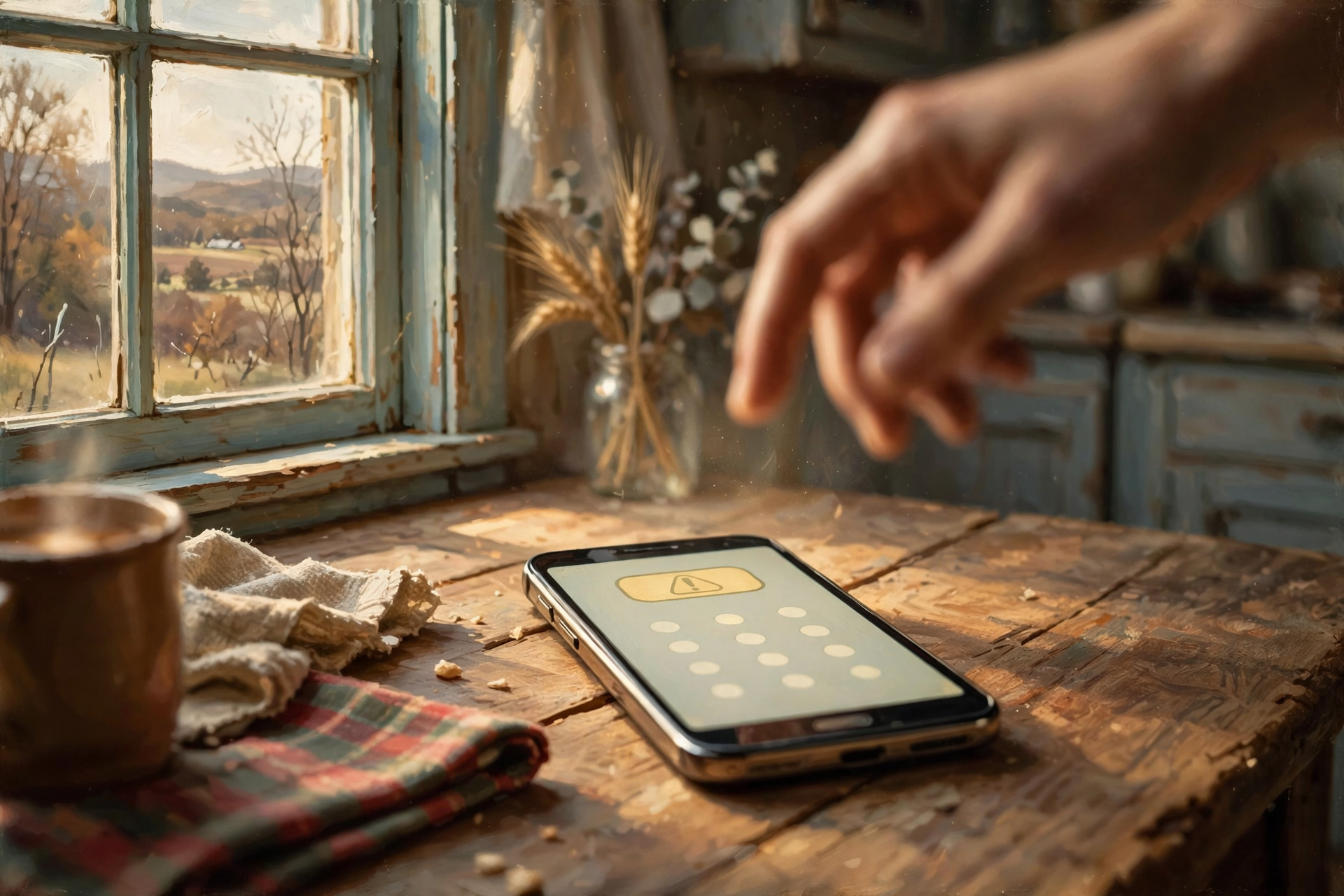
Call forwarding sends your incoming calls to a different number. It’s usually set up with a short code of stars, numbers and pound signs typed into the phone’s dial pad (Google’s example is *21#). Google explained in October that scammers sometimes try to get people to forward their calls so they can catch the one-time sign-in codes banks and email companies send by phone. Its answer: Android now stops apps from quietly turning on call forwarding, and if someone talks you into typing a forwarding code yourself, the phone warns you before it takes effect.
Android Central reported on Nov. 10 that this “confirm before running a call-forwarding code” step is part of the Android 17 QPR2 update now rolling out to Google Pixel phones (Pixel 6a and newer). The same update also blocks some risky settings changes during calls from numbers that aren’t in your contacts. Google says the call-forwarding protection reaches “Pixel and other select devices” starting early December, so Samsung, Motorola and other Android owners may see it later, depending on the phone maker. iPhone owners: this one is Android only.
What it means for you: Think of it as a second latch on the screen door. It’s nice to have, but the best protection is still the simple rule: if someone on the phone asks you to dial a code, hang up. Your bank, your phone company and the government don’t need you to type secret codes for them. If that new warning ever pops up and you didn’t mean to forward your calls, just tap to cancel.
👉 Read more: Android Central, Android 17 QPR2 is here (Nov. 10) · Google, New Android protections against mobile scams
✅ Your Sunday Tech Tidy-Up Checklist
- ✅ Find a USB cable that moves files, not just charges, and keep it by the computer.
- ✅ Practice copying a few pictures this week: plug in → unlock the phone → Photos → Import.
- ✅ iPhone: install Apple Devices from the Microsoft Store, and tap Trust only on your own computer.
- ✅ Android: when you plug in, choose file transfer or photo transfer on the phone’s pop-up.
- ✅ Plan to copy the Thanksgiving pictures the weekend after Thanksgiving. Write it on the calendar now.
- ✅ Windows 11: right-click and look for Customize menu if you’d like Print close at hand.
- ✅ Gemini and Google Wallet: leave it off unless you want it, and double-check any AI money answers.
- ✅ Someone on the phone asks you to dial a code? Hang up.
Practical rule: Two copies of every picture you’d cry over losing, and no codes typed for anybody on the phone.
— Dunlap.Today
📚 Plain-English Tech Glossary
- USB cable: The cord that plugs your phone into a charger or a computer. Some can only charge; others also carry files.
- Import: Copying pictures or files from a phone, camera or card onto your computer.
- Photos app: The picture program built into Windows. Find it by clicking Start and typing “photos.”
- Apple Devices app: Apple’s free Windows program that helps a PC work with an iPhone.
- “Trust This Computer”: An iPhone question asking whether that computer may see your phone’s pictures and files.
- AutoPlay: The Windows box that asks what to do when you plug in a phone, camera card or thumb drive.
- Right-click (context) menu: The short list of choices that pops up when you click the right mouse button.
- Gemini: Google’s AI helper app.
- Google Wallet: Google’s app for paying with your phone and keeping cards, tickets and passes.
- Call forwarding: A phone setting that sends your incoming calls to a different number.
- QPR (Android): Short for “Quarterly Platform Release,” Google’s name for its seasonal Android updates.
❓ FAQ

My computer doesn’t see my phone when I plug it in. What now?
Start with the easy things Microsoft mentions: make sure the phone is unlocked, the cable is one that transfers files, and (on Android) the phone’s USB setting is on file or photo transfer. On an iPhone, look for the “Trust This Computer?” question on the phone’s screen. Trying a different cable or USB port often fixes it too.
Do I have to copy pictures with a cable if they’re already in iCloud or Google Photos?
No. Microsoft and Apple both note that if your phone already backs up to the cloud, you can get the pictures from there. A copy on your own computer is just a second safe place, like keeping the deed in the lockbox and a photocopy in the file cabinet.
I don’t see the new AutoPlay box or the “Customize menu” choice. Did I do something wrong?
Not at all. Microsoft rolls these changes out gradually, so they may show up days or weeks after the update. Keep Windows Update current and they’ll arrive on their own.
Will Gemini start reading my Google Wallet on its own?
Google says no. You have to choose to connect it under Connected Apps in Gemini’s Personal Intelligence settings, and you can turn it off anytime. Google also says Gemini can only read the information; it can’t move money.
Is call forwarding bad?
No. Plenty of folks forward calls on purpose, like sending the house phone to a cell phone while traveling. The new Android step just makes sure you meant to do it. If you’re not sure whether your calls are being forwarded, your phone company can check for you.
I have an iPhone. Does any of this apply to me?
The cable picture-copying steps work for iPhones, and Gemini’s app is available for iPhones too. The new call-forwarding warning is Android only.
Where can I get hands-on help?
A family member or a trusted local computer helper can walk you through your first picture copy. For local folks who help with phones and computers, check Dunlap.Directory.
Other Resources

- Microsoft Support — Import photos and videos from phone to PC
- Apple Support — Transfer photos and videos from your iPhone or iPad to your Mac or PC
- Apple Support — About the “Trust This Computer” alert
- Windows Latest — Windows 11’s new AutoPlay box starts shipping (Nov. 15, 2026)
- Windows Central — 11 Windows 11 changes coming in November (Nov. 8, 2026)
- Google — Connect Google Wallet to Gemini for personal finance insights (Nov. 13, 2026)
- Android Central — Android 17 QPR2 is here (Nov. 10, 2026)
- Google — New Android protections to help keep you safe from mobile scams (Oct. 14, 2026)
- Android Developers — Android 17 QPR2 release notes (call-forwarding protection)
🌿 Keep Learning, Stay Calm

None of this week’s changes asks anything hard of you. Plug in the phone and save a second copy of the pictures that matter. Tidy the right-click menu if you like. Leave Gemini’s Wallet link off unless you want it. And let your Android phone’s new double-check back up the oldest rule there is: nobody on the phone needs you to type a code. Take it one small step at a time, and ask for help whenever you’d like it.
For more calm, clear help made for Sequatchie Valley readers, keep reading Dunlap.Today, and find local folks who can help with phones and computers anytime on Dunlap.Directory.
Know about an upcoming event or story in the Dunlap, TN area? Submit it here.




0 Comments